Wednesday, March 24, 2010

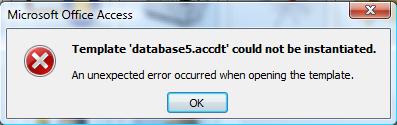
Access 2007 Bug: Template 'xxx.accdt' could not be instantiated.

There is a newly reported bug in Access 2007 which prevents the instantiation of a database (accdb) from an Access template (accdt).


Template 'xxx.accdt' could not be instantiated.
An unexpected error occurred when opening the template.

Cause:
The XML encoding of the "&" symbol when used in the name of a database object like a table, query, form, report, macro or module.

Reproduce The Error:

  1. Name a database objects (form, report, etc.) with an '&' in the object name.

  2. Create a template (accdt) from the database.

  3. Double-click the saved accdt file.

  4. The instantiation will fail when it tries to create the object.
Workaround:
Avoid using the & in any database object name.

Comments:
It doesn't appear to be an issue when an '&' is used in a control within those database objects.  It also does not seem to effect the original database or creation of the template, just instantiating a new database from the template.

Yet another good reason NOT to use non-standard characters in your object names.

Monday, March 1, 2010

New Sample: Form_A2K7_Attachments

Form_A2K7_Attachments

by A.D. Tejpal

This sample db demonstrates a user friendly approach for handling attachments in Access 2K7, without invoking the dialog box for attachment management.

As the user navigates to a given record on the sample form, names of documents held by attachment type field get displayed in a list box. Simultaneously, total count of attached documents gets displayed adjacent to the attachment control.

Appropriate command buttons provide following features:

(a) Insertion of new documents:

On clicking this command button, file open dialog box gets displayed, enabling selection of one or more files, which get added to the attachment field. Simultaneously the status of list box as well as attachment counter text box gets updated.

(b) Removal of attached documents:

Based upon selection of one or more (or all) documents in the list box, the selected items get removed from the attachment field. Simultaneously the status of list box as well as attachment counter text box gets updated.

(c) Extraction of source files from attached documents:

Based upon selection of one or more documents in the list box, source files for the selected items get extracted into a temporary folder named ZZZTemp. This folder gets created if missing and is placed in the parent folder holding the db. The status of extracted documents gets displayed in a list box adjacent to the one showing attached documents.

Note: Even if the temporary folder contains large number of extracted files pertaining to various records, only those relevant to current record get displayed in the list box.

(d) Deletion of extracted files:

Based upon selection of one or more (or all) extracted files in the list box, the selected items get deleted from the temporary folder. Simultaneously the status of list box gets updated.

(e) Opening of extracted file:

Based upon selection in the list box, the extracted file gets opened in its parent application.

Version: Access 2K7 accdb File Format
 
You can find the sample here: http://www.rogersaccesslibrary.com/forum/forum_posts.asp?TID=531
 
.
New Sample: Form_GanttChart

Form_GanttChart

By A.D. Tejpal

This sample db demonstrates depiction of Gantt charts on forms. Two styles are covered:

(a) Style A: Using Bound controls

(b) Style B: Using Unbound controls

Style A is editable. As the user enters start and end dates for various tasks, the chart string gets updated automatically. Simultaneously, the month / year markers at top get updated, duly taking into account the overall time span from start of earliest task to finish of last task.

Version: Access 2000 File Format

You can find it here: http://www.rogersaccesslibrary.com/forum/forum_posts.asp?TID=530

.

Monday, February 8, 2010

Union Query: Part 2


More Union Queries
Last time in Union Queries: Part 1, I discussed simple Union queries and some of their uses. This time I want to talk about some advanced topics, starting with Union All.

Union Vs. Union All

As you remember from last time, a Union query takes the result of one query and "appends" it to another. At the same time, it removes duplicates and orders the records on the first field in the field list.

The Union All does the same thing as the Union, but without removing the duplicates or sorting the resultset, so:

SELECT * FROM TableA
UNION ALL
SELECT * FROM TableB


Would return:

CustomerID CreditLimit
---------- -----------
1001       $500
1010       $350
1017       $375
1020       $425
1017       $375
1008       $600


The order is not determined by the base tables. The result has no order, so the records could be returned in any order.

Sorting Union Queries

So what if you want to sort your Union All or want a different sort order for your Union? Like any Select query, you can add an Order By clause to the end.

SELECT CustomerID, CreditLimit
FROM TableA
UNION ALL
SELECT CustomerID, CreditLimit
FROM TableB
ORDER BY CustomerID;


Will return:

CustomerID CreditLimit
---------- -----------
1001       $500
1008       $600
1010       $350
1020       $425
1017       $375
1017       $375


The Order By applies to the entire result. If the column names are different between queries (which, you'll remember, I said was allowable), the column names from the *first* query must be used. Order By clauses in any of the other component queries will be ignored. Only the last one will be applied.

Restricting Rows

Like any other Select query, you can restrict rows from the resultset with a Where clause. Unlike the Order By, however, each component query can have its own criteria. If you put a Where clause on the last query, it will apply to ONLY the results of the last query. So this:

SELECT CustomerID, CreditLimit
FROM TableA
UNION
SELECT CustomerID, CreditLimit
FROM TableB
WHERE CreditLimit > 500


Produces this:

CustomerID CreditLimit
---------- -----------
1001       $500
1008       $600
1010       $350
1017       $375


Since 1010 and 1017 are in TableA, they can be less than 500, whereas 1020 is in TableB, so it is restricted. If you want a Where to apply to the entire resultset, you have to put it in each query.

SELECT CustomerID, CreditLimit
FROM TableA
WHERE CreditLimit > 500
UNION
SELECT CustomerID, CreditLimit
FROM TableB
WHERE CreditLimit > 500


Tables With Unequal Numbers Of Columns

As I said, the individual queries don't have to have the same column names, nor do they have to be the same datatype, but the *number* of columns in the field list must be equal.

What if your tables have unequal columns? In that case, you need to create false columns with an alias.

So suppose you have two tables which hold much the same data, but have slightly different structures.*

TABLE A
CustomerID CreditLimit
---------- -----------
1001       $500
1010       $350
1017       $375


TABLE B
CustomerNum Credit Active
---------- ------ ------
1008       $600   Y
1017       $375   Y
1020       $425   Y


*Please Note: I am not advocating this as a good database design. In a properly designed database, you would never have two tables which stored the same type of data. However, you may find yourself in this situation if you are fixing a poorly designed database or if you are merging separate databases.

If I don't know the value of "Active" for TableA, I can leave the value NULL.

SELECT CustomerID, CreditLimit, NULL AS Active
FROM TableA
UNION
SELECT CustomerNum, Credit, Active
FROM TableB;


CustomerID CreditLimit Active
---------- ----------- ------
1001       $500
1008       $600        Y
1010       $350
1017       $375        Y
1020       $425        Y


However, if I assume all of the customers in TableA are active

SELECT CustomerID, CreditLimit, "Y" AS Active
FROM TableA
UNION
SELECT CustomerNum, Credit, Active
FROM TableB;


CustomerID CreditLimit Active
---------- ----------- ------
1001       $500        Y
1008       $600        Y
1010       $350        Y
1017       $375        Y
1020       $425        Y


Because Union Queries cannot be viewed in the Query Builder, they are often over looked by Access novices, but they are a powerful tool to have in your SQL arsenal.

.

Monday, February 1, 2010

Union Query: Part 1

Simple Union Query

Introduction

In Microsoft Access, a Union Query is an SQL Specific query, which means it can only be written in SQL. It cannot be created or edited in the Access Query Builder. Novices often confuse UNIONS with JOINS.

Joins (see What is a Join: Part 1 and subsequent posts) combine two (or more) tables row-wise, that is, the results of matching information will be displayed on a single row.

Unions, on the other hand, combine tables column-wise, that is, the results of one SQL statement will be "appended" to the results of another as additional rows. In essence, a Union sticks the results of one query on to the bottom of another.

The structure of a Union Query is very simple. It is two or more queries with the UNION keyword in between. For instance:

SELECT Field1, Field2 FROM Table1
UNION
SELECT FieldA, FieldB FROM Table2

As you can see from the example, the field names do not need to be the same. The column name in the result will come from the first query. The fields don't even need to be the same datatype. In the query above, Field1 could be an integer, Field2 a date/time, FieldA a text field, and FieldB a currency field.

The only real requirement is that there must be an equal number of columns in each of the component SQL statements. If there are different numbers of fields in the field lists, an error will occur.

One important thing to remember about the Union is that it is non-updateable (for more on this see: (This Recordset Is Not Updateable. Why?). As a result, Unions are useful for displaying data, but not for entering or editing it.

Union Example

One of the most common uses for a Union query is to consolidate tables.
For example, imagine a situation where you have similar datasets from 2 different sources, and you want to consolidate/synchronize/merge them:

TABLE A

CustomerID CreditLimit
---------- -----------
1001       $500
1010       $350
1017       $375

TABLE B

CustomerID CreditLimit
---------- -----------
1008       $600
1017       $375
1020       $425

This query:

SELECT CustomerID, CreditLimit FROM TableA
UNION
SELECT CustomerID, CreditLimit FROM TableB

Will produce this result:

CustomerID CreditLimit
---------- -----------
1001       $500
1008       $600
1010       $350
1017       $375
1020       $425

The Union combines the two tables, while at the same time removing the duplicate records. The Union also sorts the recordset on the first column, in this case CustomerID.

Since TableA and TableB have the same number of fields, I could also have done this:

SELECT * FROM TableA
UNION
SELECT * FROM TableB

To actually consolidate the tables into a single table, save the query (say, CustomerUnion), then use it as the table in a Make-Table query.

SELECT * INTO TableC FROM CustomerUnion;

Or use the Union Query in the "From" clause of the Make-Table:

SELECT * INTO TableC
FROM
(SELECT * FROM TableA
UNION
SELECT * FROM TableB)
AS CustomerUnion;

(I'll discuss using a query in the From clause in more detail in a later post.)

Other Uses

There are many applications for the Union Query. One is in the Access implementation of a Full Outer Join (which I will address in a later post). But one very common use is in the Row Source of Combo Boxes.

Suppose I have a combo box to filter records on a form by Customer Name.


My Row Source for the combo could look like this:

SELECT CustomerID, CustomerName FROM Customer;

But suppose I want the combo to have an option to choose all records.


I can use a Union query in the Row Source to add artificial records to the drop down list:

SELECT "*" as CustomerID, "All" as CustomerName FROM Customer
UNION
SELECT CustomerID, CustomerName FROM Customer;

This will produce a result of

CustomerID CustomerName
---------- -----------
*          All
1010       Carlson
1017       Smith

With CustomerID as the bound column in the combo box, I can use a query like:

SELECT * FROM TableA
WHERE CustomerID Like '" & Combo1 & "'"


to filter my form.

Next time, I'll look at some advanced topics with Union Queries.

.

Monday, January 18, 2010

Action Queries: Make-Table Query


Action Queries

Action Queries, also known as Data Manipulation Language (DML) statements, do not return a dataset like Select Queries, but makes changes to the data in the base tables. There are four types of action queries: Delete Queries, Update Queries, Append Queries and Make-Table Queries. In previous posts, I discussed the Delete Query, the Update Query, and the Append Query. In this last post of the series, I'll look at the Make-Table Query.

Make-Table Queries

A Make-Table Query is a shortcut method to create a table based on values in another table. In SQL, it's called a SELECT...INTO statement. The basic syntax looks like this:
SELECT ISBN, Title, PubID, Price INTO BooksTemp
FROM Books;

 In the Query Builder:

In properly normalized databases, there aren't a lot of uses for the Make-Table Query. It's most important use is for creating temporary tables. Sometimes, complex queries can be simplified or their performance improved by creating a smaller, temporary table. The Make-Table is ideal for this application.
However, make-table queries do have some disadvantages. First of all, they tend to bloat the database. Every time you make a temporary table, your database grows. When you delete it or over-write it, the database doesn't automatically shrink. This will require that you periodically compact your database.
Secondly, you don't have a lot of control over the structure of a table made with a make-table query. These tables automatically inherit the field datatypes and sizes from the parent table, but it does not inherit any other field properties (like validation rule or defaults), nor does it inherit any indexes.

Running a Make-Table Query

There are two buttons for running Action Queries: The View button displays the results of the query, that is, which records will be updated. The Run button actually appends the records to the target recordsource.
.

Wednesday, January 13, 2010

Featured Sample: Unbound SQL

UnboundSQL.mdb

by Roger Carlson

This sample illustrates how to use UNBOUND controls to add, delete, and edit records in a table using SQL statements. Companion sample for the Action Queries Series.

You can find the sample here: http://www.rogersaccesslibrary.com/forum/forum_posts.asp?TID=228.

.