Showing posts with label Tips and Tricks. Show all posts

Friday, March 10, 2017

How Do I Decompile a Database?


In order for any program code to be run by a computer, it must be converted to machine-readable code. This code is called Object Code. The text version of this program that you and I can read is called Source Code.

In Access, the process of producing Object Code from Source Code is called "compilation". Whenever code is run for the first time in Access, the code is first compiled. (You can also compile it yourself by pushing the compile button). The only place you can make changes to code is in the Source Code, which must again be compiled into Object Code.

Occasionally, code can be deleted from the Source Code, but for some reason is never removed from the Object Code. This code is never again seen on the screen as text, but is still sitting there somewhere in the database file. This can, at times, interfere with the normal operation of the program.

To remove these stray bits of code, you can "Decompile" your database and then re-compile it. This process removes all of the compiled Object Code, then when you re-compile it, you only get Object Code that reflects the current Source Code.

To Decompile your Access database, do the following:

  1. Click the Start button on the task bar and choose Run
  2. In the Run dialog box, type the following:
    "C:\Program Files\Microsoft Office\Office\Msaccess.exe" /decompile
    where the first part (in quotes) is the complete path to your Access program. If you have the default installation, it is likely that it is just as listed here. Click OK.
    Note: if you have Windows Vista, just type the command line in the Start Search box of the Start menu.
  3. This will open Access and allow you to choose which database to open. Whichever database you open will be decompiled.
  4. Choose a database and open it. Access 97 used to give you a dialog which told you the database had been decompiled, but newer versions do not. Nevertheless, the database has been decompiled.
  5. Open any Module in design view, or any Form or Report in design view and choose View > Code from the menu. In the next screen, choose Debug > Compile from the menu bar.
    Note: In Access 2007, you can also choose Database Tools on the ribbon, then select Visual Basic. Then choose Debug > Compile.
  6. Your database has now been Decompiled and Re-compiled.

Creating a Shortcut:

I use decompile quite frequently, so instead of typing the command line into the Run box, I've created a shortcut on my desktop. There are several ways to create a shortcut, the easiest is to use the Shortcut Wizard.

Right-click anywhere on your desktop and select New > Shortcut. The wizard will give you a dialog box allowing you to browse to the file you want. It should be the same as above in Step 2. Once you've browsed there, add the "/decompile" switch to the end as shown below. Be sure to separate the decompile switch from the file path with a space. It will look as follows:


Click Next.

It will ask to name your shortcut. Choose something descriptive like Decompile Access 2003. And click Finish.

The finished shortcut will look like this:


Now when I want to decompile a database, I just click the shortcut and start with Step 3 above.


.

Tuesday, March 7, 2017

Access 101: How Do I Replace System Error Messages With Custom Messages?

Access provides a number of error messages, but many are confusing to the users. I find it sometimes useful to replace the system error messages with custom error messages. The Null primary key is a case in point.

When you try leave a record on a form without a primary key value, the form will display the following error.

But you might want to replace this with your own error message, identifying the actual field.

At it's simplest, you can use the Form_Error event to trap for this and otherrecord-level errors. Something like this:

Private Sub Form_Error(DataErr As Integer, Response As Integer)

If DataErr = 3058 Then
MsgBox "You must give Account Number a value."
Response = acDataErrContinue
Else 'msgbox DataErr
Response = acDataErrDisplay
End If

End Sub

3058 is the error number for the null primary key. The "Else" section will let any other error display the normal system error message.
If you want to know the number for another error, just un-comment the msgbox and you'll get the error number. Add any additional errors as an ElseIf.

Other errors you can trap:

Limit to List: 2237
Input Mask: 2279
Required field: 3314
Validation Rule: 2107
Bad Data Value: 2113

Wednesday, March 1, 2017

Access 101: How Do I Bypass Start Up Options?

In a previous post, ( How Do I Configure My Database Start Up? ) I discussed how to set Start Up options for Access. But what if you want the database to open without running those options?

Access provides a Bypass Key to do this. Simply hold the Shift Key while opening the database, and the start up options will not run. Depending on your security settings, you might see one or more security messages. You must continue to hold the Shift Key down while you answer the security messages.

It is also possible to disable the Bypass Key if you don't want your users to be able to bypass the options. To do this, set the AllowBypassKey property to False in a macro or VBA module.

Here are some of good, advanced resources:


But be careful. It's possible to lock yourself out if you don't know what you're doing. In general, I discourage novice users from turning off the bypass key until they know more about the implications of doing so. At the very least, test it on a copy of your database.

Tuesday, February 28, 2017

How Do I Configure My Access Database Start Up?


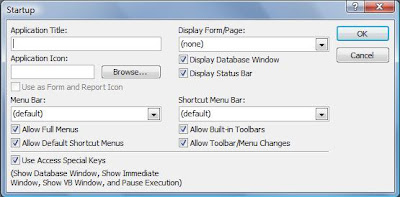
Access allows you to configure several things on database start up. For instance, you can hide the Navigation Pane, launch a splash screen or a switchboard form, set an Application Title, set an Application Icon, and several other things.

Access 2010 an 2013

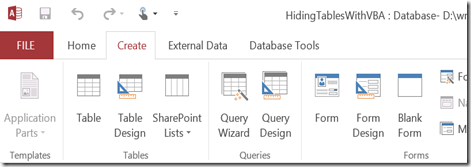
Go to the File Tab (upper left),

image

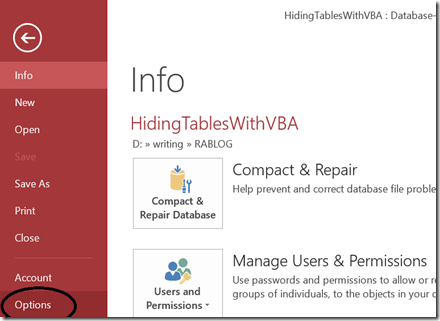
and choose Options.

image

In the Access Options dialog, choose Current Database.

image

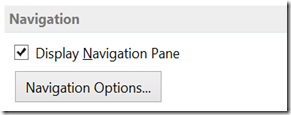
At this point, the form is fairly self-explanatory. To set an application title, simply type it in the Application Title box. To have a certain form open on start up, select that form in the Display Form combo. To hide the Navigation Pane, scroll down and uncheck Display Navigation Pane.

image

You can also allow or disallow special keys, menus, or shortcuts; turn AutoCorrect on or off; modify the Navigation Pane; change window style between Overlapping or Tabbed; and control many other properties. Play around and see how it works.

Access 2007

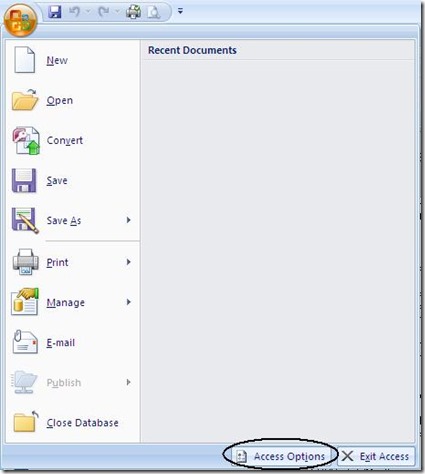
Access 2007 is similar.  Go to the Office “pizza” Button (upper left), and choose Access Options at the bottom of the form. From this point most everything is the same.

2007


Access 2003 and earlier

Open the Database Window and right-click on any Object. You will get a context sensitive menu. Choose Start Up.... You will see the following dialog box.


Thursday, July 24, 2014

Ambiguous Outer Joins

To see a video of this article, click here: Ambiguous Outer Join Error


Thanks to Webucator for creating this video. https://www.webucator.com/microsoft-training/access.cfm

The Outer Join can be a powerful tool for querying data in Microsoft Access. When you have only two tables, there is usually no problem. When there are more than two tables, however, using an Outer Join becomes more complicated. Sometimes Access allows it, and sometimes it gives you the not-very-descriptive "Ambiguous Outer Join" error.

Why? Well, first we'll look at what an Ambiguous Outer Join is, and then see how to correct it.
Microsoft Access has three types of joins: the Inner Join, the Right Join and the Left Join. Both the Right and Left joins are known as Outer Joins. An Inner Join shows only those records that exist in both tables. However, an Outer Join (both Right and Left) shows all of the records from one table (the Base Table) and just the matching records from the other (Secondary Table).
When Access processes a multiple table query, it needs to determine the order in which joins should be made. Should it join Table1 to Table2 first and then join Table3? Or should it do it in some other order? This is part of the Rushmore technology of the Jet engine. It tries to determine the most efficient way to process the query.

In the case of standard Inner Joins, the result set will be the same, regardless of the order in which they are joined. However, this is not the case with Outer Joins. There are times, when using an Outer Join, that the result of the query will be different depending on the order in which joins are created. In this case, Access cannot determine the order to join the tables. This is an Ambiguous Outer Join.
So how do you know when an Outer Join will result in an error? The easiest way to understand it is in terms of what you see in the Query Builder grid.

A table which participates in an Outer join as a Secondary Table (that is, the arrow is pointing *towards* it) cannot participate in either an Inner Join, or as a Secondary Table in another Outer Join. Figure 1 shows two types of queries that will result in an Ambiguous Outer Join error.
Figure 1: Two illegal Outer Join Queries
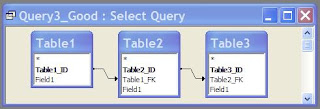
However, the table participating in the Outer Join as a Secondary Table can participate in another Outer Join if it is the Base table of the other Outer Join (that is, the arrow points *away* from it). Figure 2 shows a query that will not result in an Ambiguous Outer Join error.
Figure 2: A legal Outer Join Query
So what do you do if you need to create a query like case 1 or 2? You have to split the query into a stacked query, that is, two queries, the second of which uses the first. This is exactly what the Ambiguous Outer Join error message suggests.

Create a query joining the first two tables with an Outer Join and save it as a named query (i.e. Query1). Then, in a second query, join the first query to the third table.
Figure 3 shows how to build a stacked query.

Figure 3: Shows how to split the query into two queries to avoid an Ambiguous Outer Join.
So the Ambiguous Outer Join error is not really all that confusing. It simply means that the database wants you to decide which join it should create first. In Access, you do this by spitting the query into a stacked query.


Thursday, June 20, 2013

You CAN use quotes as a text value delimiter in T-SQL

SET QUOTED_IDENTIFIER OFF

Even though I said in a recent post (Access SQL Delimiters vs. T-SQL Delimiters), that T-SQL uses only the apostrophe (') as a text delimiter, that's not entirely true. It IS possible to use the quote (") as a text delimiter, just like Access. To do this, you must set a T-SQL option called QUOTED_IDENTIFIER to OFF. This must be done at the beginning of the pass-through query:

SET QUOTED_IDENTIFIER OFF

SELECT MyTextField, MyDateField, MyIntField
FROM dbo.MyTable
WHERE MyTextField="Roger Carlson";

SET QUOTED_IDENTIFIER ON

Because T-SQL (and therefore pass-though queries) allow multiple statements to execute, you can turn the option off, and then back on again in the same query.

Please note that I DID set the option back on at the conclusion of the query. That's because it will set it OFF for every pass-though query in this Access session, and you may not want that. It is always best to set an option back the way it was to avoid confusion.

This can be useful when you are converting an Access SQL statement (that has a lot of delimited text values) to T-SQL.

SELECT MyTextField, MyDateField, MyIntField
FROM dbo.MyTable
WHERE MyTextField IN ("Roger Carlson", "Sue Carlson", "Bob O'Brien");

Instead of replacing the quotes with apostrophes (remembering that Access Query Builder does not have a find and replace feature), you can simply bracket it with the QUOTED_IDENTIFIER option.

SET QUOTED_IDENTIFIER OFF

SELECT MyTextField, MyDateField, MyIntField
FROM dbo.MyTable
WHERE MyTextField IN ("Roger Carlson", "Sue Carlson", "Bob O'Brien");

SET QUOTED_IDENTIFIER ON

Tuesday, April 23, 2013

How Do I Hide A Form But Leave It Running?

There are times when it is preferable to hide a form, in other words to have it open but invisible.
  1. Global Variables:
    There are circumstances under which global variables lose their values in Access. These circumstances are not common, but they happen often enough to be of concern. One way around this problem is to create a hidden form with unbound controls, each of which would hold the value of one of your global variables. So instead of using a global variable, you set and reference the value of a control on the form.
  2. Timer events:
    If you want run a process at a particular time or multiple times throughout the day, you can create a timer event in a form. This form must be open in order for the timer event to fire. So to keep this form active, but out of the way, you can hide it.
  3. Performance:
    Some forms take a long time to load. This may be because it has a large, bound dataset, or it may be a complex form with several subforms. Whatever the reason, once the form is loaded, it makes sense to not close it again.

There are several ways to hide a form. The one you use depends on what you're trying to accomplish.

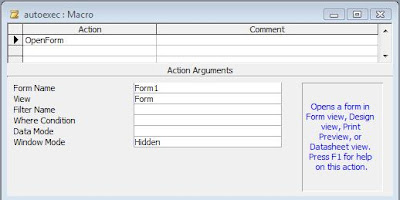
If you're using the form for global variables or a timer event (or both), the simplest thing is to open it in Hidden mode. To do that, create a macro and name it AutoExec. (see How do I run a macro or code when the database first starts? ). The AutoExec macro is a special macro that will automatically execute when the database opens. In this macro, you'll want to choose the OpenForm action, name the form, and choose Hidden in the Window Mode property.

Like this:
Access 2010-2013
image
 
Access 2000-2007
If some of your forms take a long time to load, however, this is not a good method. It will appear as if Access has frozen while the form or forms load at Start Up. In such cases, it is preferable to create a Splash Screen. A Splash Screen is simply a form which tells the user that the database is opening and to wait. This gives the user feedback and reassures them that everything is functioning normally.

I'll discuss splash screens in a later post.

But once the form is open, it makes sense to hide it rather than close it. To do that, you can use a button. I usually use the button wizard because it creates the button's Onclick event code with error trapping automatically. I use the Form Close wizard, which has a single line of code:

DoCmd.Close

I will replace that with the following:

Me.Visible = False

The next time you "open" the form, it will simply make the already open form visible.   So instead of opening a Form, you can instantly by make the form visible and set the focus on it like this:

Forms("MyFormName").Visible = True

Forms("MyFormName").SetFocus

Friday, July 22, 2011

Showing Query Parameters in a Report

A parameter query is one which asks the user for input.  For instance, suppose I have a query that pulls records for a date range. Suppose further, I want the query to ask me for a Start Date and End Date for the range.  I can create a query like this:

SELECT * FROM MyTable WHERE TheDate BETWEEN [Enter Start Date] AND [Enter End Date]

Running this query will bring up two dialog boxes:

image  image

Entering the values in the boxes will return the records in that range.

But if I create a Report based on this query, how do I show the selected date range?  After all, reports show information from records in the query’s record source, and Parameter values aren’t included.

There are a couple of possibilities.

Method 1: Read Parameters Directly

The first is to read the parameter directly.  To do that, I just put a text box on my report for each query parameter. In the control source for the text boxes, I put the query parameter preceded by an equal sign.

For instance, in the case of the above query, the control sources for my two text boxes will be:
=[Enter Start Date] and =[Enter End Date]

Alternately, I could have a single text box with your dates concatenated:
=[Enter Start Date] & " - " & [Enter End Date]

I can also fancy it up a bit like this:
=”Date Range: “ & [Enter Start Date] & " to " & [Enter End Date]

Method 2: Read Values Returned

The second option is to read the actual minimum and maximum values from the records in the record source.  I can use the Min and Max functions of the report to do that.  Again, in the Control Source property of a text box:

=Min([Enter Start Date]) & " - " & Max([Enter End Date])

I can, of course, put them in separate text boxes as well.

Comparing The Methods

So what’s the difference between the two methods?

The first method returns the date range requested.  The second method returns the date range actually returned.

Isn’t that the same thing?  Not necessarily.  Suppose I request data from 1/1/2010 to 7/1/2011, but my table only has data starting with 2/1/2011.  The first method will return 1/1/2010 to 7/1/2011 (what I requested).  But the second method will return 2/1/2011 to 7/1/2011 (what’s actually in the record source of the report).

Thursday, June 30, 2011

Microsoft Releases Office 2010 SP1

Office 2010 Service Pack 1 has been released by Microsoft.  See MS Knowledgebase article: http://support.microsoft.com/kb/2460049.  The service pack can be downloaded from the article as well.

The main improvements to Access appear to be in the area of bug-fixes and stability.  There are only three improvements listed in the KB article, but in the downloadable fix list there’s a much longer list of fixes.

Everybody has different priorities, but to my mind, here are some of the more important problems that were fixed:

  • Access does not activate or return the user to the correct Ribbon tab for a previously opened database object when the user returns to that object.
  • Access Wizards are not loaded correctly when "Disable all controls without notification" is selected in Trust Center.
  • The program crashes when you apply a sort to a query that is based on a multi-value field.
  • "Reserved error -5500" occurs when you try to run a cross-tab query that would generate null values in the column names of the query.
  • "Object invalid or no longer set" error occurs when you try to use an ALTER TABLE query to change a field type or size.
  • You cannot relink tables in Access databases that have linked tables to other MDBs/ACCDBs that cannot be found
  • The file format that is displayed in the title bar for Access 2010 databases is "(Access 2007)."
  • Incorrect data is displayed when a user's query has a list that includes a combination of GroupBy and either OrderBy or Where
  • "Invalid precision for decimal data type" or results are truncated when the user runs a crosstab query.

There are also a lot of “crash fixes”, all of which are important.

Thursday, December 2, 2010

Should I use the Compact On Close feature of Access?

I generally try to dissuade people from using the Compacting on Close feature of Microsoft Access, especially in a multi-user environment. Why?

Well, there are a variety of problems.

First of all, if your database bloats so quickly that it needs to be compacted every time it closes, then you have a design issue that should be addressed. See my blog post: How can I How Can I Compact my Access Database Less Often?

The two major causes of bloat are 1) importing data to a temporary table for processing and 2) creating temporary, intermediary tables with Make-table queries or other methods.

The data import problem can be addressed by linking a table or file for processing rather than importing it. If it can't be linked, it can be imported into a second, temporary database and then linked. This temporary database can be deleted later. I have a sample on my website called ImportToTempDatabase.mdb, which illustrates how to do this.

The problem of intermediate tables can also be solved by use of a temporary, local database which you create at startup and delete on database close. The solution is similar to the data import solution.

Secondly, compacting a database that doesn't need it will actually slow down the database some.  Not a lot, perhaps, but some.  Every database needs working space that Access has to create.  If your database grows a lot on first opening. but then very little on subsequent uses, this isn't bloat. It's the normal working space that your database needs.  Removing that working space every time you close the database requires Access to create it again the next time you use it.

Thirdly, it may be useless. A majority of Access databases are (or should be) in a Front-End/Back-End (FE/BE) configuration. This is often called a "split" database, where the tables reside in a separate database from the one which holds the queries, forms, reports, and code. Compacting on Close will only effect the database actually being used, which in most cases is going to be the FE. Unfortunately, it is the BE where the bloat actually occurs, so at best, compacting on close is useless, at worst, it's actively dangerous. Which leads me to the next point.

Fourth, and most importantly, there is a chance of database corruption any time you compact the database.  Admittedly, with more reliable networking hardware and software, this chance is smaller than in years past, but it's still there.   A small database on your local drive probably has little chance of corruption.  However, even a single-user database if it's very large and on a network has a chance of some network glitch causing the whole compact/repair to fail.  A failure during a compact means the database is toast.  There is no recovery.

A large, multi-user database on a network has a much greater chance of failure. 

So, I prefer to do a compact as a deliberate action rather than a hidden default.  Often, when compacting a large database on the network, I will copy it to my local drive, compact it locally, then upload it back to the network.  This gives me a backup in case anything goes wrong.

Also, if you compact the database programmatically (I have samples on my website: CompactDatabase.mdb and CompactBackEndDB.mdb), you have control to make a backup if you wish.


Monday, August 2, 2010

Access 2010: Detect and Repair

Starting with Office XP, Microsoft introduced the Detect and Repair feature for all Office applications.  This is different than the Access Compact and Repair in that it detected and repaired problems with the Office application itself (Word, Excel, Access, etc.) rather than a particular file.

In a way, it was like launching the Office Repair from Control Panel > Add/Remove Programs, except it targeted just the application you launched it from.  If launched from Word, it would repair only Word.  If launched from Excel, it would detect and repair problems in Excel only.  If...well you get the idea.

Once launched, it brings up the Detect and Repair Wizard, which looks something like this:


In Access XP and Access 2003, Detect and Repair was launched from the Help Menu.


In Access 2007, they changed it to a more comprehensive utility called Microsoft Office Diagnostics, which is launched from Office Button > Access Options > Resources Tab > Diagnose.


As far as I know, however, the option is not available in Access 2010, either from the menu system or the Ribbon.  You can, however launch it in code:

Application.CommandBars.FindControl(ID:=3774).Execute

This will launch the original Detect and Repair.
 

If you want to add it to the Ribbon, you'd have to put the code in a function in a general module:

Function Detect_Repair()
Application.CommandBars.FindControl(ID:=3774).Execute
End Function
 
Create a macro that runs the function:
 

And lastly, add the macro to a custom group on the Ribbon.
 
.

Tuesday, July 20, 2010

Access 2010: Unrecognized Database Format

I've been seeing more and more people having problems with the Unrecognized Database Format when creating or modifying an Access 2007 (accdb) format database in Access 2010 and then trying to open it again in Access 2007.

The issue appears to be that Access 2010 does not have its own file format.  When you add a feature that is specific to A2010 (like the navigation control, data macro, or calculated column), that file becomes forever unreadable to A2007, even if the new feature(s) are removed.  The solution appears to be:
  1. Remove all the new features from the file in A2010
  2. Create a new, blank accdb format database in A2010
  3. Import all the objects from the old database to the new. 
The file will then be readable by A2007.  The following link explains it more in detail: http://msdn.microsoft.com/en-us/office/cc907897.aspx.

I'm told that it is also possible to make the original file A2007 readable by removing the A2010 features and then making a minor edit to the file in a Hex editor.  But I'd be wary of that approach.  Importing the objects to a new database is safer, more reliable, and frankly simpler.

Wednesday, June 2, 2010

CreateDatabase Problem in Access 2007 MDB

I ran into an interesting situation that I thought might be interesting to blog.

I have an Access 2003 format database that I am running in Access 2007 (my company recently upgraded, but I'm keeping the MDB file format for now).  In it, I have a line of VBA code like this:

Set db = CreateDatabase("C:\MyDatabase.mdb", dbLangGeneral)

It creates a blank Access database for me to export data to.  The database created is used as a back-end database for another MDB, that is, the tables are linked into another database application, which is also in 2003 format.

In this other front-end, I've started getting errors that said:

Microsoft Office Access does not support linking to an Access database or Microsoft Office Excel Workbook saved in a format that is a later version than the current database format.


This is odd because I'm working all in the Access 2003 MDB format.  But when I investigated, it turned out that the database created with the above code was an ACCDB format database (Access 2007) but with an MDB extension.  I can tell because if I open it, the LACCDB locking file is created.
 
In retrospect the problem is obvious.  The CreateDatabase method creates the database in the default format, which for Access 2007 is dbVersion120.  So I needed to specify the format I want:
 
Set db = CreateDatabase("C:\MyDatabase.mdb", dbLangGeneral, dbVersion40)
 
.

Friday, April 2, 2010

Access 2007 Bug: Scroll Navigation Pane

There is a known bug with Access 2007 SP2 that involves scrolling the Navigation Pane.

If you click the scroll bar or press PgDn to move down the list, it moves one page worth, then keeps moving a few more times over several seconds.  This happens only in the "Details View" or "Icon View" of the Nav Pane.

There is a hotfix available here: http://support.microsoft.com/kb/973405.

.

Wednesday, March 24, 2010

Access 2007 Bug: Template 'xxx.accdt' could not be instantiated.

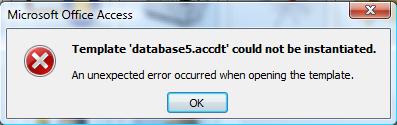
There is a newly reported bug in Access 2007 which prevents the instantiation of a database (accdb) from an Access template (accdt).


Template 'xxx.accdt' could not be instantiated.
An unexpected error occurred when opening the template.

Cause:
The XML encoding of the "&" symbol when used in the name of a database object like a table, query, form, report, macro or module.

Reproduce The Error:

  1. Name a database objects (form, report, etc.) with an '&' in the object name.

  2. Create a template (accdt) from the database.

  3. Double-click the saved accdt file.

  4. The instantiation will fail when it tries to create the object.
Workaround:
Avoid using the & in any database object name.

Comments:
It doesn't appear to be an issue when an '&' is used in a control within those database objects.  It also does not seem to effect the original database or creation of the template, just instantiating a new database from the template.

Yet another good reason NOT to use non-standard characters in your object names.

Wednesday, September 17, 2008

What is Microsoft Access?

Microsoft Access® is the most popular database product on the planet. People argue about what this means exactly, but it is clear that more people use Access (the actual product) than any other database management system.

But many people don't realize that Access is not just one product, but a suite of tools integrated into one product. In other databases, these tools are separate programs, some of which must be purchased from a third-party. Together, these tools make Access one of the most powerful database products in existence.

Now, some may scoff at this. They would say that Access is just a tinker toy compared to a "real" database like Oracle or SQL Server. But that is just ignorance speaking. It is true that the database component of Access (the Jet database engine) is limited in terms of size, speed, and number of users. However, the Jet engine is only one part (and not the most important part, in my opinion) of Access.

So let's look at the component parts of Access:

First of all, as I already mentioned, there is the Jet database engine. In fact, there are two different versions of Jet. There is the traditional version (mdb) which has been around since version 2.0. With Access 2007, there is a new version, the Access Database Engine (accdb). Although it has limitations, it is nonetheless a fully functional relational database management system.

Secondly, there is the Access User Interface (AUI). This is the part of Access that the user sees when they open a table. With the AUI, a user can create tables, modify tables, add data, modify data, and create filters to view data. In SQL Server, this functionality is done in the SQL Server Management Studio (SSMS) or the older Enterprise Manager. In fact, the original Enterprise Manager was patterned after the Access UI.

Third, there is the Query Builder. This is an ad hoc querying tool. Queries can be built in the graphical user interface (gui) or directly in standard SQL. Access does not have "Views" like SQL Server does, but it does have "Select queries" that server the same function. In addition, Access has Data Definition Language (DDL) queries that create and modify table structure, Data Manipulation Language (DML) queries that display or modify data. In SQL Server, you would need a tool like Query Analyser or SSMS to accomplish this.

Another type of query Access uses is the Pass-through Query. A pass-throrgh query bypasses the Jet engine altogether and passes the query on to a linked source like SQL Server. The versatility of Access connet to and manipulate data from various data sources is truly astounding.

Fourth, Access has a built-in application generator. This itself consists of several parts.
  1. Forms builder. Access allows you to create form in much the same way as Visual Basic. However, Access forms are much easier to create and the controls available are specific to database development.
  2. Report builder. At some point you have to report the data in your database. In Access, you do this in the report builder. In SQL Server, you would have to use a separate product like SQL Server Reporting Services or Crystal Reports depending on how you want them published.
  3. VBA modules. All database applications require a procedural language at some point. There are just some things that can't be done in SQL. In Access, this capability is provide in Visual Basic for Applications modules, both general (global) modules and programming behind the forms and reports (class modules).

Creating an application in another database, SQL Server for instance, would require multiple products: SQL Server as the data engine, SSMS to create and modify tables, Query Builder to run ad hoc queries, Visual Basic to create the application, and Crystal Reports for reporting. In Access, you get it all in one.

So you can see that Access is really a Rapid Application Development (RAD) product than it is a database. In fact, Access might more accurately be called an application generator with a complementary database provided.