Showing posts with label Access 101. Show all posts

Friday, February 1, 2019

How Do I Turn Off Compact On Close and Name Auto Correct in Access on Start Up?

Create a function called SetMyOptions()

Function SetMyOptions()
'turn off Compact On Close
    Application.SetOption "Auto compact", False

'turn off Name Auto Correct
    Application.SetOption "perform name autocorrect", False
End Function
Run this function in an AutoExec macro.


How do I run a macro or code when the database starts?

Monday, January 28, 2019

How Do I Disable Layout View for Forms and Reports in Access at Start Up?

Create a function called SetMyOptions()

Function SetMyOptions()
'disable Layout View for forms and reports
    Application.SetOption "DesignwithData", False
End Function
Run this function in an AutoExec macro.


How do I run a macro or code when the database starts?

Monday, January 21, 2019

How Do I Maximize an Access Database at Start Up?

Create a function called SetMyOptions()

Function SetMyOptions()
'maximize Access
    Application.SetOption "maximized", True
End Function
Run this function in an AutoExec macro.


How do I run a macro or code when the database starts?

Monday, January 14, 2019

How Do I Minimize the Ribbon In Access at Start Up?

Create a function called SetMyOptions()

Function SetMyOptions()
'minimize Ribbon
     If Not (CommandBars("Ribbon").Controls(1).Height < 100) Then
        CommandBars.ExecuteMso "MinimizeRibbon"
     End If
End Function
Run this function in an AutoExec macro.


How do I run a macro or code when the database starts?

Monday, January 7, 2019

How Do I Minimize the Access Navigation Pane on Start Up?

Create a function called SetMyOptions()

Function SetMyOptions()
'Open Nav Pane collapsed
    CurrentDb.Properties("Startupshowdbwindow") = False
    SendKeys ("{F11}")
    SendKeys ("{F11}")
End Function
Run this function in an AutoExec macro.


How do I run a macro or code when the database starts?

Thursday, November 9, 2017

Bang Vs. Dot in Forms

In a previous post (Bang Vs. Dot In DAO), I wrote about the difference between the Dot (.) and the Bang (!) in DAO. It's pretty straight forward. Dot is used to separate one level of the DAO hierarchy, separating an object from its methods and properties. Bang is used to separate an object from the collection in which it is contained.

This is true as far as it goes, but two types of objects in Access, Forms and Reports, muddy the waters considerably. Because form and reports are classes, controls on them are members of both the Objects Collection and a property of the form or report itself.

You can verify this by creating a new form or report object and looking at the Object Browser in the Visual Basic Editor.

(While it works the same on reports, I'm going to concentrate on forms for the moment.)

Create a new form: Form2 with no controls or Record Source. Open the Visual Basic editor and push <F2> to open the Object Browser . To the right, you'll see a list of Classes and Members. These members represent the properties and methods and properties of the selected Class. Access creates a number of default methods and properties which I'll ignore for now.

Next, create a new table: Table1(Table1ID, Field1, Field2). (See Figure 1)

clip_image002

Figure 1: Table1

(Note: throughout this post, my form's name will be MyForm and the control is called ControlName -- it could be any control, a textbox, combobox, label, or whatever)

Make this table the RecordSource for Form2. Table1ID, Field1, and Field2 appear in the member list. This demonstrates that the fields in the record source behind the form are properties of the form. See Figure 2.

clip_image004

Figure 2: Table1ID in the members list of the Form2 class

Next I'll reference the fields behind the form. To reference an object on a form, you start with the Forms collection, followed by a Bang (!), followed by the form name. Like this Forms!Form2. This gives me a reference to the form itself.

Now, according to my definition above, following the form reference with a dot and the field name should work (because the fields are properties of the form) but the bang should not because I haven't created any controls yet. However, on testing, I find that both:

Forms!Form2.Table1ID
and
Forms!Form2!Table1ID

Return the value of Table1ID.

But even though they produce the same result, they aren't the same. It's really a case of two objects that mean different things but nevertheless almost always give the same result.  The bang (!) notation specifically denotes that what follows is a member of a collection; in this case, a member of the form object's default collection, the Controls collection. The dot (.) notation denotes that what follows is a property or method of the preceding object.  

ME Object

And then, just to muddy the waters even further, there's the "Me" object. The Me object is used in Visual Basic for Applications (VBA) to reference an instance of a class module. It is an implicitly declared variable and is available to every procedure within the class module and only within the class module.

Since Access Form and Reports Modules are classes, you can also use the Me object to refer to the Form or Report itself. This allows us to take a shorthand reference to object on a form. I'll address form referencing in a later post, but for now, I can reference a control on a form explicitly:

Forms!MyForm!ControlName
Or
Me!ControlName

But as I said, the Me object muddies the water because Me.ControlName also works.

I know why Me!ControlName works. It is really just a short-hand way of referring to the default collection and property of the Form object.

The Controls collection is the default collection of the Form object, and Items is the default property of the Controls collection. An explicit reference to a control looks like either of these:

Me.Controls.Item(0) (assuming 0 is the correct index)
Me.Controls.Item("ControlName")

Since Item is the default property, you can also do these:

Me.Controls("ControlName")
Me.Controls!ControlName

and since Controls is the default collection, you can do these:

Me("ControlName")
Me!ControlName

So what about Me.ControlName?

This is the really cool part about forms -- when a form loads, it helps you out by adding every control on the form as a property of the form.  This is why

  Me.txtTextBox

.. works.  You're asking for the "txtTextBox" property of Forms!MyForm -- which is a pointer to the control, in this case, the text box object.

Which should you use?

So, which is actually preferred? The answer is ... it depends.

Reasons to use Me Dot (Me.ControlName)

  1. Automatic Intellisense support.
  2. Runtime error if control is missing or mis-spelled.
  3. Slightly faster than Me Bang.

Reasons to use Me Bang (Me!ControlName)

  1. Me Bang ALWAYS works to reference the value of a control.
  2. If a control is named the same as a reserved word (i.e. "Name"), Me Bang will correctly reference the control.
  3. If the Record Source of a form is modified at run-time, Me Bang will continue to work.
  4. Intellisense can be initiated with <ctrl>+<space>.

Thursday, October 26, 2017

Bang Vs. Dot In DAO

You sometime hear that: "the bang (!) refers to user-defined things and dot (.) refers to Access-defined things." Although that is the standard rule of thumb, it is not exactly correct. More precisely, the bang (!) serves to separate an object from the collection which contains it, and the dot (.) serves to separate one level of the DAO hierarchy from another.

Let me back up.

DAO naming is hierarchical in nature, sort of like the DOS path. And like DOS, you can refer to an object using a fully qualified name or a semi-qualified name. In DOS, a fully qualified name would be like this:

C:\MSOFFICE\ACCESS\TEST.MDB

If you are already in a folder, you can refer to the file by its semi-qualified name:

TEST.MDB
In the same way, you can refer to an Access object by its fully qualified name:

DBEngine.Workspaces(0).Databases! _
[c:\msoffice\access\test.mdb].TableDefs!Table1

or if you assume the default DBEngine (which we almost always do), the default Workspace, and default Database, you can refer to the table by its semi-qualified name:

TableDefs!Table1

If you look at the fully qualified name like this:

DBEngine.
Workspaces(0).
Databases![c:\msoffice\access\test.mdb].
TableDefs!Table1

you can see the DAO hierarchy levels more easily and how the dot separates them. (Much like the "\" in DOS.)

The dot also serves to separate an object from its properties and methods, which can also be thought of as another level in the hierarchy. So I can refer to "TableDefs!Table1.RecordCount". RecordCount being a property of Table1.

The bang (!) separates objects from the collections which hold them, thus it separates "Table1" from the collection "TableDefs" and the object "c:\msoffice\access97\test.mdb" from its collection "Databases".

Since most objects are defined by you, and since levels of DAO hierarchy are defined by Access, we get the rule of thumb named earlier.

DAO Naming Rules:

  1. The dot serves to separate one level of the DAO hierarchy from another in a fully qualified object name.
  2. The dot also serves to separate an object from its methods and properties.  (This, by the way, is the principle use for most people).
  3. The bang serves to separate an object from the collection in which it is contained.
In version DAO 3.0 (Access 2.0), you could use either the bang or the dot to separate an object from its collection. But in DAO 3.5 (Access 97), most objects didn't support the dot for this purpose. DAO 4.0 (Access 2000 and beyond), doesn't support it at all. You have to use the bang and dot properly or you will get a syntax error.

But this isn't really the end of the story.  When using class modules in Access (like Forms and Reports), the Bang and Dot behavior is slightly different.  To find out more, read my post: Bang Vs. Dot in Forms .

Sunday, April 2, 2017

Access Web Databases: 2010 vs. 2013

Unfortunately, as of Access 2019, Access Web Apps have been discontinued.  From the March 2017 announcement from Microsoft:
“We no longer recommend Access Services for new apps. This feature will be retired from Office 365. We will stop creation of new Access-based apps in SharePoint Online starting June 2017 and shut down any remaining apps by April 2018.”
Access web databases are dead.  But there’s no cause for alarm.  Now we have Access web “apps”.
With the introduction of Access 2013, Microsoft has made substantial changes to its vision of how to put Access database applications on the web. The differences between Access 2010 web databases and Access 2013 web apps are major, and you should consider them carefully before embarking on an Access web project.
Before I go further, I should point out a relatively minor terminology change.  Microsoft refers to 2010 web projects as “web databases”, while it refers to 2013 web projects as “web apps”.  I don’t think this will help much to differentiate the two products, but it’s at least worth noting. I’m going to continue prefacing the terms with the Access version, just to be clear.
So what are the differences, and why are they important? 
Differences
The most important difference is where and how the data is stored.  Both 2010 web databases and 2013 web apps require SharePoint (although different versions)  However, 2010 stores the tables and application in SharePoint lists, while 2013 stores them in SQL Server tables.  The minimum SQL Server version for working with Access 2013 web apps is SQL Server 2012. No earlier versions of SQL Server will work in this setup.
Secondly, both require SharePoint Access Services, but 2010 uses Access Services 2010 while 2013 requires Access Services 2013.  These services are very different and mutually incompatible. However, you can have both services running on the same SharePoint site, so you can host both access 2010 web databases and 2013 web apps as long as you have both services running.
Importance
This incompatibility means that 2010 web databases and 2013 web apps are entirely incompatible.  It that if you create a 2010 web database there is no upgrade path to 2013.  You cannot convert a 2010 web database to a 2013 web app.  It will have to be re-created from scratch.  You will still be able to maintain it in 2013, but you cannot create a new project.  There is no guarantee that future versions will even be able to do that.
On the other hand, you can easily migrate your data (structure and data) from a 2010 web database to a 2013 web app, but the application (forms, etc) will have to be rebuilt from scratch.
Recommendations
There are, of course, many other differences between Access 2010 and Access 2013, just as there are between any two versions of a product.  But in terms of deciding which is right for you, these are the most important.
If you already have an Access 2010 web database, there’s no need to immediately redevelop it in 2013.  But if you’re planning on using it in the long term, you should begin making plans to move to 2013.  All of Microsoft’s future development will be in the 2013 web app arena and future versions of Access may not even support 2010 web databases.
If you are starting a new project, there is no question you should be using Access 2013 web apps.

Friday, March 10, 2017

How Do I Decompile a Database?


In order for any program code to be run by a computer, it must be converted to machine-readable code. This code is called Object Code. The text version of this program that you and I can read is called Source Code.

In Access, the process of producing Object Code from Source Code is called "compilation". Whenever code is run for the first time in Access, the code is first compiled. (You can also compile it yourself by pushing the compile button). The only place you can make changes to code is in the Source Code, which must again be compiled into Object Code.

Occasionally, code can be deleted from the Source Code, but for some reason is never removed from the Object Code. This code is never again seen on the screen as text, but is still sitting there somewhere in the database file. This can, at times, interfere with the normal operation of the program.

To remove these stray bits of code, you can "Decompile" your database and then re-compile it. This process removes all of the compiled Object Code, then when you re-compile it, you only get Object Code that reflects the current Source Code.

To Decompile your Access database, do the following:

  1. Click the Start button on the task bar and choose Run
  2. In the Run dialog box, type the following:
    "C:\Program Files\Microsoft Office\Office\Msaccess.exe" /decompile
    where the first part (in quotes) is the complete path to your Access program. If you have the default installation, it is likely that it is just as listed here. Click OK.
    Note: if you have Windows Vista, just type the command line in the Start Search box of the Start menu.
  3. This will open Access and allow you to choose which database to open. Whichever database you open will be decompiled.
  4. Choose a database and open it. Access 97 used to give you a dialog which told you the database had been decompiled, but newer versions do not. Nevertheless, the database has been decompiled.
  5. Open any Module in design view, or any Form or Report in design view and choose View > Code from the menu. In the next screen, choose Debug > Compile from the menu bar.
    Note: In Access 2007, you can also choose Database Tools on the ribbon, then select Visual Basic. Then choose Debug > Compile.
  6. Your database has now been Decompiled and Re-compiled.

Creating a Shortcut:

I use decompile quite frequently, so instead of typing the command line into the Run box, I've created a shortcut on my desktop. There are several ways to create a shortcut, the easiest is to use the Shortcut Wizard.

Right-click anywhere on your desktop and select New > Shortcut. The wizard will give you a dialog box allowing you to browse to the file you want. It should be the same as above in Step 2. Once you've browsed there, add the "/decompile" switch to the end as shown below. Be sure to separate the decompile switch from the file path with a space. It will look as follows:


Click Next.

It will ask to name your shortcut. Choose something descriptive like Decompile Access 2003. And click Finish.

The finished shortcut will look like this:


Now when I want to decompile a database, I just click the shortcut and start with Step 3 above.


.

Tuesday, March 7, 2017

Access 101: How Do I Replace System Error Messages With Custom Messages?

Access provides a number of error messages, but many are confusing to the users. I find it sometimes useful to replace the system error messages with custom error messages. The Null primary key is a case in point.

When you try leave a record on a form without a primary key value, the form will display the following error.

But you might want to replace this with your own error message, identifying the actual field.

At it's simplest, you can use the Form_Error event to trap for this and otherrecord-level errors. Something like this:

Private Sub Form_Error(DataErr As Integer, Response As Integer)

If DataErr = 3058 Then
MsgBox "You must give Account Number a value."
Response = acDataErrContinue
Else 'msgbox DataErr
Response = acDataErrDisplay
End If

End Sub

3058 is the error number for the null primary key. The "Else" section will let any other error display the normal system error message.
If you want to know the number for another error, just un-comment the msgbox and you'll get the error number. Add any additional errors as an ElseIf.

Other errors you can trap:

Limit to List: 2237
Input Mask: 2279
Required field: 3314
Validation Rule: 2107
Bad Data Value: 2113

Wednesday, March 1, 2017

Access 101: How Do I Bypass Start Up Options?

In a previous post, ( How Do I Configure My Database Start Up? ) I discussed how to set Start Up options for Access. But what if you want the database to open without running those options?

Access provides a Bypass Key to do this. Simply hold the Shift Key while opening the database, and the start up options will not run. Depending on your security settings, you might see one or more security messages. You must continue to hold the Shift Key down while you answer the security messages.

It is also possible to disable the Bypass Key if you don't want your users to be able to bypass the options. To do this, set the AllowBypassKey property to False in a macro or VBA module.

Here are some of good, advanced resources:


But be careful. It's possible to lock yourself out if you don't know what you're doing. In general, I discourage novice users from turning off the bypass key until they know more about the implications of doing so. At the very least, test it on a copy of your database.

Tuesday, February 28, 2017

How Do I Configure My Access Database Start Up?


Access allows you to configure several things on database start up. For instance, you can hide the Navigation Pane, launch a splash screen or a switchboard form, set an Application Title, set an Application Icon, and several other things.

Access 2010 an 2013

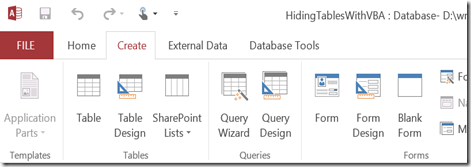
Go to the File Tab (upper left),

image

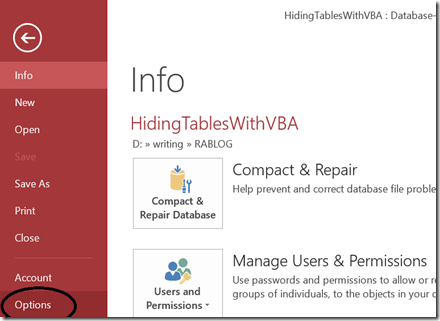
and choose Options.

image

In the Access Options dialog, choose Current Database.

image

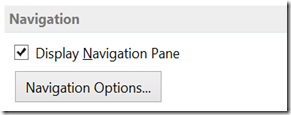
At this point, the form is fairly self-explanatory. To set an application title, simply type it in the Application Title box. To have a certain form open on start up, select that form in the Display Form combo. To hide the Navigation Pane, scroll down and uncheck Display Navigation Pane.

image

You can also allow or disallow special keys, menus, or shortcuts; turn AutoCorrect on or off; modify the Navigation Pane; change window style between Overlapping or Tabbed; and control many other properties. Play around and see how it works.

Access 2007

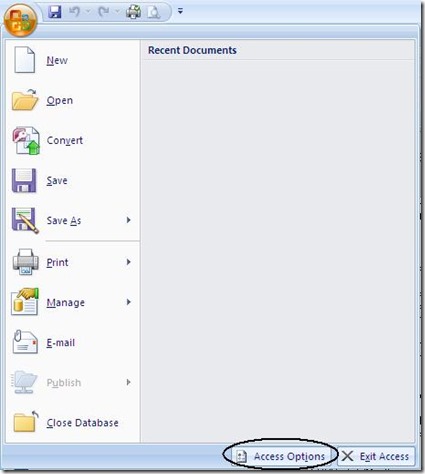
Access 2007 is similar.  Go to the Office “pizza” Button (upper left), and choose Access Options at the bottom of the form. From this point most everything is the same.

2007


Access 2003 and earlier

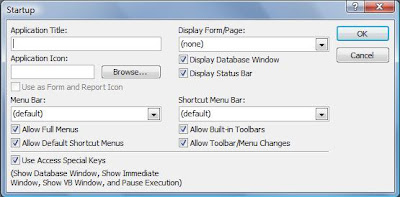
Open the Database Window and right-click on any Object. You will get a context sensitive menu. Choose Start Up.... You will see the following dialog box.


Wednesday, February 22, 2017

Access 101: Can I Create an EXE from my Access Application?

There is no way to create an EXE from an Access database. However, there is a way to install what's known as the "Access Run-time engine" that will allow the user to run the app without having Access installed on their system. The Run-Time is NOT the same as an EXE. For one thing, anyone who has Access on their system will still be able to open the application in their copy of Access (assuming they have the right version).

The Run-Time engine is installed as an option in the Package and Deployment Wizard. In Access 2000, this wizard came with the Access Developer's Edition. In Access 2003, you can get it in the Office Developer Extensions
(http://msdn.microsoft.com/en-us/office/aa905403.aspx). In Access 2007, you can download the 2007 Developer Extensions and Runtime(http://office.microsoft.com/en-us/access/HA102188681033.aspx). To run the Wizard, go to the Visual Basic Window, choose Tools, select the wizard, and follow the directions.

There are a few things to keep in mind when creating an application that will be used with the Run-time:

1) NEVER use macros. If the macros fail, you don't get the HALT screen, the whole app just crashes.
2) Error trap EVERYTHING. You want a graceful exit from every error. This is good practice regardless.
3) Don't rely on the native Access toolbars or menus. You must provide all functionality yourself. For instance, if you rely on the Find button (binoculars) to search for a record, forget it. This button won't be available to the app when using the Run-time.
4) The install disk created with the wizard will be very much larger than your program. However, in this day of CD burners, this is not the issue it once was.

Now, one thing you can do to keep your users from modifying the application is to convert it to an MDE. This is not an executable either, but it DOES have all of the source code removed. That means the user cannot open a form, report, module, or macro in Design view. Tables and queries can still be modified though.

So between converting the app to an MDE and deploying it with the Access Run-time, this comes very close to the functionality of the EXE you are looking for.

Monday, February 13, 2017

What is a Primary Key?

If I have a small company, any individual employee can be distinguished by a combination of First Name, Middle Initial, and Last Name. This combination uniquely identifies each employee.

If I have a larger company, the chances increase that I could have two employees that have the same name. So the name can no longer be used to uniquely identify a record. So instead, I could use a number like Social Security Number.

A primary key is a special kind of index (see What is an Index?) that is composed of a field (SSN) or combination of fields (First/Middle/Lastname), which uniquely identify a record.
A primary key has a number of useful properties.

First, the value in the primary key cannot be duplicated. If it is a single field, that value cannot be repeated. If it is composed of multiple fields, that combination of values cannot be duplicated. So in the samples above, having a primary key would mean that I could not put two "Roger J Carlson"s in my database.

Secondly, the primary key cannot be NULL and no portion of the primary key (in the case of a multiple field key) can be NULL. (See What does NULL mean?). The NULL means the value of the field is unknown. Obviously, if we don't know the value of the fields, we can't guarantee the value is unique. So disallowing NULLS guarantees we have a valid value in the key fields.

Thirdly, in order to create relationships, there must be a unique index on the field. Since by definition, a primary key is a unique index, a primary key makes an ideal join field. I will discuss this in a later post.

There are two basic types of primary keys: Natural Keys and Surrogate Keys.

Natural keys

A natural key is one composed of a field or fields that already exist in the table. In my examples above, both Social Security Number and Firstname/Middle/Lastname are natural keys. Natural keys can be composed of a single field or multiple fields.

It is important to note that a table can only have a *single* primary key. It is incorrect to say that a table has multiple primary keys. In the case of a multi-field primary key, it has a single primary key composed of multiple fields.

Surrogate keys

A surrogate key is an artificially created number. It has no real-world meaning, and is used mostly in relationships with other tables. In Access, you use the Autonumber datatype to create a surrogate key. This number is system-created and is guaranteed to be unique.

The disadvantage of a surrogate key is that it does not have real-world uniqueness. It would be possible to enter two records for Roger J Carlson, each with a different system-created number. To protect against that, you should also create a unique index on those fields that would otherwise create a natural key.

The advantage of a surrogate key is that it will never be affected by real-world changes to the database. It is also much more efficient to join tables on a single number than on multiple text fields.

Opinions differ, but I prefer a surrogate primary key with a separate unique index. This separates the functions of the primary key: the surrogate key for relationships and the unique index to control real-world uniqueness. In this way, if the conditions that effect the real-world uniqueness (as in the case of moving from a small business to a large business mentioned above), the table relationships will not be disturbed.

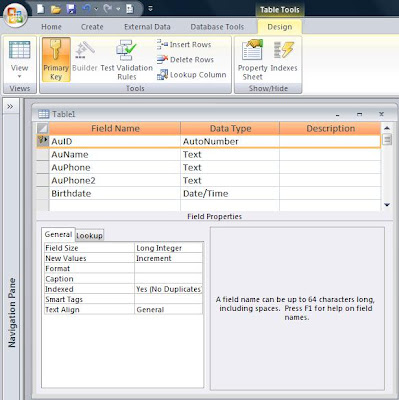
Creating a primary key in the Access User Interface is easy. Just open the table in Design View. For a surrogate or single field primary key, select a single record and click the Primary Key button.


For a multi-field primary key, just hold the Control [Crtl] key as you select the fields and then click the primary key button.

Monday, February 6, 2017

Access 101: What is an Index?

An index is a method of cataloging the records in a table to increase the speed and efficiency of retrieving them. You can think of it as a library card catalog.

If the stacks in a real-world library represent your table, the library card catalog is the index. The library card catalog stores just the information necessary to identify a particular book: author, title, and genre, plus a number that identifies where the book can be found in the stacks.
With this number, you can go directly to the location of your book. Without it, you would have to start at the beginning of the stacks and look at each book until you found the one you wanted. (This assumes that the books are not stored in any particular order.)

An index works the same way. It stores the value of a field or combination of field and the location of each record that match it. With this information, a query that sorts or searches on the indexed field(s) can go directly to the records. Without it, it has to start at the beginning of a table and look at each record until it finds the ones it wants.

There are a number of different kinds of indexes: simple indexes, multi-field indexes, unique indexes, and clustered indexes.

Simple indexes are indexes on a single field. They may or may not allow duplicate values. Their main use is for searching and sorting records in a table.

Multi-field indexes are indexes across multiple fields. These also may or may not allow duplicate values. This is different than having simple indexes on multiple fields. In a multi-field index, the combination of records is indexed.

Unique indexes do not allow duplicate values. They may be either simple or multi-field. If it is multi-field, it will allow duplicates in individual fields within the indexed fields, but it will not allow a duplicate across the all of the fields in the index. This is useful to make sure you don't have duplicate records in your table.

Clustered indexes control how the records are stored in the database. If you have a clustered index, the records will actually be stored in that order. A table can have only one clustered index. This makes sense since records in a table can only be physically stored in one order.

Primary Keys are a special type of index. In Access, the primary key is both a unique index and a clustered index. It has one additional property in that no field in the index can be NULL. (see What does NULL mean? ). There can be only one primary key in a table. For more on primary keys, their creation and uses see: What is a Primary Key?

How do you create an index?

For simple indexes, it's easy. Just go to the Design View of the table and select a field. In the Properties, you'll see an Indexed property. Select one of the "Yes" options. To make it a unique index by selecting Yes (No Duplicates).

For multi-field indexes, it's a little more complicated. The simplest thing to do is create a simple index on the first field in your index.


Then on the line directly below it, add another field WITHOUT giving it an Index Name. If the Index Name field is blank, Access will assume the field is part of the index directly above it.


Add as many fields to the index as you want. From the Indexes Window, you can also set the Unique, Primary, and Allow Nulls properties.

A word of warning about indexes. While they do speed up the retrieval of records, they also slow down the insertion of records. Every time a new record is added, all the indexes need to be rebuilt. If you have too many indexes and a lot of records, this can be a problem. Therefore, it is best to just index those fields that really need indexing. These would include fields that you will be sorting or searching on or fields that participate in Relationships or Joins.

Friday, February 3, 2017

What does NULL mean? How is it different than the Empty String?

One database concept given to much misunderstanding is the NULL value. What is it?

Null means that the value is unknown. This is different from the Empty String. The Empty String ("") means we know what the value is, and the value is, well, empty. That is, we know that there ISN'T a value.

Consider the case of the middle initial. Some people have a middle initial and some don't. Of those that do, we may or may not know what it is. If I leave it Null, it says that I don't know whether they have one or not. However, I can set the field to "" (Empty string) which says that they DO NOT have a middle initial.

Why is this difference important? Primary keys, for one thing.

Let's assume that my primary key is a composite key composed of FirstName, MiddleInitial, LastName. A primary key CANNOT have a Null as a part of it, thus we can set the value of MiddleInitial to "", and it will accept it. But we cannot leave the value Null.

Why can't a Primary Key have a Null value? Well aside from the fact that Access won't let it, the fact that Null means "I don't know the value" means that it cannot positively guarentee that the field is unique, which is one of the properties of the primary key.

The following four subs illustrate the differences:
Sub test()
If Null = Null Then
MsgBox "True"
Else
MsgBox "false"
End If
End Sub

Running this sub will ALWAYS evaluate to False. Why? Because we don't know what the value of NULL is, so we can't say if it's equal to NULL.

Sub test2()
If IsNull(Null) Then
MsgBox "True"
Else
MsgBox "false"
End If
End Sub

This evaluates to True because the IsNull() is specifically designed to test for NULL.

Sub test3()
If "" = "" Then
MsgBox "True"
Else
MsgBox "false"
End If
End Sub

This evaluates to True because the empty string is a known value.

Sub test4()
If IsNull("") Then
MsgBox "True"
Else
MsgBox "false"
End If
End Sub

False because "" is known, therefore it cannot be unknown.

As I said, NULL=NULL always evaluates to False. Since we don't know the value of Null, we can't say what it equals. This is why you never use NULL this way, but always use the IsNull() function.

Further, Len(Null) does evaluates to Null, as indeed do most things you *compare* with or *do to* Null, ie. Null=Null, X=Null, Null=True, cint(Null), etc.

Len("") ("" representing the 'Empty String' or 'Zero Length String') evaluates to 0 (zero). Because the length of a string of zero length is zero (duh!, my daughter would say).

The problem with explaining NULL, is all the good words are used for something else. You can't define it with itself, so saying "Null is Null" is null content (forgive the expression). You can't use "nothing", because that is an object pointer used to de-allocate object variables. You can't use "empty", because that is a constant specifically for use with a Variant variable. You can't use Zero either, because that represents a specific numeric value, rather than the absence of a value.

I guess we'll have to blame E.F. Codd who declared that any relational database implementation must have a special value called "Null" which represents the "absence of anything" or “unknown” condition for all datatypes.

The best we can do is to say that the value of Null is 'we don't know', which is not to say that we don't know what Null is ... I'd better stop there.

Wednesday, February 1, 2017

Ambiguous Outer Joins

The Outer Join can be a powerful tool for querying data in Microsoft Access. When you have only two tables, there is usually no problem. When there are more than two tables, however, using an Outer Join becomes more complicated. Sometimes Access allows it, and sometimes it gives you the not-very-descriptive "Ambiguous Outer Join" error.

Why? Well, first we'll look at what an Ambiguous Outer Join is, and then see how to correct it.

Microsoft Access has three types of joins: the Inner Join, the Right Join and the Left Join. Both the Right and Left joins are known as Outer Joins. An Inner Join shows only those records that exist in both tables. However, an Outer Join (both Right and Left) shows all of the records from one table (the Base Table) and just the matching records from the other (Secondary Table).

When Access processes a multiple table query, it needs to determine the order in which joins should be made. Should it join Table1 to Table2 first and then join Table3? Or should it do it in some other order? This is part of the Rushmore technology of the Jet engine. It tries to determine the most efficient way to process the query.

In the case of standard Inner Joins, the result set will be the same, regardless of the order in which they are joined. However, this is not the case with Outer Joins. There are times, when using an Outer Join, that the result of the query will be different depending on the order in which joins are created. In this case, Access cannot determine the order to join the tables. This is an Ambiguous Outer Join.

So how do you know when an Outer Join will result in an error? The easiest way to understand it is in terms of what you see in the Query Builder grid.

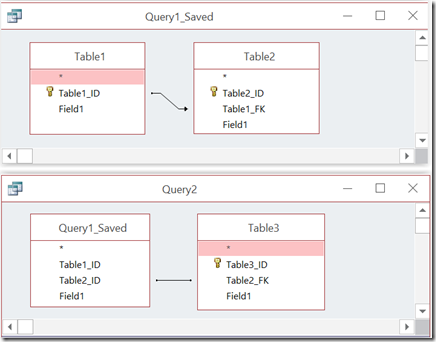
A table which participates in an Outer join as a Secondary Table (that is, the arrow is pointing *towards* it) cannot participate in either an Inner Join, or as a Secondary Table in another Outer Join. Figure 1 shows two types of queries that will result in an Ambiguous Outer Join error.

image

Figure 1: Two illegal Outer Join Queries

However, the table participating in the Outer Join as a Secondary Table can participate in another Outer Join if it is the Base table of the other Outer Join (that is, the arrow points *away* from it). Figure 2 shows a query that will not result in an Ambiguous Outer Join error.

image

Figure 2: A legal Outer Join Query
So what do you do if you need to create a query like case 1 or 2? You have to split the query into a stacked query, that is, two queries, the second of which uses the first. This is exactly what the Ambiguous Outer Join error message suggests.

Create a query joining the first two tables with an Outer Join and save it as a named query (i.e. Query1). Then, in a second query, join the first query to the third table.
Figure 3 shows how to build a stacked query.

 image

Figure 3: Shows how to split the query into two queries to avoid an Ambiguous Outer Join.

So the Ambiguous Outer Join error is not really all that confusing. It simply means that the database wants you to decide which join it should create first. In Access, you do this by spitting the query into a stacked query.


Monday, May 16, 2016

What’s the Difference Between Early Binding and Late Binding?


Some time ago, I ran into this question on the internet:

Question:

This is something I've never really figured out about Office Automation. These all seem to be equivalent. Is there a preferred version?

Dim objXLApp As Excel.Application
Dim objXLBook As Excel.Workbook
Set objXLApp = New Excel.Application
Set objXLBook = objXLApp.Workbooks.Open("C:\MyFile.xls")


------

Dim objXLApp As Object
Dim objXLBook As Object
Set objXLApp = New Excel.Application
Set objXLBook = objXLApp.Workbooks.Open("C:\MyFile.xls")


------

Dim objXLApp As Excel.Application
Dim objXLBook As Excel.Workbook
Set objXLApp = CreateObject("Excel.Application")
Set objXLBook = objXLApp.Workbooks.Open("C:\MyFile.xls")


-----

Dim objXLApp As Object
Dim objXLBook As Object
Set objXLApp = CreateObject("Excel.Application")
Set objXLBook = objXLApp.Workbooks.Open("C:\MyFile.xls")


------
The only difference I can find is the last one does not require a Reference to Excel set. Any advantage to or against this?

Answer:

The difference is between what's called Early Binding and Late Binding.

Early binding gives you faster access at runtime to an object's methods and properties and a smaller executable. This is because early binding lets the compiler "hard code" in the links between the app and the object. Early binding also ties you to whatever object is specified at design time because, under the hood, early binding uses the object unique identifier to flag all references. To use early binding you must instantiate the object with the New keyword. At runtime, New finds the object in the Windows registry using a direct access based on the object's unique identifier.

Late binding gives you slower access at runtime and a larger executable because code to search for the object's methods and properties that you ask for must be searched for at runtime. Late binding allows you to load a variety of different objects provided only that the object has the right method names (with the right parameters). To use late binding you must instantiate your object with CreateObject, which takes longer because the code performs a lookup in the registry using the object's ProgId.

To get IntelliSense support at design time you must declare your variable as a specific datatype (i.e. not "Object"). To use IntelliSense you must also add a reference to the object's library which is where the definition of the object's datatype is held. However, you can still use either early or late binding by using either New or CreateObject (respectively) to instantiate the object.

So, the first code sample is an example of Early Binding with IntelliSense because it instantiates the object with the New keyword and declares the variable with its datatype.

The second code sample is an example of Early Binding with without IntelliSense because it instantiates the object with the New keyword, declares the variable as "Object". This is probably the least useful because it requires a reference set but still doesn't give IntelliSense.

The third sample is an example of Late Binding with IntelliSense because it does not use the New keyword to instantiate the object, but it does declare the variable with the datatype.

The last sample shows Late Binding without IntelliSense.

Traditionally, Access has been notoriously bad at resolving references at runtime when a new version of a library was installed on the computer or when the Access application was moved to a different computer.

To avoid this problem, I've made it a practice to use CreateObject to instantiate the object because it allowed me to avoid having to add a reference to my Access project. However, to avoid giving up IntelliSense, I'll add a reference to the object's library at design time and declare their variables with a specific datatype. Then, when it was time to release the application, I'll remove the reference to the library and change the declarations to use "Object" rather than a specific datatype.

In terms of the above samples, I'll design using sample 3 and convert it to sample 4 when I put it into production.

Monday, April 18, 2016

Featured Sample: ActionQueriesInCode.mdb

Action Queries in Code.mdb

by Roger Carlson

There are a variety of circumstances under which you might want to run a query in VBA code. You may want to just display the results of a Select query to the screen at the push of a button. You may want to run an Action Query in a code module as part of another process.

This sample illustrates how to suppress confirmation messages when running an Action query in VBA code, and is a perfect companion to the Action Queries Series.

Full documentation included.

You can find the sample here: http://www.rogersaccesslibrary.com/forum/forum_posts.asp?TID=402.

.

Wednesday, April 13, 2016

Action Queries: Make-Table Query


Action Queries

Action Queries, also known as Data Manipulation Language (DML) statements, do not return a dataset like Select Queries, but makes changes to the data in the base tables. There are four types of action queries: Delete Queries, Update Queries, Append Queries and Make-Table Queries. In previous posts, I discussed the Delete Query, the Update Query, and the Append Query. In this last post of the series, I'll look at the Make-Table Query.

Make-Table Queries

A Make-Table Query is a shortcut method to create a table based on values in another table. In SQL, it's called a SELECT...INTO statement. The basic syntax looks like this:
SELECT ISBN, Title, PubID, Price INTO BooksTemp
FROM Books;

 In the Query Builder:

In properly normalized databases, there aren't a lot of uses for the Make-Table Query. It's most important use is for creating temporary tables. Sometimes, complex queries can be simplified or their performance improved by creating a smaller, temporary table. The Make-Table is ideal for this application.
However, make-table queries do have some disadvantages. First of all, they tend to bloat the database. Every time you make a temporary table, your database grows. When you delete it or over-write it, the database doesn't automatically shrink. This will require that you periodically compact your database.
Secondly, you don't have a lot of control over the structure of a table made with a make-table query. These tables automatically inherit the field datatypes and sizes from the parent table, but it does not inherit any other field properties (like validation rule or defaults), nor does it inherit any indexes.

Running a Make-Table Query

There are two buttons for running Action Queries: The View button displays the results of the query, that is, which records will be updated. The Run button actually appends the records to the target recordsource.
.