Report_DynamicCaptions
by A.D. Tejpal
This sample db demonstrates printing of multiple reports with dynamic assignment of caption via report's open event. The user can alter the sequence of printing as desired, by moving the report names up or down. Out of available reports, those required to be included in sequential printing are selected by ticking the check box adjacent to report name.
It is observed that if a report is printed directly by opening in normal view, the caption assigned programmatically in report's open event does not get properly captured in the print queue of the printer. This is explained by the fact that caption of active window tends to get captured for the above purpose. Depending upon the local set up, direct opening of report might not project its window presence adequately. For absolute certainty, it is therefore necessary that the report is first opened in preview mode, followed by PrintOut and Close actions.
It would be interesting to note that you can't get away by opting for preview in hidden mode. In that case, you might even end up with the caption of the calling form getting depicted in print queue. The defining requirement is that the report should be the visible active window (even if for a very brief duration) when requisite information is getting passed to the printer.
Time delay (in clock cycles) as included between various stages (e.g. opening in preview mode, print out and closing), as a measure of abundant precaution, is meant for stabilization between one step and the next.
You can find the sample here:
http://www.rogersaccesslibrary.com/forum/report-dynamiccaptions_topic541.html
.
Tuesday, April 20, 2010


Monday, April 12, 2010
Should I upgrade to Access 2010?
My take is that Access 2007 will become the Access 95 of the 21st century, that is, an interim release that few people will use once 2010 comes out.
I say this, because a number of features that were introduced in 2007 aren't really useful until 2010. For instance, I consider multiple-value fields (for tables) and Layout View (for forms) to be either useless or down-right dangerous in 2007. However, with the introduction of Web Databases in 2010, both of these features become necessary. I would never use either in a client database (that is, one that opens and runs in Access on the desktop) but I would use these in a database that runs in a web browser.
Access 2007 introduced a new type of template, that is more useful than those in earlier versions, but 2010 introduces another new type of template called Application Parts, which is meant to incorporate generalized functions into an existing database application. To my mind, that's more useful than the kind of template that creates an entire application from scratch.
The result is that many Access 2007 features were really aimed at 2010. Once 2010 comes out, I expect I'll use that exclusively.
.
I say this, because a number of features that were introduced in 2007 aren't really useful until 2010. For instance, I consider multiple-value fields (for tables) and Layout View (for forms) to be either useless or down-right dangerous in 2007. However, with the introduction of Web Databases in 2010, both of these features become necessary. I would never use either in a client database (that is, one that opens and runs in Access on the desktop) but I would use these in a database that runs in a web browser.
Access 2007 introduced a new type of template, that is more useful than those in earlier versions, but 2010 introduces another new type of template called Application Parts, which is meant to incorporate generalized functions into an existing database application. To my mind, that's more useful than the kind of template that creates an entire application from scratch.
The result is that many Access 2007 features were really aimed at 2010. Once 2010 comes out, I expect I'll use that exclusively.
.
Friday, April 2, 2010
Access 2007 Bug: Scroll Navigation Pane
There is a known bug with Access 2007 SP2 that involves scrolling the Navigation Pane.
If you click the scroll bar or press PgDn to move down the list, it moves one page worth, then keeps moving a few more times over several seconds. This happens only in the "Details View" or "Icon View" of the Nav Pane.
There is a hotfix available here: http://support.microsoft.com/kb/973405.
.
If you click the scroll bar or press PgDn to move down the list, it moves one page worth, then keeps moving a few more times over several seconds. This happens only in the "Details View" or "Icon View" of the Nav Pane.
There is a hotfix available here: http://support.microsoft.com/kb/973405.
.
Wednesday, March 24, 2010
Access 2007 Bug: Template 'xxx.accdt' could not be instantiated.
There is a newly reported bug in Access 2007 which prevents the instantiation of a database (accdb) from an Access template (accdt).

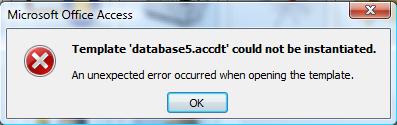
Template 'xxx.accdt' could not be instantiated.
An unexpected error occurred when opening the template.
Cause:
The XML encoding of the "&" symbol when used in the name of a database object like a table, query, form, report, macro or module.
Reproduce The Error:
Name a database objects (form, report, etc.) with an '&' in the object name.
Create a template (accdt) from the database.
Double-click the saved accdt file.
The instantiation will fail when it tries to create the object.
Workaround:
Avoid using the & in any database object name.
Comments:
It doesn't appear to be an issue when an '&' is used in a control within those database objects. It also does not seem to effect the original database or creation of the template, just instantiating a new database from the template.
Yet another good reason NOT to use non-standard characters in your object names.
Monday, March 1, 2010
New Sample: Form_A2K7_Attachments
Form_A2K7_Attachments
by A.D. Tejpal
This sample db demonstrates a user friendly approach for handling attachments in Access 2K7, without invoking the dialog box for attachment management.
As the user navigates to a given record on the sample form, names of documents held by attachment type field get displayed in a list box. Simultaneously, total count of attached documents gets displayed adjacent to the attachment control.
Appropriate command buttons provide following features:
(a) Insertion of new documents:
On clicking this command button, file open dialog box gets displayed, enabling selection of one or more files, which get added to the attachment field. Simultaneously the status of list box as well as attachment counter text box gets updated.
(b) Removal of attached documents:
Based upon selection of one or more (or all) documents in the list box, the selected items get removed from the attachment field. Simultaneously the status of list box as well as attachment counter text box gets updated.
(c) Extraction of source files from attached documents:
Based upon selection of one or more documents in the list box, source files for the selected items get extracted into a temporary folder named ZZZTemp. This folder gets created if missing and is placed in the parent folder holding the db. The status of extracted documents gets displayed in a list box adjacent to the one showing attached documents.
Note: Even if the temporary folder contains large number of extracted files pertaining to various records, only those relevant to current record get displayed in the list box.
(d) Deletion of extracted files:
Based upon selection of one or more (or all) extracted files in the list box, the selected items get deleted from the temporary folder. Simultaneously the status of list box gets updated.
(e) Opening of extracted file:
Based upon selection in the list box, the extracted file gets opened in its parent application.
Version: Access 2K7 accdb File Format
You can find the sample here: http://www.rogersaccesslibrary.com/forum/forum_posts.asp?TID=531
.
by A.D. Tejpal
This sample db demonstrates a user friendly approach for handling attachments in Access 2K7, without invoking the dialog box for attachment management.
As the user navigates to a given record on the sample form, names of documents held by attachment type field get displayed in a list box. Simultaneously, total count of attached documents gets displayed adjacent to the attachment control.
Appropriate command buttons provide following features:
(a) Insertion of new documents:
On clicking this command button, file open dialog box gets displayed, enabling selection of one or more files, which get added to the attachment field. Simultaneously the status of list box as well as attachment counter text box gets updated.
(b) Removal of attached documents:
Based upon selection of one or more (or all) documents in the list box, the selected items get removed from the attachment field. Simultaneously the status of list box as well as attachment counter text box gets updated.
(c) Extraction of source files from attached documents:
Based upon selection of one or more documents in the list box, source files for the selected items get extracted into a temporary folder named ZZZTemp. This folder gets created if missing and is placed in the parent folder holding the db. The status of extracted documents gets displayed in a list box adjacent to the one showing attached documents.
Note: Even if the temporary folder contains large number of extracted files pertaining to various records, only those relevant to current record get displayed in the list box.
(d) Deletion of extracted files:
Based upon selection of one or more (or all) extracted files in the list box, the selected items get deleted from the temporary folder. Simultaneously the status of list box gets updated.
(e) Opening of extracted file:
Based upon selection in the list box, the extracted file gets opened in its parent application.
Version: Access 2K7 accdb File Format
You can find the sample here: http://www.rogersaccesslibrary.com/forum/forum_posts.asp?TID=531
.
New Sample: Form_GanttChart
Form_GanttChart
By A.D. Tejpal
This sample db demonstrates depiction of Gantt charts on forms. Two styles are covered:
(a) Style A: Using Bound controls
(b) Style B: Using Unbound controls
Style A is editable. As the user enters start and end dates for various tasks, the chart string gets updated automatically. Simultaneously, the month / year markers at top get updated, duly taking into account the overall time span from start of earliest task to finish of last task.
Version: Access 2000 File Format
You can find it here: http://www.rogersaccesslibrary.com/forum/forum_posts.asp?TID=530
.
By A.D. Tejpal
This sample db demonstrates depiction of Gantt charts on forms. Two styles are covered:
(a) Style A: Using Bound controls
(b) Style B: Using Unbound controls
Style A is editable. As the user enters start and end dates for various tasks, the chart string gets updated automatically. Simultaneously, the month / year markers at top get updated, duly taking into account the overall time span from start of earliest task to finish of last task.
Version: Access 2000 File Format
You can find it here: http://www.rogersaccesslibrary.com/forum/forum_posts.asp?TID=530
.
Monday, February 8, 2010
Union Query: Part 2
More Union Queries
Last time in Union Queries: Part 1, I discussed simple Union queries and some of their uses. This time I want to talk about some advanced topics, starting with Union All.
Union Vs. Union All
As you remember from last time, a Union query takes the result of one query and "appends" it to another. At the same time, it removes duplicates and orders the records on the first field in the field list.
The Union All does the same thing as the Union, but without removing the duplicates or sorting the resultset, so:
SELECT * FROM TableA
UNION ALL
SELECT * FROM TableB
Would return:
CustomerID CreditLimit
---------- -----------
1001 $500
1010 $350
1017 $375
1020 $425
1017 $375
1008 $600
The order is not determined by the base tables. The result has no order, so the records could be returned in any order.
Sorting Union Queries
So what if you want to sort your Union All or want a different sort order for your Union? Like any Select query, you can add an Order By clause to the end.
SELECT CustomerID, CreditLimit
FROM TableA
UNION ALL
SELECT CustomerID, CreditLimit
FROM TableB
ORDER BY CustomerID;
Will return:
CustomerID CreditLimit
---------- -----------
1001 $500
1008 $600
1010 $350
1020 $425
1017 $375
1017 $375
The Order By applies to the entire result. If the column names are different between queries (which, you'll remember, I said was allowable), the column names from the *first* query must be used. Order By clauses in any of the other component queries will be ignored. Only the last one will be applied.
Restricting Rows
Like any other Select query, you can restrict rows from the resultset with a Where clause. Unlike the Order By, however, each component query can have its own criteria. If you put a Where clause on the last query, it will apply to ONLY the results of the last query. So this:
SELECT CustomerID, CreditLimit
FROM TableA
UNION
SELECT CustomerID, CreditLimit
FROM TableB
WHERE CreditLimit > 500
Produces this:
CustomerID CreditLimit
---------- -----------
1001 $500
1008 $600
1010 $350
1017 $375
Since 1010 and 1017 are in TableA, they can be less than 500, whereas 1020 is in TableB, so it is restricted. If you want a Where to apply to the entire resultset, you have to put it in each query.
SELECT CustomerID, CreditLimit
FROM TableA
WHERE CreditLimit > 500
UNION
SELECT CustomerID, CreditLimit
FROM TableB
WHERE CreditLimit > 500
Tables With Unequal Numbers Of Columns
As I said, the individual queries don't have to have the same column names, nor do they have to be the same datatype, but the *number* of columns in the field list must be equal.
What if your tables have unequal columns? In that case, you need to create false columns with an alias.
So suppose you have two tables which hold much the same data, but have slightly different structures.*
TABLE A
CustomerID CreditLimit
---------- -----------
1001 $500
1010 $350
1017 $375
TABLE B
CustomerNum Credit Active
---------- ------ ------
1008 $600 Y
1017 $375 Y
1020 $425 Y
*Please Note: I am not advocating this as a good database design. In a properly designed database, you would never have two tables which stored the same type of data. However, you may find yourself in this situation if you are fixing a poorly designed database or if you are merging separate databases.
If I don't know the value of "Active" for TableA, I can leave the value NULL.
SELECT CustomerID, CreditLimit, NULL AS Active
FROM TableA
UNION
SELECT CustomerNum, Credit, Active
FROM TableB;
CustomerID CreditLimit Active
---------- ----------- ------
1001 $500
1008 $600 Y
1010 $350
1017 $375 Y
1020 $425 Y
However, if I assume all of the customers in TableA are active
SELECT CustomerID, CreditLimit, "Y" AS Active
FROM TableA
UNION
SELECT CustomerNum, Credit, Active
FROM TableB;
CustomerID CreditLimit Active
---------- ----------- ------
1001 $500 Y
1008 $600 Y
1010 $350 Y
1017 $375 Y
1020 $425 Y
Because Union Queries cannot be viewed in the Query Builder, they are often over looked by Access novices, but they are a powerful tool to have in your SQL arsenal.
.
Subscribe to:
Posts (Atom)