Monday, May 23, 2016

How do I export Access data to Excel - Part 3

There are many ways to export data from an Access database to an Excel spreadsheet.  These include:

In Part 1, I discussed various manual methods. In Part 2, I discussed TranferSpreadsheet. This time I’ll look at Office Automation, which gives you maximum control over automated exports.

    Office Automation

    Office automation allows a developer to open and manipulate other MS Office applications in VBA code.  It allows the Access developer to use the specialized functions of those other programs, functions that would be hard to create natively.  I’ve used automation to create documents in Word, charts in Excel, and presentations in PowerPoint.  Sometimes all three from the same Access application.

    Here are a few examples:

  • AutomatingWordFromAccess.mdb ( advanced)
  • ExportToExcelCharts.mdb ( intermediate )
  • AutomatingPowerpoint.mdb ( intermediate )

    In this case, I want to export data from an Access database into specific formatted cells in an Excel spreadsheet. To do this, I need to use the Data Access Object model built into all Office apps.

    Excel Object Library (VBA)

    Through VBA, a developer can open and manipulate other Office applications. This is not limited to MS Office applications, but that’s another discussion. Each Office application has its own Object Model, each with its own Collections, Methods, and Properties. Once I reference that model in Access, I can use VBA to use that application’s Collections, Methods and Properties. Since I want to automate Excel, I need to use the Excel Object Library.

    Setting References

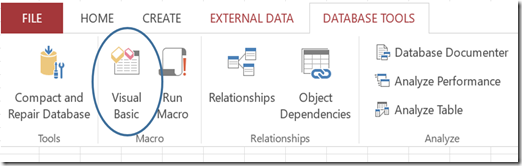
    In order to use an external object model, I need to first set a Reference to it. To do that, I need to open the Visual Basic Editor (VBE), which can be opened in Access on the Database Tools tab and choosing Visual Basic.
    image

    Once the VBE is open, choose Tools > References

    image

    The Reference List will look like this:

    image

    The first three checked references will automatically be there in a new Access database.  The fourth line WON’T.  You need to scroll down the list (to the “M”s) to choose Excel.  Check the box and click OK. Reopen the References, and it should look something like the above.

    Depending on your Office version, the references may be named differently, there may be additional references, or they may be in a different order. It’s not important most of the time.  The important thing is to find and check the Excel reference.

    Data Access Objects (DAO)

    DAO is the object model used to open and manipulate databases in VBA.  DAO is not part of Access. Technically, it’s the object model for the Jet database engine, and it can be referenced in any Office application to manipulate data.  However, since Access uses the Jet database engine as its default, a reference is set to it whenever an Access database is created. Since I need to take data from an Access database and send it to an Excel worksheet, I need both object models.

    Two Methods

    There are two ways of using Office Automation that I want to discuss:

    1. Using a Do…While loop to PUSH data from Access to Excel
    2. Using the CopyFromRecordset to PULL data into Excel from Access

    Regardless of which method I use, there is a basic framework of creating and instantiating objects I need to build.  This framework looks like this:

    'First I need to define some variables. Ordinarily, I would define all my variables here, but in this case, I’m going to define them as I go for clarity.
    Dim RowVal As Integer
    Dim ColVal As Integer
    Dim conPath As String

    '  Find the path where the database resides
        conPath = CurrentProject.Path

    ‘  Define and Open Database Object
        Dim db As DAO.Database
      Set db = CurrentDb


    '  Define and Open Recordset Object based on a query in my database called “TheDataQuery”. I could, of course be any saved query.
        Dim rs As DAO.Recordset
        Set rs = db.OpenRecordset("TheDataQuery")

    '  Define and Open Excel as an Excel Object. This is just opening Excel itself without a workbook.
        Dim objXLApp As Excel.Application
        Set objXLApp = Excel.Application


    ' Create and Open an Excel "Workbook" object. The workbook (that is Excel file) must exist in the place given in the .Open statement.
            Dim objXLBook As Excel.Workbook
        Set objXLBook = objXLApp.Workbooks.Open _
            (conPath & "\Export_ForNext.xlsx")

    ' Create and Open a "Worksheet" object. The tab, in this case named TheDataSheet, must also already exist.
        Dim objResultsSheet As Excel.Worksheet
        Set objResultsSheet = objXLBook.Worksheets("TheDataSheet")


    ' Create a "Range" object.  This is a named range in Excel which defines a certain group of cells. The actual values in the Range argument depends on the particular spreadsheet, but it should be at least as wide, and longer than the anticipated recordset.
            Dim rng As Excel.Range
        Set rng = objResultsSheet.Range("A2:F45")

    ' ****EXPORT CODE GOES HERE ****

    ' Save and close spreadsheet
            objXLBook.Save
        objXLBook.Close
           

        ' Lastly, I’ll destroy all the objects I created.
        Set db = Nothing
        Set rs = Nothing
        Set objResultsSheet = Nothing
        Set objXLBook = Nothing
        Set objXLApp = Nothing

    So far, I haven’t actually done anything useful. I’ve only created and destroyed a bunch of objects. The real work happens in the EXPORT CODE GOES HERE section. The code will vary depending on the method you use and the whether I want to over-write the data or append the data to the end of the existing data.

    Do…While Method

    I’ll start with the Do…While method.  This method “pushes” the data from Access into Excel. It does this by opening and walking through a recordset in Access and setting specified cells in the Excel sheet.

    Overwrite Data
    (Enter the following into the  ****EXPORT CODE GOES HERE ****)

    '  **************************************
    '  Set beginning row and column numbers
        RowVal = 2
        ColVal = 1

    '  Delete any existing data
        rng.ClearContents

    '  Write data from Access query to Spreadsheet
        Do While Not rs.EOF
            objResultsSheet.Range(Cells(RowVal, ColVal), _
                Cells(RowVal, ColVal)) = rs!phys_id
            objResultsSheet.Range(Cells(RowVal, ColVal + 1), _
                Cells(RowVal, ColVal + 1)) = rs!spec_code
            objResultsSheet.Range(Cells(RowVal, ColVal + 2), _
                Cells(RowVal, ColVal + 2)) = rs!Export_Date
            objResultsSheet.Range(Cells(RowVal, ColVal + 3), _
                Cells(RowVal, ColVal + 3)) = rs!Drug1
            objResultsSheet.Range(Cells(RowVal, ColVal + 4), _
                Cells(RowVal, ColVal + 4)) = rs!Drug2
            objResultsSheet.Range(Cells(RowVal, ColVal + 5), _
                Cells(RowVal, ColVal + 5)) = rs!Drug3
            RowVal = RowVal + 1
            rs.MoveNext
        Loop
    '  **************************************

    Append Data
    (Enter the following into the  ****EXPORT CODE GOES HERE ****)

    '  **************************************
    '  Set beginning row and column numbers
       RowVal = 2
      ColVal = 1

    ' Find the last row of data in the Excel sheet
      Do While Not objResultsSheet.Cells(RowVal, ColVal) = Empty
            RowVal = RowVal + 1

        Loop

    ' Write data from Access query to Spreadsheet
        Do While Not rs.EOF
            objResultsSheet.Range(Cells(RowVal, ColVal), _
                Cells(RowVal, ColVal)) = rs!phys_id
            objResultsSheet.Range(Cells(RowVal, ColVal + 1), _
                Cells(RowVal, ColVal + 1)) = rs!spec_code
            objResultsSheet.Range(Cells(RowVal, ColVal + 2), _
                Cells(RowVal, ColVal + 2)) = rs!Export_Date
            objResultsSheet.Range(Cells(RowVal, ColVal + 3), _
                Cells(RowVal, ColVal + 3)) = rs!Drug1
            objResultsSheet.Range(Cells(RowVal, ColVal + 4), _
                Cells(RowVal, ColVal + 4)) = rs!Drug2
            objResultsSheet.Range(Cells(RowVal, ColVal + 5), _
                Cells(RowVal, ColVal + 5)) = rs!Drug3
            RowVal = RowVal + 1
            rs.MoveNext
       Loop
    '  **************************************

    CopyFromRecordSet Method

      The CopyFromRecordSet method is not an Access function.  It’s actually a method built into Excel. However, because I’m using Office Automation, I can use this Excel method to pull data from Access to Excel.  Using this method, you don’t need to worry about row position or column position.

      Recall that above, I defined a recordset object based on the query “TheDataQuery”,
          Set rs = db.OpenRecordset("TheDataQuery")
      and I also created a range object
          Set rng = objResultsSheet.Range("A2:F45")

      The CopyFromRecordSet method allows me to drop the defined recordset (rs) into the defined range (rng).  It requires an argument for maximum rows and columns (45 and 10 below). I usually just define an area bigger than I could possibly need.

      Overwrite Data
      (Enter the following into the  ****EXPORT CODE GOES HERE ****)

      '  **************************************
      '  Set beginning row and column numbers
          RowVal = 45
          ColVal = 10

      ' Delete any existing data
          rng.ClearContents
         
      ' Write data from Recordset to Spreadsheet range
          Call rng.CopyFromRecordset(rs, RowVal, ColVal)
      '  **************************************


      Append Data
      (Enter the following into the  ****EXPORT CODE GOES HERE ****)

      '  **************************************
      '  Set beginning row and column numbers
          RowVal = 1
          ColVal = 6

         
      ' Find the last row of data
          Do While Not objResultsSheet.Cells(RowVal, ColVal) = Empty
              RowVal = RowVal + 1
          Loop

             
      ' Create a "Range" object
          Set rng = objResultsSheet.Range(Cells(RowVal, 1), Cells(RowVal, 1))
         
      ' Write data from Recordset to Spreadsheet range
          Call rng.CopyFromRecordset(rs, RowVal, ColVal)
      '  **************************************

      You can find this code all pulled together in a sample database from my website:

      Download Sample:

      ExportToExcel_OfficeAutomation

    • Monday, May 16, 2016

      What’s the Difference Between Early Binding and Late Binding?


      Some time ago, I ran into this question on the internet:

      Question:

      This is something I've never really figured out about Office Automation. These all seem to be equivalent. Is there a preferred version?

      Dim objXLApp As Excel.Application
      Dim objXLBook As Excel.Workbook
      Set objXLApp = New Excel.Application
      Set objXLBook = objXLApp.Workbooks.Open("C:\MyFile.xls")


      ------

      Dim objXLApp As Object
      Dim objXLBook As Object
      Set objXLApp = New Excel.Application
      Set objXLBook = objXLApp.Workbooks.Open("C:\MyFile.xls")


      ------

      Dim objXLApp As Excel.Application
      Dim objXLBook As Excel.Workbook
      Set objXLApp = CreateObject("Excel.Application")
      Set objXLBook = objXLApp.Workbooks.Open("C:\MyFile.xls")


      -----

      Dim objXLApp As Object
      Dim objXLBook As Object
      Set objXLApp = CreateObject("Excel.Application")
      Set objXLBook = objXLApp.Workbooks.Open("C:\MyFile.xls")


      ------
      The only difference I can find is the last one does not require a Reference to Excel set. Any advantage to or against this?

      Answer:

      The difference is between what's called Early Binding and Late Binding.

      Early binding gives you faster access at runtime to an object's methods and properties and a smaller executable. This is because early binding lets the compiler "hard code" in the links between the app and the object. Early binding also ties you to whatever object is specified at design time because, under the hood, early binding uses the object unique identifier to flag all references. To use early binding you must instantiate the object with the New keyword. At runtime, New finds the object in the Windows registry using a direct access based on the object's unique identifier.

      Late binding gives you slower access at runtime and a larger executable because code to search for the object's methods and properties that you ask for must be searched for at runtime. Late binding allows you to load a variety of different objects provided only that the object has the right method names (with the right parameters). To use late binding you must instantiate your object with CreateObject, which takes longer because the code performs a lookup in the registry using the object's ProgId.

      To get IntelliSense support at design time you must declare your variable as a specific datatype (i.e. not "Object"). To use IntelliSense you must also add a reference to the object's library which is where the definition of the object's datatype is held. However, you can still use either early or late binding by using either New or CreateObject (respectively) to instantiate the object.

      So, the first code sample is an example of Early Binding with IntelliSense because it instantiates the object with the New keyword and declares the variable with its datatype.

      The second code sample is an example of Early Binding with without IntelliSense because it instantiates the object with the New keyword, declares the variable as "Object". This is probably the least useful because it requires a reference set but still doesn't give IntelliSense.

      The third sample is an example of Late Binding with IntelliSense because it does not use the New keyword to instantiate the object, but it does declare the variable with the datatype.

      The last sample shows Late Binding without IntelliSense.

      Traditionally, Access has been notoriously bad at resolving references at runtime when a new version of a library was installed on the computer or when the Access application was moved to a different computer.

      To avoid this problem, I've made it a practice to use CreateObject to instantiate the object because it allowed me to avoid having to add a reference to my Access project. However, to avoid giving up IntelliSense, I'll add a reference to the object's library at design time and declare their variables with a specific datatype. Then, when it was time to release the application, I'll remove the reference to the library and change the declarations to use "Object" rather than a specific datatype.

      In terms of the above samples, I'll design using sample 3 and convert it to sample 4 when I put it into production.

      Tuesday, May 10, 2016

      Bug Report: Visual Basic Editor Menus Missing in Microsoft Office in Windows 10

      I recently spent several frustrating hours trying to discover why my Visual Basic Editor (VBE) lost all of its menus and toolbars in Microsoft Access.  The same happens in the VBE of all Office products.

      I was using a Surface Pro 3 upgraded to Windows 10 and with Office 2013. I’ve used the VBE many times with this set up, and I could not see what had changed.

      Googling brought up several similar issues for Word and Excel VBE, but those involved corrupt registry keys.  I tried modifying the registry. I tried Repairing my Office install.  I tried uninstalling and reinstalling Office.  Nothing worked.

      Another thing I noticed was that I could not Restore the VBA window.  I could Minimize and Maximize but not Restore.  And then I discovered that I couldn’t Restore ANY windows. This made me realize (finally) that I was in the Windows 10 new Tablet Mode.  Tablet mode doesn’t allow Restored windows.

      I set my Surface to Desktop Mode and all the VBE menus and toolbars appeared as normal.

      I’ve reported this to Microsoft and they can reproduce the problem. I’ve been assured that a fix will be forthcoming since the bug affects so many products.

      Interestingly, I use Open Live Writer to edit these blogs.  It used to be a Microsoft product, but they released it to Open Source.  I had the same issue with the Ribbon not appearing when I was in Tablet Mode, so the problem may be more wide-spread than the VBE of Office.

      As far as I know, it affects all versions of Office, but only those Window 10 installs that have a touch screen. 

      I’d love to hear if anyone out there finds an exception, or if any other programs are affected by Tablet Mode.

      Thursday, May 5, 2016

      Featured Sample: Delete Columns in Excel that are Empty

      Delete Columns in Excel that are Empty

      By Crystal Long


      Use this code to delete columns that are completely empty by sending a parameter of one (1) for the first data row.  The default is currently to assume there is a row of labels to skip in determining if there is data in the column.


      This is also perfect to run from Access after writing the results of a query where you only want to see columns with information.


      Download at: http://www.rogersaccesslibrary.com/forum/long-crystal_forum71.html

      Monday, April 18, 2016

      Featured Sample: ActionQueriesInCode.mdb

      Action Queries in Code.mdb

      by Roger Carlson

      There are a variety of circumstances under which you might want to run a query in VBA code. You may want to just display the results of a Select query to the screen at the push of a button. You may want to run an Action Query in a code module as part of another process.

      This sample illustrates how to suppress confirmation messages when running an Action query in VBA code, and is a perfect companion to the Action Queries Series.

      Full documentation included.

      You can find the sample here: http://www.rogersaccesslibrary.com/forum/forum_posts.asp?TID=402.

      .

      Wednesday, April 13, 2016

      Action Queries: Make-Table Query


      Action Queries

      Action Queries, also known as Data Manipulation Language (DML) statements, do not return a dataset like Select Queries, but makes changes to the data in the base tables. There are four types of action queries: Delete Queries, Update Queries, Append Queries and Make-Table Queries. In previous posts, I discussed the Delete Query, the Update Query, and the Append Query. In this last post of the series, I'll look at the Make-Table Query.

      Make-Table Queries

      A Make-Table Query is a shortcut method to create a table based on values in another table. In SQL, it's called a SELECT...INTO statement. The basic syntax looks like this:
      SELECT ISBN, Title, PubID, Price INTO BooksTemp
      FROM Books;

       In the Query Builder:

      In properly normalized databases, there aren't a lot of uses for the Make-Table Query. It's most important use is for creating temporary tables. Sometimes, complex queries can be simplified or their performance improved by creating a smaller, temporary table. The Make-Table is ideal for this application.
      However, make-table queries do have some disadvantages. First of all, they tend to bloat the database. Every time you make a temporary table, your database grows. When you delete it or over-write it, the database doesn't automatically shrink. This will require that you periodically compact your database.
      Secondly, you don't have a lot of control over the structure of a table made with a make-table query. These tables automatically inherit the field datatypes and sizes from the parent table, but it does not inherit any other field properties (like validation rule or defaults), nor does it inherit any indexes.

      Running a Make-Table Query

      There are two buttons for running Action Queries: The View button displays the results of the query, that is, which records will be updated. The Run button actually appends the records to the target recordsource.
      .

      Tuesday, April 5, 2016

      Action Queries: Append Query

      Action Queries

      Action Queries, also known as Data Manipulation Language (DML) statements, do not return a dataset like Select Queries, but makes changes to the data in the base tables. There are four types of action queries: Delete Queries, Update Queries, Append Queries and Make-Table Queries. In previous posts, I discussed the Delete Query, and the Update Query. This time, I'll look at the Append Query.

      Append Queries

      An Append Query, also called an INSERT INTO in SQL, adds records to a record source (table or query). It can either append individual record values or a dataset queried from another record source. To append values, use the VALUES keyword:

      INSERT INTO Books(ISBN, Title, PubID, Price)
      VALUES ("0-103-45678-9", "Iliad", 1, 23);

      Unfortunately, this type of Append query cannot be made in the Query Builder. In fact, if you type it into the SQL View of a query and switch to the Design View, the query will be converted to this:

      INSERT INTO Books (ISBN, Title, PubID, Price)
      SELECT "0-103-45678-9" AS Expr1, "Iliad" AS Expr2, 1 AS Expr3, 23 AS Expr4;

      This alternate syntax will still work in Access, but it's not standard SQL syntax. This type of Append query is most useful when used in embedded SQL, that is, SQL statements that are executed in a VBA module. One common use is with unbound forms. For example, suppose I have a form with unbound controls, like so:


      Behind the Append Values button, I can have the following code:

      Private Sub cmdAppendValues_Click()
      Dim strSQL As String
      strSQL = "INSERT INTO Books(ISBN, Title, PubID, Price)" & _
      " VALUES ('" & Me.ISBN & "', '" & Me.Title & "', " & _
      Me.PubID & "," & Me.Price & ");"
      CurrentDb.Execute strSQL, dbFailOnError
      End Sub

      Clicking the button will execute an SQL statement that appends the values from the unbound controls (i.e. Me.ISBN, etc.) in the form into a new record of the table.

      For a working example of an unbound form using SQL statements, see my sample: UnboundSQL.mdb.

      The second type of append query queries a dataset from one record source and appends it to another. This is most useful when importing data from an external source (say an Excel spreadsheet or a CSV file) to be added to an existing table. Suppose I have a table of new books (called AppendList) to be added to the Books table. I can use the following SQL statement:

      INSERT INTO Books (ISBN, Title, PubID, Price)
      SELECT ISBN, Title, PubID, Price
      FROM AppendList;

      Or as seen in the QBE grid:


      Running an Append Query

      There are two buttons for running Action Queries: The View button displays the results of the query, that is, which records will be updated. The Run button actually appends the records to the target recordsource.

      Next up, the Make-Table Query.