Access SQL

- UPDATE Books INNER JOIN UpdateList
ON Books.ISBN = UpdateList.ISBN
SET Books.Price = [Updatelist].[price]
- UPDATE Books
SET Books.Price = [Updatelist].[price]
FROM Books INNER JOIN UpdateList
ON Books.ISBN = UpdateList.ISBN
TargetField: String expression being searched
SearchValue: String expression being sought
StartPosition: Starting position for each search (optional)
The Microsoft Office Suite has a number of tools for communicating between its products, the most powerful of which is Office Automation through VBA (Visual Basic for Applications). By exposing the underlying object model for each of its applications, Microsoft made it possible to exercise programmatic control not only within a particular application, but between applications.
In my last article, Easy Excel Charting from Access, I showed how to create Excel chart from Access. The charting capabilities of Access using MS Graph are fairly primitive, so by sending the data to Excel, I can have a much richer set of charting tools. However, what I never covered is what to do with charts once they've been created.
It would be useful to paste these charts into an Access report, but that's not possible. However, it is possible to programmatically create a Word document, write data from your database to it, and then paste the appropriate chart into the document, making Word a very powerful and flexible reporting tool for Access.
Creating the Template
First thing to do is create a Word template. Word templates are Word documents saved with a DOTX extension. When you open a template, Word creates a new document based on the template. So the template itself is never modified. This makes it ideal for my purposes here. I'll create a template with the basic structure of my document and static text. As an additional benefit, an end user can modify the static parts of the document without requiring program modification.
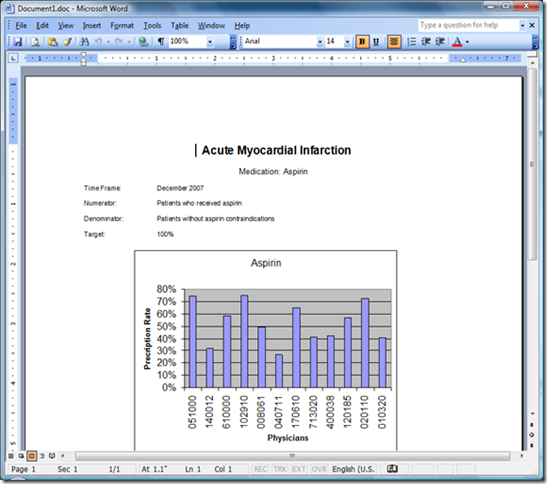
There is no single right way to create the template, but perhaps the easiest is to first create a document that looks like the finished report. Something like Figure 1.
Figure 1: Create a document that will look like the final report.
Most of the information on this report, including the chart, will be filled in from information stored in the database. In order to create places for the information to be inserted, I need to create bookmarks. Bookmarks are placeholders within your Word document.
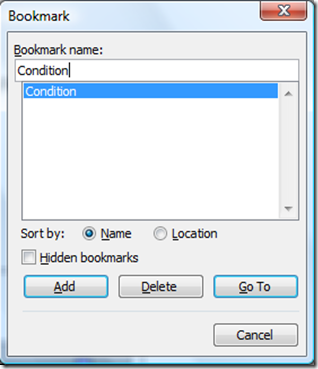
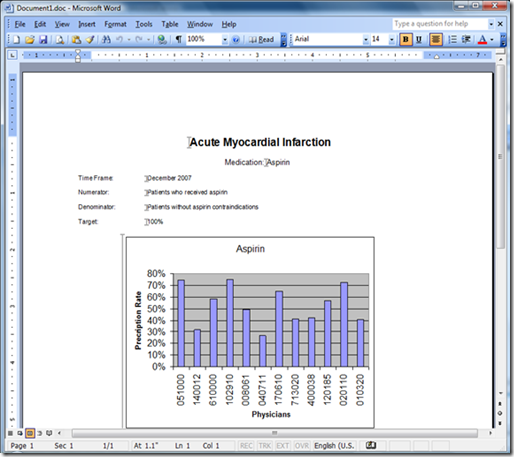
To create a bookmark, I place my cursor where I want the bookmark to go and click on Insert>Bookmark. A dialog box like Figure 2 will appear. I type in the name for my bookmark (in this case Condition) and click Add. I now have a bookmark. By default, bookmarks are invisible, so in order to see them, I click to Tools>Options on the menu bar and click the Bookmarks checkbox. The bookmark will show up as a gray I-bar. See figure 3.
Figure 2: Bookmark dialog showing the newly created Condition bookmark.
Place the cursor at the spots where the other bookmarks should be created and repeat the operation. When done, it will look like figure 3.
Figure 3: Document with bookmarks created.
All that is left to do is erase the information following the bookmarks and save the document as a Word template.
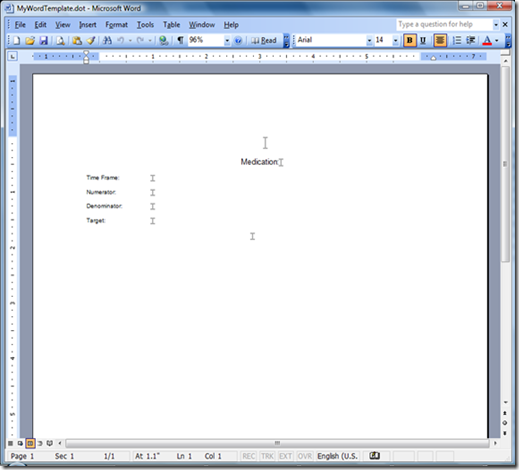
Word always wants to store templates in the default Templates folder in Program Files. Depending on how Office was installed, this folder could be different places on different machines. Therefore, I prefer to store the template in the same folder as the Access database or perhaps in a subfolder. This has the advantage of allowing the program to always know where the template is because as I will show later, I can programmatically determine the path to the application. So after I select Word Template (*.dot) in the File Type dropdown box, I browse to the correct folder to save the template. Figure 4 shows the completed template.
Once the template is created, I can re-hide the bookmarks. They don't need to be visible to work.
Figure 4: Completed template.
Automation Program Overview
Next, I create the Access subroutine (called ExcelWordAutomation), which automates the process of creating the Word documents. The overall process goes something like this:
Setting a Reference to Word and Excel
Next, I switch to Access to create the export routine. But before I do that, I need to set a reference to Excel in Access. A reference is a call to an external code library, in this case the Excel Object Model. This will allow me to manipulate Excel objects from within Access.
To set a reference, I open the Visual Basic Editor. Then I go to Tools > References. In the dialog box, scroll down to Microsoft Word 15.0 Object Library and Microsoft Excel 15.0 Object Library (your version numbers may vary). Click the checkbox next to it and click OK. Figure 1 shows what the References Dialog looks like.

Figure 1: The References Dialog showing the Word and Excel Object Library reference.
So let's look at the program details. As always, I start the routine with a call to an Error Handler to trap a number of common errors. I'll explain the specific errors later.
Sub ExcelWordAutomation()
On Error GoTo HandleError
Then I need to declare a number of variables. In order to create and manipulate objects in Word or Excel, I need some object variables. The power of Office Automation is that Word or Excel object variables inherit the capabilities of the parent program. Ordinarily, I’d define them here, but for clarity, I’m going to define them throughout the code where they’re needed.
Next, I need some Access object variables.
Dim db As DAO.Database
Dim rsReportData As DAO.Recordset
Dim rsExclusions As DAO.Recordset
And lastly, I need some scalar variables.
Dim strsql As String
Dim strFile As String
Dim conPath As String
Dim X As Long
Dim wdGoToBookmark As Integer
As I mentioned earlier, I need to find the folder where the database resides. This is where the template is stored and also where I'll save the completed documents. Naturally, if I wanted the files stored elsewhere (say a specific directory), I could code that here, too. Fortunately, I can easily find the full path and file name of the database by using the Name property of the database object.
To do this, I'll instantiate a database variable with the CurrentDb function. Then with judicious use of the Mid, Len, and Dir functions, I can return the default folder, that is, the folder where the database resides.
Set db = CurrentDb
conPath = CurrentProject.Path
Since I have a single workbook which contains all the charts I need, each on a separate sheet, I'll open that first. In order to do that, I will instantiate first an Excel application object and then a workbook object.
Dim objXLBook As Excel.Workbook
Set objXLBook = objXLApp.Workbooks.Open(conPath & "\MySpreadsheetChart.xlsx")
In order to be able to watch the process of copying the charts, I'm going to make both Excel and the workbook visible. Technically, this is not necessary. The code will work just as well if Excel remains invisible, but it's interesting to watch the process.
objXLApp.Visible = True
objXLBook.Windows(1).Visible = True
Now, I need to open a recordset containing the data needed for the reports. This information is stored in a table called ReportData (see Figure 5).
Set rsReportData = db.OpenRecordset("ReportData", dbOpenSnapshot)
Figure 5: Table which stores the data to be inserted in each report.
Since each record contains the information for a single report, I'll step through the records one at a time, creating a Word document for each. A Do…While loop will work perfectly for this.
Do While Not rsReportData.EOF
Just as I did with Excel, I have to create a Word object. With Word, however, I only need to create the application object. I'll also open a new document based on the MyWordTemplate.dot template.
Dim objWord As New Word.Application
Set objWord = CreateObject("Word.Application")
objWord.Documents.Add conPath & "\MyWordTemplate.dotx"
And, again, I'll make them both visible. Like the Excel objects, these lines are optional.
objWord.Visible = True
objWord.Windows(1).Visible = True
Now that my document is created, I need to find the appropriate bookmarks and insert information from my recordset. Here, I use the "With…End With" construct to avoid having to repeat the objWord.ActiveDocument.Bookmarks object reference for each bookmark.
With objWord.ActiveDocument.Bookmarks
.Item("Condition").Range.Text = rsReportData!Condition
.Item("Medication").Range.Text = rsReportData!Medication
.Item("Timeframe").Range.Text = rsReportData!TimeFrame
.Item("Numerator").Range.Text = rsReportData!NumeratorDef
.Item("Denominator").Range.Text = rsReportData!DenominatorDef
.Item("Target").Range.Text = rsReportData!Target
End With
'find and write exclusion data
strsql = "SELECT ReportID, Exclusion " & _
"FROM ExclusionData " & _
"WHERE ReportID=" & rsReportData!ReportID
Set rsExclusions = db.OpenRecordset(strsql)
Do While Not rsExclusions.EOF
With objWord.ActiveDocument.Bookmarks
.Item("exclusions").Range.Text = rsExclusions!Exclusion & vbCrLf
rsExclusions.MoveNext
End With
Loop
rsExclusions.Close
To paste the chart into the document, I'm going to use the Windows Clipboard. So I have to switch to my already open Excel workbook, find the sheet matching the medication value in my recordset and copy it to the clipboard.
objXLBook.Sheets(rsReportData!Medication.Value).Select
objXLBook.ActiveSheet.ChartObjects("Chart 1").Activate
objXLBook.ActiveChart.ChartArea.Select
objXLBook.ActiveChart.ChartArea.Copy
Then I return to my Word document, move my cursor to the "Chart" bookmark, and paste the chart into the document. In this case, setting the Word object to visible is mandatory. This method of pasting from the clipboard requires the object to be activated, and in order to be activated, it must be visible.
objWord.Activate
wdGoToBookmark = -1
objWord.Selection.Goto What:=wdGoToBookmark, Name:="Chart"
objWord.Selection.Paste
That's all I need in the document, so I'll save the document in the same directory as the template, naming it after the medication value in my recordset.
objWord.ActiveDocument.SaveAs (conPath & "\" & rsReportData!Medication & ".docx")
objWord.Quit
And then, I return to process the next record, looping until the recordset until done.
rsReportData.MoveNext
Loop
After I've processed all the records, I'm done with the Excel workbook, so I'll close it without saving and close Excel.
objXLBook.Close SaveChanges:=False
objXLApp.Workbooks.Close
objXLApp.Quit
Then I add a message box that identifies when the process is done.
MsgBox "Done!" & vbCrLf & vbCrLf & _
"Look in this directory" & vbCrLf & conPath & vbCrLf & _
"for your documents."
Lastly, I complete the error trapping. After the ProcDone label, I'll destroy the object variables I've created. I do that here so if there is an error and the routine terminates, no Word, Excel, or Access object will be left in memory.
ProcDone:
' clean up our object variables
Set objXLBook = Nothing
Set objXLApp = Nothing
Set objWord = Nothing
Set rsReportData = Nothing
Set rsExclusions = Nothing
Set db = Nothing
ExitHere:
Exit Sub
There are three main errors that must be handled. Error 432 occurs if the Excel spreadsheet is not found. Since no other objects are open, I just want it to end the routine without doing anything else. Error 5151 occurs if the Word Template does not exist. In that case, I want the routine to close the Open Excel object and end the program. Error 4152 can happen in a variety of circumstances, all of which come down to an error in the file or path. Since both Word and Excel objects are open at the time of the save, I want both objects to close without saving. The last error, 9, can happen when a record has been added to the table without a corresponding spreadsheet in the workbook. This error is handled just like 4152, but displays a different error message.
All other errors will be handled by the Case Else and will result in the error description and number being displayed and the program ending. It's always a good idea to add a generic error handler as users can always find ways to create errors that the developer can't anticipate. Since I don't know what the error might be, I don't know what objects might be open, so I don't attempt to close them.
HandleError:
'display appropriate error message
Select Case Err.Number
Case 5151 'Word template not found
'Close stranded applications
objXLBook.Close SaveChanges:=False
objXLApp.Quit
MsgBox "Word template not found"
Case 432 'Excel spreadsheet not found
MsgBox "Excel spreadsheet not found"
Case 5152 'Invalid file name
'Close stranded applications
objXLBook.Close SaveChanges:=False
objXLApp.Quit
objWord.ActiveDocument.Close SaveChanges:=False
objWord.Quit
MsgBox "This file or folder does not exist"
Case Else
MsgBox Err.Description, vbExclamation, _
"Error " & Err.Number
Set objXLBook = Nothing
Set objXLApp = Nothing
Set objWord = Nothing
Set rsReportData = Nothing
Set rsExclusions = Nothing
Set db = Nothing
End Select
Resume ProcDone
End Sub
Running the Code
Now the code is complete and ready to run. All that's necessary is to call the routine from a button or some other Event Procedure, like so:
Private Sub cmdRun_Click()
Call ExcelWordAutomation
End Sub
On completion, your folder will have one report document for each record in the ReportData table.
Conclusion
Office Automation is a powerful tool for integrating separate Office applications. By using a single macro language for all of the Office applications and exposing the object models of each, Microsoft made it possible to build custom applications that would be difficult any other way. The possibilities are limited only by the imagination of the developer.
You can download a sample database illustrating all the code here, AutomatingWordFromAccess .
.