Wednesday, November 22, 2017

Running Action Queries in VBA

One of the powerful features of Microsoft Access is its ability to run queries in Visual Basic for Applications (VBA) code. However, there are a couple of problems that plague developers when they attempt to do this. One is the problem of confirmation messages when running an Action query.

There are a variety of circumstances under which you might want to run a query in VBA code. You may want to just display the results of a Select query to the screen at the push of a button. You may want to run an Action Query in a code module as part of another process. You may even want to open a virtual recordset to do some data manipulation that can't be done directly in SQL. Access provides you several ways to accomplish this, depending on what you are trying to do.

There are two broad categories of queries in Access: Select queries and Action queries. Select queries simply return and display records. Action queries, on the other hand, actually modify the data in your tables. Append queries, Update queries, and Make Table queries are all action queries.

Confirmation Messages

The simplest way to run either a Select query or Action query is with the OpenQuery method of the DoCmd statement. Like this:

DoCmd.OpenQuery "Query1"

This statement will run the either type of query exactly as if you had run it from the Query Window. If the query is a Select query, it will simply return the query results to the screen, as in Figure 1.

RunningQueriesInVBAFigure1
Figure 1: Results of a Select query displayed to the screen using Docmd.OpenQuery.

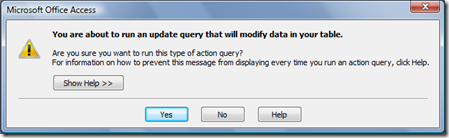
However, since Action queries modify data in your tables, they don't return anything to the screen. So Access displays a couple of confirmation dialog boxes to warn you that you are about to change your data. For instance, running an Update query will make the confirmation dialog box in Figure 2 appear.

RunningQueriesInVBAFigure2
Figure 2: Dialog box asking for confirmation of the Update query.

Followed by a second dialog box confirming the action. Like Figure 3.

RunningQueriesInVBAFigure3
Figure 3: Second confirmation dialog box for Update Query

While these messages are generally a good thing when using the Access Graphical User Interface (GUI), if you running an action query as part of an automated process, these confirmation boxes can be annoying. There are several ways to turn off these messages.

Set Options

First of all, you could turn off all confirmation boxes for Action queries by going to Tools menu, click Options, then click the Edit/Find tab. Under Confirm, clear the Action queries check box. On the whole, however, this is generally not a good idea. This option will affect all action queries in all databases. It would be better to target just those queries that you are certain you want to run without confirmation.

Set Warnings

Another way to keep these messages from appearing is to turn off the warning messages programmatically. The SetWarnings method of the DoCmd statement will turn off the warning messages until you turn them on again. To do this, you surround the query you want to run with one command to turn them off and another to turn them back on.

DoCmd.SetWarnings False

DoCmd.OpenQuery "ActionQuery1"

DoCmd.SetWarnings True

It is important to use these statements in pairs because all dialog boxes will be turned off (even the ones you want) until the database is shut down and restarted.

The problem with this method is that in addition to turning off the confirmation boxes, it will also turn off all error messages. So if there is an error when running the query, it will fail silently, leaving you no indication it had failed. This is rarely optimal.

Execute Method

The best solution is to turn off the confirmation messages while allowing the real error messages to display.

The best way to run queries in code is through the Data Access Object model or DAO. DAO gives you programmatic access to the entire database. Through DAO, you can change the structure of the database, modify the data in the database, and create or modify the database objects like forms, reports and queries. You can also use DAO to execute action queries.

To use DAO, you must create and initialize a database object variable. Like this:

Dim db As DAO.Database

Set db = CurrentDb()

Once you have created a database variable, you can use the Execute method to run the action query.

db.Execute "Query2", dbFailOnError

The Execute method assumes you know what you're doing, so it does not display confirmation messages. The optional parameter, dbFailOnError, will display any error messages.

Technically, you wouldn't have to create and initialize a database variable to run this query. Access provides a shortcut.

CurrentDb.Execute "Query2", dbFailOnError

The CurrentDb object will give you direct access to the database. It creates a temporary instance of the database that persists only until that line is executed. It can only be used for that one command. However, there are times when you want the database object to persist because you want to do multiple things with it, which leads me to opening parameter queries in code.

Sample Database

You can find a companion sample which illustrates how to suppress confirmation messages when running an Action query in VBA code, and is a perfect companion to the Action Queries Series.

You can find the sample here: http://www.rogersaccesslibrary.com/forum/forum_posts.asp?TID=402.

Thursday, November 9, 2017

Bang Vs. Dot in Forms

In a previous post (Bang Vs. Dot In DAO), I wrote about the difference between the Dot (.) and the Bang (!) in DAO. It's pretty straight forward. Dot is used to separate one level of the DAO hierarchy, separating an object from its methods and properties. Bang is used to separate an object from the collection in which it is contained.

This is true as far as it goes, but two types of objects in Access, Forms and Reports, muddy the waters considerably. Because form and reports are classes, controls on them are members of both the Objects Collection and a property of the form or report itself.

You can verify this by creating a new form or report object and looking at the Object Browser in the Visual Basic Editor.

(While it works the same on reports, I'm going to concentrate on forms for the moment.)

Create a new form: Form2 with no controls or Record Source. Open the Visual Basic editor and push <F2> to open the Object Browser . To the right, you'll see a list of Classes and Members. These members represent the properties and methods and properties of the selected Class. Access creates a number of default methods and properties which I'll ignore for now.

Next, create a new table: Table1(Table1ID, Field1, Field2). (See Figure 1)

clip_image002

Figure 1: Table1

(Note: throughout this post, my form's name will be MyForm and the control is called ControlName -- it could be any control, a textbox, combobox, label, or whatever)

Make this table the RecordSource for Form2. Table1ID, Field1, and Field2 appear in the member list. This demonstrates that the fields in the record source behind the form are properties of the form. See Figure 2.

clip_image004

Figure 2: Table1ID in the members list of the Form2 class

Next I'll reference the fields behind the form. To reference an object on a form, you start with the Forms collection, followed by a Bang (!), followed by the form name. Like this Forms!Form2. This gives me a reference to the form itself.

Now, according to my definition above, following the form reference with a dot and the field name should work (because the fields are properties of the form) but the bang should not because I haven't created any controls yet. However, on testing, I find that both:

Forms!Form2.Table1ID
and
Forms!Form2!Table1ID

Return the value of Table1ID.

But even though they produce the same result, they aren't the same. It's really a case of two objects that mean different things but nevertheless almost always give the same result.  The bang (!) notation specifically denotes that what follows is a member of a collection; in this case, a member of the form object's default collection, the Controls collection. The dot (.) notation denotes that what follows is a property or method of the preceding object.  

ME Object

And then, just to muddy the waters even further, there's the "Me" object. The Me object is used in Visual Basic for Applications (VBA) to reference an instance of a class module. It is an implicitly declared variable and is available to every procedure within the class module and only within the class module.

Since Access Form and Reports Modules are classes, you can also use the Me object to refer to the Form or Report itself. This allows us to take a shorthand reference to object on a form. I'll address form referencing in a later post, but for now, I can reference a control on a form explicitly:

Forms!MyForm!ControlName
Or
Me!ControlName

But as I said, the Me object muddies the water because Me.ControlName also works.

I know why Me!ControlName works. It is really just a short-hand way of referring to the default collection and property of the Form object.

The Controls collection is the default collection of the Form object, and Items is the default property of the Controls collection. An explicit reference to a control looks like either of these:

Me.Controls.Item(0) (assuming 0 is the correct index)
Me.Controls.Item("ControlName")

Since Item is the default property, you can also do these:

Me.Controls("ControlName")
Me.Controls!ControlName

and since Controls is the default collection, you can do these:

Me("ControlName")
Me!ControlName

So what about Me.ControlName?

This is the really cool part about forms -- when a form loads, it helps you out by adding every control on the form as a property of the form.  This is why

  Me.txtTextBox

.. works.  You're asking for the "txtTextBox" property of Forms!MyForm -- which is a pointer to the control, in this case, the text box object.

Which should you use?

So, which is actually preferred? The answer is ... it depends.

Reasons to use Me Dot (Me.ControlName)

  1. Automatic Intellisense support.
  2. Runtime error if control is missing or mis-spelled.
  3. Slightly faster than Me Bang.

Reasons to use Me Bang (Me!ControlName)

  1. Me Bang ALWAYS works to reference the value of a control.
  2. If a control is named the same as a reserved word (i.e. "Name"), Me Bang will correctly reference the control.
  3. If the Record Source of a form is modified at run-time, Me Bang will continue to work.
  4. Intellisense can be initiated with <ctrl>+<space>.

Thursday, October 26, 2017

Bang Vs. Dot In DAO

You sometime hear that: "the bang (!) refers to user-defined things and dot (.) refers to Access-defined things." Although that is the standard rule of thumb, it is not exactly correct. More precisely, the bang (!) serves to separate an object from the collection which contains it, and the dot (.) serves to separate one level of the DAO hierarchy from another.

Let me back up.

DAO naming is hierarchical in nature, sort of like the DOS path. And like DOS, you can refer to an object using a fully qualified name or a semi-qualified name. In DOS, a fully qualified name would be like this:

C:\MSOFFICE\ACCESS\TEST.MDB

If you are already in a folder, you can refer to the file by its semi-qualified name:

TEST.MDB
In the same way, you can refer to an Access object by its fully qualified name:

DBEngine.Workspaces(0).Databases! _
[c:\msoffice\access\test.mdb].TableDefs!Table1

or if you assume the default DBEngine (which we almost always do), the default Workspace, and default Database, you can refer to the table by its semi-qualified name:

TableDefs!Table1

If you look at the fully qualified name like this:

DBEngine.
Workspaces(0).
Databases![c:\msoffice\access\test.mdb].
TableDefs!Table1

you can see the DAO hierarchy levels more easily and how the dot separates them. (Much like the "\" in DOS.)

The dot also serves to separate an object from its properties and methods, which can also be thought of as another level in the hierarchy. So I can refer to "TableDefs!Table1.RecordCount". RecordCount being a property of Table1.

The bang (!) separates objects from the collections which hold them, thus it separates "Table1" from the collection "TableDefs" and the object "c:\msoffice\access97\test.mdb" from its collection "Databases".

Since most objects are defined by you, and since levels of DAO hierarchy are defined by Access, we get the rule of thumb named earlier.

DAO Naming Rules:

  1. The dot serves to separate one level of the DAO hierarchy from another in a fully qualified object name.
  2. The dot also serves to separate an object from its methods and properties.  (This, by the way, is the principle use for most people).
  3. The bang serves to separate an object from the collection in which it is contained.
In version DAO 3.0 (Access 2.0), you could use either the bang or the dot to separate an object from its collection. But in DAO 3.5 (Access 97), most objects didn't support the dot for this purpose. DAO 4.0 (Access 2000 and beyond), doesn't support it at all. You have to use the bang and dot properly or you will get a syntax error.

But this isn't really the end of the story.  When using class modules in Access (like Forms and Reports), the Bang and Dot behavior is slightly different.  To find out more, read my post: Bang Vs. Dot in Forms .

Wednesday, October 18, 2017

Really Bad Design Decisions: A Case Study

Sometimes a single design decision can have a cascade effect, which causes multiple, secondary design errors. One such error, commonly made by novice developers, is to slavishly follow a pre-existing paper form to determine their table design.

Now certainly, when creating a database to replace a paper-based system, it is vitally important to assemble all of the forms and reports used in the system. It is by a careful review of these documents that the developer determines a majority of the fields he or she will need in order to store and report the information in the system. After all, if an input form has a place for Order Date, then the database needs a field to store it. Likewise, if a report displays the Order Quantity, then this information has to be stored in the database somewhere.

But paper forms are not created with proper database design in mind. They are designed to make it easy for humans to fill out. This design can be at odds with established design principles. By blindly following the paper form to determine the database design, the developer can create a system subject to numerous data and relational integrity errors.

Case Study: OB Log

Several years ago, I ran into a database that was the poster child for this error. I was asked to create a database to automate a logbook for the Obstetrics department of a local hospital. Someone in the department, who had some experience with Access, had taken a first pass at creating a database.

Figure 1 shows the main data entry for the application.
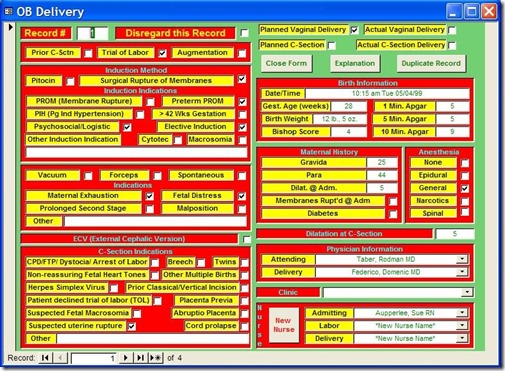
Figure1
Figure 1: Main entry form for the OB Log database

For the purposes of this article, we're going to ignore the numerous application design errors and concentrate on the database design errors because they're much more important and difficult to fix. Nevertheless, I'd be remiss if I didn't at least mention them. They are:

  1. Hideous use of color. With color, less is more.
  2. The controls are scattered about, making the user hunt for them.
  3. The controls are not exactly aligned, giving the form an amateur look.
  4. The labels for the controls are sunken. This confuses the user as to which as to which controls data can be entered in. In general, labels should be flat, text boxes should be sunken, and buttons should be raised. Any variation just confuses users.

But these application design issues pale in comparison to the database design problems.

Base Assumption: Paper Form Design Determines Database Design

All of the problems below stem from a single assumption: the design of the paper form is also the best design for the database. As we will see, this is not the case. Let's look at the problems resulting from this decision.

Problem 1: Single table design

Because all of the information here was on a single paper form, the developer incorrectly assumed it should all go in one table. The first thing I did when I looked at the database was to open the Relationship Window. It was blank. I knew at that point the design was in trouble. There were supplementary tables, a bewildering number, in fact, but they were just look-up tables that had no relationship to the main data table.

For instance, there was a look-up table called "Dilatation," which held the numbers 1 though 10, the acceptable values for the Dilatation field. There was a table called "Hours" which held the number 1 through 12, a table called "ZeroToThree," which held the numbers 0 through 3. There were also look-up tables for the doctors and nurses.

While many of these tables were in fact useful, there were no tables to hold information representing relationships in the data. In other words, the information that was the meat of the application was in a single table. It is rare when all the information of a complex process can be stored in a single table.

Problem 2: Multiple Yes/No fields

The reason complex processes can rarely be stored in a single table is because most of the time, the data contains One-To-Many relationships. For instance, each Delivery can have one or more Induction Indications, i.e. reasons why labor should be induced. On the paper form, these indications were represented like this:
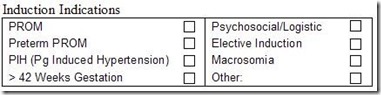
Figure2
Figure 2: Paper form layout for Induction Indicators

Each delivery event can have multiple reasons for inducing labor. But since you can't put multiple values in a single field, the developer chose to create 8 Yes/No fields, each representing one indication. On the form, they looked like this:
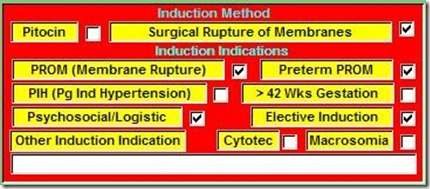
Figure3
Figure 3: Portion of the application form implementing Induction Indications.

At first blush, this is a reasonable solution. You can easily query the table for one or more of these indications by testing for a Yes value in any of these fields. For instance:

SELECT * FROM OBDelivery WHERE PROM = TRUE OR PIH = TRUE

However, other, more complex queries are difficult or impossible with this design. For instance, what if I wanted a count of the following Indications: Elective Induction, Macrosomia, and Preterm PROM with a result like this:
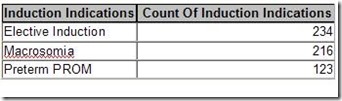
Figure4
Figure 4: Complex query counting the number of Induction Indicators.

With the single-table design, I would have to create a complex Union query like this:

SELECT "Elective Induction" AS Induction Indications, Count([Elective Induction]) AS [Count Of InductionIndication]

FROM [OB DeliveryOld]

WHERE [Elective Induction]=True

GROUP BY "Elective Induction"

UNION

SELECT "Macrosomia" AS Induction Indications, Count([Macrosomia]) AS [Count Of Induction Indication]

FROM [OB DeliveryOld]

WHERE [Elective Induction]=True

GROUP BY "Macrosomia"

UNION

SELECT "Preterm PROM" AS Induction Indications, Count([Preterm PROM]) AS [Count Of Induction Indication]

FROM [OB DeliveryOld]

WHERE [Preterm PROM]=True

GROUP BY "Preterm PROM";

If I wanted a count of all the Indications, I would have 8 separate Select statements Unioned together, one for each Indication.

However, in a properly designed database, the query to do this would be as simple as:

SELECT InductionIndications, Count(II_ID) AS Count Of Induction Indications

FROM RefInductionIndications INNER JOIN tblInductionIndications ON

RefInductionIndications.II_ID = tblInductionIndications.II_ID

WHERE InductionIndications In ("ElectiveInduction","Macrosomia","Preterm PROM")

GROUP BY InductionIndications;

So what is the proper design? The key to understanding this is to realize that you can group the individual Indication fields as values for a single field in your table. These values can be stored in a separate lookup table called refInductionIndications. If a delivery could only have one of these indications, there would be a simple One-To-Many between the Delivery table (OBDelivery) and the reference table.

However, since each delivery can have one or more induction indication, there is actually a Many-To-Many relationship. Each Delivery can have one or more InductionIndications, and each InductionIndication can be part of one or more Deliveries.

To create this relationship, you create an intersection table (sometimes called a linking table). The only two fields in this table are the primary key fields of each of the other tables. These fields become foreign keys in relationships created with the other two tables. To make sure you don’t get duplicate records in the intersection table, you make the foreign key fields a compound primary key.

In the Relationship Window, the relationship looks like figure 5:

Figure5Figure 5: Correct design for storing multiple Induction Indications per Delivery.

Implementing this in the application can be accomplished with a simple subform whose record source is a query based on a join tblnductionIndications and refInductionIndications. In this way, the user can select as many Induction Indications as required. The subform would look something like figure 6:
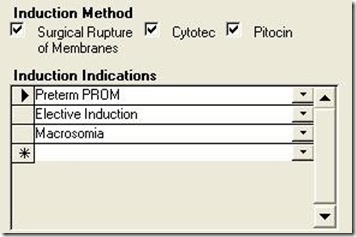
Figure6
Figure 6: Subform for Induction Indications for properly designed application
.

Another problem of having multiple Yes/No fields to represent grouped data falls under the heading of maintenance. What happens if a new Induction Indication must be added to the database?

With the single-table design, the table design itself would have to be modified, of course, but so would the form (a new check box would have to be added to an already cluttered form), and EVERY query and report using Induction Indications would have to be changed. This would require heavy, developer support.

On the other hand, with the proper database design (Figure 5), adding a new indication is as easy as adding a new value to the lookup table. The users can easily do it themselves through a maintenance form in the application, and it would require no modification of the application at all.

This problem was also repeated in the Vacuum/Forceps Indications and C-Section Indications sections. For each of these, the developer created multiple Yes/No fields when, in fact, a separate table was required.

Problem 3: Complex programming to Overcome Design Flaws

When a developer does not pay enough attention to the initial design, it often requires complex programming to overcome the flaws.

Problem 3a: Multiple Births

The design of the paper form also misled the original developer regarding birth information. He never asked the obvious question, what happens if there are multiple births for a single delivery, i.e. twins or triplets?

The original paper form had only one place for Birth information. When there were multiple births, hospital staff would simply use a second form, only fill out the birth portion, and staple it to the first form. This in itself should have told the developer that there was a One-To-Many relationship between the mother's information and birth information.

Because the developer was stuck with the single-table design, he was forced to create program code to: 1) duplicate all of the Delivery information into a new record, 2) delete the Birth information from the new record, and 3) allow the user to enter the new Birth information for each of the multiple births.

This design resulted in a huge amount of redundant data and opened the door for data integrity errors. If any of the Delivery information changed for a multiple-birth delivery, the users would have to edit multiple records, with the likelihood of data entry errors.

Of course, the correct design is to have a separate Birth table that is related to the Delivery table on the Primary Key field of the Delivery table (BirthTrackingID).
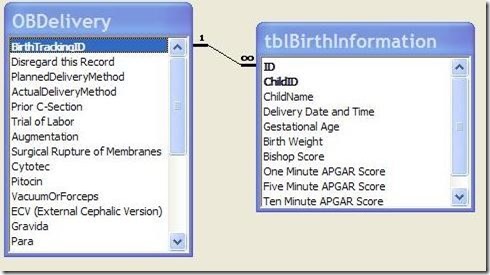
Figure7
Figure 7: Correct design for modeling multiple Births per Delivery
.

The form could be modified to have a subform for holding the Births. In this way, the Delivery information would be held only once, yet the results for each individual birth could be accurately recorded while maintaining a link to the Delivery table.

Problem 3b: Date format

On the paper form, the Birth Date/Time was displayed in a particular format: i.e. "10:15 am Tues. 05/04/99". The developer believed he needed to input the date in that format. Therefore, he created the Date/Time field as a text field and created a complex process involving numerous Toolbars, Macros, and program code to assist the user in entering the data.

Clicking the Date/Time field produced Figure 8.
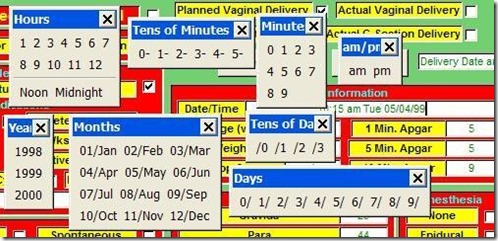

Figure8
Figure 8: Series of Toolbars pop-ups when the Date/Time field was entered, which was supposed to assist the user to enter a date into a text field. A simple input mask for a date/time field would have been better.

Problem 4: Copying Paper Form Design for Application Form

This last problem is not so much a database design problem, but an application design problem. While it is I important to follow the flow of the paper form to make data entry as easy and error-free as possible, the developer should not feel constrained to slavishly imitate the layout of the paper form to produce the application form.

As the developer, you should work with the client to develop the data entry form to make it as easy as possible for the users. This may also mean a redesign of the paper form to facilitate entry into the database.

In my case, I redesigned the database form to look like this:
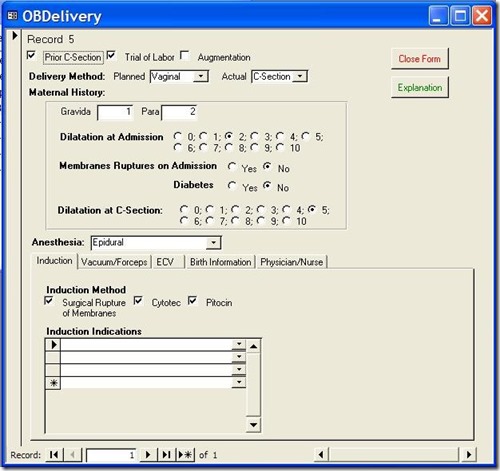
figure9
Figure 9: Redesigned Data Entry Form

With each group of related data in its own tab on the bottom. This led to a much cleaner design, which was easier for the data entry people to use. We also redesigned the paper form to facilitate this application form.

On-line Database Sample:

On my website, (http://www.rogersaccesslibrary.com), there is a sample database called "ReallyBadDatabase.mdb", which illustrates the problems discussed here, and another called "ReallyBadDatabaseReborn.mdb", which shows how I corrected them.

Conclusion:

Does this mean the developer should completely ignore the layout of the paper forms? No. Assembling all of the input forms and reports is a vital part of the database development process. They will provide the majority of the fields necessary to the project. But you cannot let them determine your database design. As the developer, that's your job.

In general, when dealing with a paper input form do the following:

  1. Look for logical groupings within the fields on the form. For instance, PROM, Preterm PROM, PIH, and Macrosomia are all Induction Indications.
  2. Look for relationships in your groupings. For instance, each Delivery can have one or more Induction Indications. When one entity (Delivery) in your database can have multiple of another entity (Induction Indications), this tells you there needs to be a separate table for this entity.
  3. When there are a series of check boxes on a form, and they all represent alternatives of the same thing, you should not create multiple Yes/No fields, but instead create a single field where the acceptable values include all the labels of the check boxes. If more than one of these values can be selected, then you need an intersection or linking table to implement the Many-To-Many relationship.
  4. Regardless of the formatting on the form, all dates should be entered as Date/Time fields in the database. You can format the output with the Format function to meet the users needs.
  5. Check with the users of the system to make sure you have accurately modeled the data and relationships of the system. Also work with them to create an application form that is easy to use. You may also have to work with them to redesign the paper form.

The developer has to delicately balance the needs of the users against proper database design techniques. In this way, the developer creates a system that is not only easy for the user, but also ensures accurate data.

Friday, September 29, 2017

Normalizing City, State, and Zip


Recently, I ran into a question on the internet about normalization that I thought would be good to repeat.

THE QUESTION:

 I'm toying with the idea of starting a new project, so I'm in brainstorming mode for table design. I'll be recording customer information in this application. Typical stuff: First and Last Names, Company, Street, Apt, City State and Zip, Phone numbers(s) and extensions, E-mail.

How do you guys recommend setting up the tables for City State and Zip? I was thinking that I would have:

TBL_General_State
PKStateID
StateAbbr (Limited to 2 letters)
StateName


TBL_General_City
PKCityID
FKStateID (Lookup to TBL__State)
CityName


TBL_General_Zip
PKZipID
FKCityID (Lookup to TBL__City
ZipCode


My customer information then would record only the zip code (PKZipID). And I could then use queries for the state, city, and zip information for forms, reports, etc.

Or is this beyond overkill?

ANSWER:

 By strict normalization theory, having City, State, and Zip in the same table violates the 3rd Normal Form because there are functional dependencies between those fields. However, functional dependencies are not all the same. There are strong dependencies and weak dependencies.

A strong dependency is one in which the value of a dependent field MUST be changed if another field is changed. For instance, suppose I have Quantity, Price, and ExtendedPrice, where ExtendedPrice is a calculation of the other two. If I change either Quantity or Price, the ExtendedPrice MUST be changed.

A weak dependency is one in which the value of a dependent field MAY be changed if another field is changed. City, State, and Zip are examples of weak dependencies. If I change a person's city, I may not have to change their state. They may have moved within the same state. Likewise, if I change the state, I may not have to change the city. There is, after all, a Grand Rapids, Michigan and Grand Rapids, Minnesota. The relationship between city and zip is even more complicated.

Now, it is possible to represent these fields in a fully normalized fashion, but I contend that it is more trouble for very little gain. There are two main reasons for normalizing data: minimize redundant data and maximize data integrity. Both of these can be achieved by using lookup tables for City and State without trying to represent the relationship between the two. A zip code could be mis-typed, of course, but it could also be mis-selected from a list, so to my mind there's no real reason to have a lookup table.

If you did normalize these fields, you could have a selection process that would present all possible combinations of values if you selected the City. For instance, if you had a combo box for City, you could have cascading combo boxes to select only the appropriate States and Zip codes. But it would be just as easy to mis-select the right value from this list as it would be to mis-select from independent lookup tables. And, of course, you'd have to create and maintain these relationships.

Therefore, normalizing City, State, and Zip adds a complication to your data model for very little gain, and in my opinion, is a good example of when to denormalize.

.

Wednesday, September 20, 2017

The Normal Forms: In a Nutshell


In this series, I have tried to explain in non-mathematical terms what the first three Normal Forms mean and how they determine database design.

This is not the most useful method of learning normalization. In fact, many expert developers never learn the formal definition of the normal forms. If you haven't already, I suggest you read the following series:

Normalization
ER Diagramming

However, I think it is useful to know what the Normal Forms are. Sometimes when you get stuck in a design, you can go back to the definitions to get yourself out of trouble.

So, in summary:

First Normal Form (1NF) says that each record must be unique, that is, it has a primary key. There are some additional restrictions on how such uniqueness is maintained such as not allowing positional referencing and no repeated columns.

Second Normal Form (2NF) says that each field in the record must depend on the whole primary key, not just a part of it.

Third Normal Form (3NF) says that no field must depend on any other field except the primary key.

William Kent, author of A Simple Guide to Five Normal Forms in Relational Database Theory, once abbreviated the first three normal forms like this:

"The Key, the whole Key, and nothing but the Key, so help me Codd."
.

Wednesday, September 13, 2017

The Normal Forms: Third Normal Form

Last time, in The Normal Forms: Second Normal Form, I discussed how to remove redundant data by identifying fields which are not functionally dependant on the entire primary key. Figure 1 shows the results.

Figure 1: Order table Decomposed into Orders and Order Details


This corrected some data anomaly errors in my data, however, data anomalies are still possible under 2NF. To prevent these anomalies, I need an additional rule: Third Normal Form (3NF).

Definition

A table is said to be in Third Normal Form (3NF) if:

  1. It is in Second Normal Form and
  2. If all non-key fields are mutually independent, that is, all fields are functionally dependant ONLY on the primary key field(s).

Implications

There are two main sources of data anomalies that 3NF corrects are 1) Redundant Data and 2) Calculated fields.

Redundant Data

Although I removed some of the redundant data when I split the Order table into Orders and OrderDetails, there is still some redundancy left, namely ProductNum and Item. Both of these fields are dependant on the entire primary key, so they comply with 2NF. However The ProductNum and Item fields are mutually dependant, that is, they depend upon each other. The product number determines the item description and the item description determines the product number.

Just as we saw in 2NF, redundancy can lead to inconsistent data being entered into the database or correct information being changed after the fact. Figure 2 shows some data anomalies possible under 2NF as a result of redundant data.

Figure 2: 2NF Data Anomalies Due to Redundant Data


Product A7S has two different items associated with it: either a wrench or a nail. Which is it?

Also, two product numbers (B7G and B7H) are associated with an Item called "saw". Is this the same saw or not?

Calculated Values

Mutual dependency is also an issue with storing calculated values. Suppose I had a Quantity and Price field and I decided to calculate the ExtendedPrice by multiplying the them. This is a common database error made by novices.

The problem is one of dependency. The Extended Price calculation depends on the Quantity and Price fields for its value. 3NF says that no field should depend on any field except those making up the primary key.

If I store that calculation and later go back and change one of the dependant fields (either the Quantity or the Price), my calculation will be incorrect. Figure 3 shows some calculated values anomalies.

Figure 3: Anomalies with Calculated Values


First of all, if the user is manually calculating and typing in the value of the Extended Price, the value could be anything, even a calculation from a different row. So let's assume I have an automated process, a formula in a form which calculates the value.

The problem is that you must depend on programming to maintain your data integrity, not the database itself. If the integrity is maintained at the database level, it cannot be subverted.

In the case of the table above, the first anomalous record was caused by changing the Quantity from 1 to 2 after the fact. But because I didn't have a process to re-calculate the value if Quantity changed, the Extended Price is now wrong.

In the second case, an Update Query was used to raise the price of nails was raised from $0.09 to $0.10. Unfortunately, the query did not include a new calculation, so all Extended Price calculations for nails are now wrong.

Implementation

The problem of calculated values is a simple one to solve. Don't. As a general rule, I just don't store calculations. There are minor exceptions, but in most cases, I'll be safe by just leaving them out. When I need these values, I'll calculate them as output in either a query, form, or report.

As with 2NF, the solution to redundant data is to remove it to a separate table, leaving one field to join back to the original. In this case, the ProductNum, Item, and Price fields will go into the Products table. I'll leave ProductNum in the Order Detail table to maintain the relationship. Figure 4 is the result.

Figure 4: Decomposing Order Details to Remove Redundant Data


So now I've removed as much redundant data as possible. There's still a little left. There always will be in order to maintain the relationships between tables. But none of the redundancy will result in data anomalies, so I can say with confidence that my tables are now normalized to Third Normal Form. Figure 5 shows the final design.

Figure 5: Final Design


In my next and final post: The Normal Forms: In A Nutshell, I'll wrap it all up.

.