Monday, May 9, 2011

New Sample: Form_DatasheetHighLightStyles

   This sample db demonstrates an interesting approach to conditional highlighting of datasheet forms. It is remarkably generic, using a set of functions in general module and does not depend upon any primary key field. In fact, no field name or form name is used and hardly any code is needed in the form module (except for style (b) below).

    Following styles for highlighting the records are covered:
    (a) Highlight current record, First record, new record.
    (b) Flag desired row or rows by dbl clicking (Dbl click again to remove the flag).
         Once a flag is set for a record, and unless it is removed subsequently by user action (another dbl click on flagged record), it remains in force for current database session, even if the form is closed and then re-opened.
    (c) Highlight odd rows.
    (d) Highlight even rows.
    (e) Highlight every third row.
    (f) Highlight top - mid - last row.
    (g) Highlight top 2 - mid 2 - last 2 rows.

    Note: The solution is equally applicable to continuous forms.

Version: Access 2000 file format.

You can find the sample here: http://www.rogersaccesslibrary.com/forum/Form-datasheethighlightstyles_topic561.html

.

Monday, May 2, 2011

Aggregating Across Repeated Columns: Averaging

In the first post in this series (The Problem of Repeated Columns), I defined repeated columns and talked about the data integrity problems associated with them. If you haven't read that yet, it would be worthwhile to read first. Similarly, if you are not familiar with the concept of Normalization, you should read my blog series What is Normalization?

So far in this series, I've discussed the problem with querying textual or Boolean (Yes/No) data from repeated columns. But numeric data offers new challenges because we often want to do math on them. The most common kind of math is aggregation, that is, summing, counting, and averaging numeric values. This time, I'll talk about averaging data in repeated columns.

Others in this series:

Averaging Across Columns

The most common type of data aggregation, perhaps, is in calculating an Average where you divide the sum of the values by the count of the values.

In Excel, there is an AVERAGE function which will average the cells that have a value. The Excel function will work for any range of cells, across or down. In Access, however, the Average() function only works down columns, not across columns. So, averaging values in repeated rows is easy (see below), but just like summing and counting, averaging across repeated columns is more challenging.

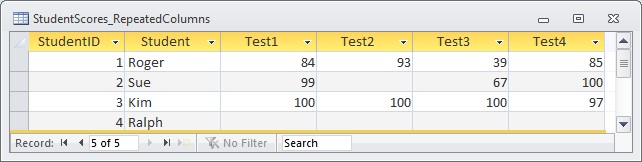
For instance, suppose I had a table of student test scores:


If I wanted to average the test values for each student, I need to create an expression that sums the values for the numerator and counts the values for the denominator. For details on how to sum the values, see Aggregating Across Repeated Columns: Summing. To count the values, see Aggregating Across Repeated Columns: Counting

To do this, I need 4 stages.

1. Numerator: Sum the Values

Nz([Test1])+Nz([Test2])+Nz([Test3])+Nz([Test4]) AS TestSum

2. Denominator: Count the Values

Abs((Not IsNull([Test1])) + (Not IsNull([Test2])) + (Not IsNull([Test3])) + (Not IsNull([Test4])))

3. Handle Denominator of Zero

If the denominator is 0 (zero) the calculation will return the #Num! error. Therefore, I have to test the denominator for zero and convert it to a NULL. Dividing any value with a NULL will return NULL.

IIf((Abs((Not IsNull([Test1]))+(Not IsNull([Test2]))+(Not IsNull([Test3]))+(Not IsNull([Test4]))))=0,Null,(Abs((Not IsNull([Test1]))+(Not IsNull([Test2]))+(Not IsNull([Test3]))+(Not IsNull([Test4]))))

4. Average: Divide Numerator (Sum) by Denominator (Count)

(Nz([Test1])+Nz([Test2])+Nz([Test3])+Nz([Test4]))/IIf((Abs((Not IsNull([Test1]))+(Not IsNull([Test2]))+(Not IsNull([Test3]))+(Not IsNull([Test4]))))=0,Null,(Abs((Not IsNull([Test1]))+(Not IsNull([Test2]))+(Not IsNull([Test3]))+(Not IsNull([Test4])))))AS TestAverage

The full query would look like this:

SELECT Student, (Nz([Test1])+Nz([Test2])+Nz([Test3])+Nz([Test4]))/IIf((Abs((Not IsNull([Test1]))+(Not IsNull([Test2]))+(Not IsNull([Test3]))+(Not IsNull([Test4]))))=0,Null,(Abs((Not IsNull([Test1]))+(Not IsNull([Test2]))+(Not IsNull([Test3]))+(Not IsNull([Test4]))))) AS TestAverage
FROM StudentScores_RepeatedColumns
ORDER BY Student;


Or in the Query Builder:


The result would look like this:


Averaging Down Rows

By contrast, suppose I normalize the table to remove the repeated columns. The table should look something like this:


Since the table is normalized (that is, the values go down a row), I can use the aggregate (or "Totals") functions that are built in to SQL. In this case, it's the Avg() function.

Avg(Score) AS TestAverage

The full query would look like this:

SELECT StudentID, Avg(Score) AS TestAverage
FROM StudentScores_Rows
GROUP BY StudentID
ORDER BY StudentID;


Or in the Query Builder:


Once again, the results of the queries are identical:


Now, with only 4 test scores, the expression to average repeated columns is manageable. But what if there were 20 or 50? The expression quickly becomes long and cumbersome. But with the normalized structure, the query doesn't change no matter how many test values there are.

Alternate Solution: User Defined Function (UDF)

Although the best solution is to normalize your database, it is often not practical with an existing database. In that case, a User Defined Function (UDF) may be a solution.

Fellow MVP, John Spencer has created a UDF for averaging any number of columns:

Public Function fRowAverage(ParamArray Values())
'John Spencer
'Last Update: April 5, 2000
'Calculates the arithmetic average (mean) of a group of values passed to it.
'Sample call:
'myAvg = fRowAverage("1","TEST","2", "3",4,5,6,0) returns 3 (21/7)
'Ignores values that cannot be treated as numbers.
'
' Max of 29 arguments can be passed to a function in Access SQL
Dim i As Integer, intElementCount As Integer, dblSum As Double
  intElementCount = 0
  dblSum = 0
  For i = LBound(Values) To UBound(Values)
    If IsNumeric(Values(i)) Then 'Ignore Non-numeric values
      dblSum = dblSum + Values(i)
      intElementCount = intElementCount + 1
    End If
  Next I 

  If intElementCount > 0 Then 'At least one number in the group of values
    fRowAverage = dblSum / intElementCount
  Else 'No number in the group of values
    fRowAverage = Null
  End If

End Function

The function should go in a General Module. Then it can be used in a query as follows:

SELECT 
   Student, 
   fRowAverage([Test1],[test2],[Test3],[Test4]) AS TestAverage
FROM StudentScores_RepeatedColumns
ORDER BY Student;


Monday, April 25, 2011

Aggregating Across Repeated Columns: Counting

In the first post in this series (The Problem of Repeated Columns), I defined repeated columns and talked about the data integrity problems associated with them. If you haven't read that yet, it would be worthwhile to read first. Similarly, if you are not familiar with the concept of Normalization, you should read my blog series What is Normalization?

So far in this series, I've discussed the problem with querying textual or Boolean (Yes/No) data from repeated columns. But numeric data offers new challenges because we often want to do math on them. The most common kind of math is aggregation, that is, summing, counting, and averaging numeric values. This time, I'll talk about counting data in repeated columns.

Others in this series:

Counting Across Columns

The ability to count values is useful in a number of applications. In Excel, there is a Count function which will count the cells that have a value. The Excel function will work for any range of cells, across or down.

In Access, however, the Count() function only works down columns, not across columns. So, counting values in repeated rows is easy (see below), but just like summing, counting across repeated columns is more challenging.

For instance, suppose I had a table of student test scores:


If I wanted to count the number of tests each student has taken, I need to create an expression that will return a 1 if the field has a value and a 0 if it does not. In this way, I can sum the returned values and that will equal the number of fields that have a value.

To do this, I need 3 stages.

1. Checking for NULL

To test whether a field has a value or not, I can test for a NULL value. In Access a blank column is NULL, which does NOT mean either "zero" or "empty string"(see What does NULL mean? How is it different than the Empty String?). To test for a NULL, I have to use the IsNull() function. Like this:

IsNull([Test1])

This will return a value of -1 (Yes) if the field is NULL and 0 (No) if it is not.

2. Checking for NOT NULL

Unfortunately, this is the opposite of what I want. I want a Yes if the field has a value and a No if it does not. To correct this, I can reverse the value returned by the IsNull() function by prefacing it with the NOT operator:

Not IsNull([Test1])

This will return a value of -1 if the field is NOT NULL and 0 if it is. So now I can sum my columns:

(Not IsNull([Test1])) + (Not IsNull([Test2])) + (Not IsNull([Test3])) + (Not IsNull([Test4]))

Note: the extra parentheses around the individual expressions are necessary to evaluate properly.

3. Returning the Absolute Value

This is close, but not exactly what I want because it will return a negative value for the sum. One last thing I have to do is return the absolute value of the returned value:

Abs((Not IsNull([Test1])) + (Not IsNull([Test2])) + (Not IsNull([Test3])) + (Not IsNull([Test4])))

Putting them all together

The full query would look like this:

SELECT Student, Abs((Not IsNull([Test1]))+(Not IsNull([Test2]))+(Not IsNull([Test3]))+(Not IsNull([Test4]))) AS TestCount
FROM StudentScores_RepeatedColumns

ORDER BY Student;

Or in the Query Builder:


The result would look like this:


Count Down Rows

By contrast, suppose I normalize the table to remove the repeated columns. The table should look something like this:


Since the table is normalized (that is, the values go down a row), I can use the aggregate (or "Totals") functions that are built in to SQL. In this case, it's the Count() function.

Count(Score) AS TestCount

That's it. The Count() function has the test for NULLs and absolute value already built in, so you don't need to worry about that at all.

The full query would look like this:

SELECT StudentID, Count(Score) AS TestCount
FROM StudentScores_Rows
GROUP BY StudentID
ORDER BY StudentID;


Or in the Query Builder:


Once again, the results of the queries are identical:


Now, with only 4 test scores, the expression to count repeated columns is manageable. But what if there were 20 or 50? The expression quickly becomes long and cumbersome. But with the normalized structure, the query doesn't change no matter how many test values there are.


Monday, April 18, 2011

Aggregating Across Repeated Columns: Summing

In the first post in this series (The Problem of Repeated Columns), I defined repeated columns and talked about the data integrity problems associated with them. If you haven't read that yet, it would be worthwhile to read first. Similarly, if you are not familiar with the concept of Normalization, you should read my blog series What is Normalization?

So far in this series, I've discussed the problem with querying textual or Boolean (Yes/No) data from repeated columns. But numeric data offers new challenges because we often want to do math on them. The most common kind of math is aggregation, that is, summing, counting, and averaging numeric values. This time, I'll talk about summing data in repeated columns.

Others in this series:

Summing Across Columns

The ability to sum values is useful in a number of applications. In Excel, there is a SUM function which will add up the values of cells that have a value. The Excel function will work for any range of cells, across or down.

In Access, however, the Sum() function only works down columns, not across columns. So, summing values in repeated rows is easy (see below), but just like summing across repeated columns is much more challenging.

For instance, suppose I had a table of student test scores:


Summing across a row with repeated columns is much like doing it in a spreadsheet. I can create an expression addressing the field names rather than cell references:

[Test1]+[Test2]+[Test3]+[Test4] AS TestSum

Unfortunately, this won't work as is, because some of the columns are blank. In Access a blank column is NULL, which is different than in a spreadsheet, where a blank cell means "zero" or "empty string"(see What does NULL mean? How is it different than the Empty String?). If I used the expression as written so far, both Ralph and Sue would have blanks:


Adding any value to a NULL returns a NULL. So I have to explicitly handle the NULL values and turn them into zeros. Fortunately, Access has the Nz() function which will do that:

Nz([Test1])+Nz([Test2])+Nz([Test3])+Nz([Test4]) AS TestSum

The full query would look like this:

SELECT 
   Student, 
   Nz([Test1])+Nz([Test2])+Nz([Test3])+Nz([Test4]) AS TestSum
FROM StudentScores_RepeatedColumns
ORDER BY Student;


Or in the Query Builder:


The result would look like this:


Summing Down Rows

By contrast, suppose I normalize the table to remove the repeated columns. The table should look something like this:


Since the table is normalized (that is, the values go down a row), I can use the aggregate (or "Totals") functions that are built in to SQL. In this case, it's the SUM() function.

Sum(Nz(Score)) AS TestScore

The full query would look like this:

SELECT StudentID, sum(Nz(Score)) AS TestScore
FROM StudentScores_Rows
GROUP BY StudentID
ORDER BY StudentID;

Or in the Query Builder:


Once again, the results of the queries are identical:


Now, this doesn't look like too much of an issue, especially compared to some of the problems we've seen with querying repeated columns. However, this is just 4 test scores. What if there were 20 or 50? The expression in the Repeated Columns table quickly becomes long and cumbersome. But with the normalized structure, the query doesn't change no matter how many test values there are.


Alternate Solution: User Defined Function (UDF)

Although the best solution is to normalize your database, it is often not practical with an existing database. In that case, a User Defined Function (UDF) may be a solution.

Fellow MVP, John Spencer has created a UDF for summing any number of columns (up to 29):

Public Function fRowSum(ParamArray Values())
'John Spencer
'Last Update: April 5, 2000
'Calculates the arithmetic sum of a group of values passed to it.
'Sample call:
'mySum = fRowSum("1","TEST","2", "3",4,5,6,0) returns 21
'Ignores values that cannot be treated as numbers.
'
' Max of 29 arguments can be passed to a function in Access SQL
Dim i As Integer, intElementCount As Integer, dblSum As Double
intElementCount = 0
dblSum = 0
For i = LBound(Values) To UBound(Values)
  If IsNumeric(Values(i)) Then 'Ignore Non-numeric values
    dblSum = dblSum + Values(i)
    intElementCount = intElementCount + 1
  End If
Next i
If intElementCount > 0 Then 'At least one number in the group of values
  fRowSum = dblSum
Else 'No number in the group of values
  fRowSum = 0
End If
End Function


The function should go in a General Module. Then it can be used in a query as follows:

SELECT Student, fRowSum([Test1],[Test2],[Test3],[Test4]) AS TestSum
FROM StudentScores_RepeatedColumns
ORDER BY Student;


Monday, April 11, 2011

Querying Repeated Columns: Impossible Joins

In the first post in this series (The Problem of Repeated Columns), I defined repeated columns and talked about the data integrity problems associated with them. If you haven't read that yet, it would be worthwhile to read first. Similarly, if you are not familiar with the concept of Normalization, you should read my blog series What is Normalization?

What I'm going to concentrate in the next few post are specific problems with querying data stored in repeated columns. This time, it's Impossible Joins statements.

Others in this series:

Impossible Joins

Last time, I discussed problems associated with the sort of repeated columns typified by the use of multiple Yes/No fields. For instance, a patient table with a listing of symptoms as Yes/No fields. Like this:

Figure 1: Patient table with Yes/No fields representing symptoms.


Another problem with this sort of table is the impossibility of joining it to another table based on the column names. For instance, suppose I wanted to group the symptoms into disease groupings. I could create a table like this:

Figure 2: Disease grouping table.


The problem here is there's no way to join this table back to the Patient table. I can't join values in one table to the field names in another. In a relational database, all information is supposed to be stored as values in tables. When you put the value as the field name, you lose much of the capabilities built in the SQL, the query language designed for relational databases.

To solve this, I need to use the solution to the patient/symptom list problem discussed last time. That is, using multiple IIF statements and multiple unions to convert the field names into values. Like this:
 
SELECT Patient, IIf([cough] = True,"Cough") AS Symptom
FROM Patient_RepeatedColumns WHERE [Cough] = True
UNION ALL
SELECT Patient, IIf([Sneeze] = True,"Sneeze") AS Symptom
FROM Patient_RepeatedColumns WHERE [Sneeze] = True
UNION ALL
SELECT Patient, IIf([Fever] = True,"Fever") AS Symptom
FROM Patient_RepeatedColumns WHERE [Fever] = True
UNION ALL
SELECT Patient, IIf([Body_Aches] = True,"Body aches") AS Symptom
FROM Patient_RepeatedColumns WHERE [Body_Aches] = True
UNION ALL
SELECT Patient, IIf([Nausea] = True,"Nausea") AS Symptom
FROM Patient_RepeatedColumns WHERE [Nausea] = True
ORDER BY Patient, Symptom;


Which gives me the following result:

Figure 3: Intermediate query to be used as a subquery


I can now use this query as a subquery in the From clause of another query by giving it an alias (Symptoms):

SELECT Symptoms.Patient, DiseaseGroup.Group
FROM
(SELECT Patient, IIf([cough],"Cough") AS Symptom
FROM Patient_RepeatedColumns WHERE [Cough] = True
UNION ALL
SELECT Patient, IIf([Sneeze],"Sneeze") AS Symptom
FROM Patient_RepeatedColumns WHERE [Sneeze] = True
UNION ALL
SELECT Patient, IIf([Fever],"Fever") AS Symptom
FROM Patient_RepeatedColumns WHERE [Fever] = True
UNION ALL
SELECT Patient, IIf([Body_Aches],"Body aches") AS Symptom
FROM Patient_RepeatedColumns WHERE [Body_Aches] = True
UNION ALL SELECT Patient, IIf([Nausea],"Nausea") AS Symptom
FROM Patient_RepeatedColumns WHERE [Nausea] = True
ORDER BY Patient, Symptom) as Symptoms
INNER JOIN DiseaseGroup ON Symptoms.Symptom = DiseaseGroup.Symptom
GROUP BY Symptoms.Patient, DiseaseGroup.Group;


By contrast, using a normalized structure like this:

Figure 4: Repeated columns normalized into repeated rows in Symptoms table


I can query the data much more simply:

SELECT Patient.Patient, DiseaseGroup.Group
FROM
    (Symptoms INNER JOIN DiseaseGroup ON Symptoms.Symptom =              DiseaseGroup.Symptom)
INNER JOIN Patient ON Symptoms.PatientID = Patient.PatientID
GROUP BY Patient.Patient, DiseaseGroup.Group;


Or in the query builder:

Figure 5: Normalized query in the Query Builder.


Once again, the results of the queries are identical:

Figure : Results of both queries


But querying repeated columns proves much more complicated and much less flexible than querying a normalized table structure.


Monday, April 4, 2011

Querying Repeated Columns: Multiple IIFs

In the first post in this series (The Problem of Repeated Columns), I defined repeated columns and talked about the data integrity problems associated with them. If you haven't read that yet, it would be worthwhile to read first. Similarly, if you are not familiar with the concept of Normalization, you should read my blog series What is Normalization?

What I'm going to concentrate in the next few post are specific problems with querying data stored in repeated columns. This time, it's Multiple IIF statements.

Others in this series:

Multiple IIF Statements

Another sort of repeated columns can be seen by the use of multiple Yes/No fields, each of which are just values of a specific category. For instance, suppose I had a patient table with a listing of symptoms as Yes/No fields. Like this:

Figure 1: Patient table with Yes/No fields representing symptoms.


If I wanted to create a simple list of patient's symptoms, in addition to the multiple Unions, I need multiple IIF statements to convert the field names into values. Something like this:

SELECT Patient, IIf([cough] = True,"Cough") AS Symptom
FROM Patient_RepeatedColumns WHERE [Cough] = True
UNION ALL
SELECT Patient, IIf([Sneeze] = True,"Sneeze") AS Symptom
FROM Patient_RepeatedColumns WHERE [Sneeze] = True
UNION ALL
SELECT Patient, IIf([Fever] = True,"Fever") AS Symptom
FROM Patient_RepeatedColumns WHERE [Fever] = True
UNION ALL
SELECT Patient, IIf([Body_Aches] = True,"Body aches") AS Symptom
FROM Patient_RepeatedColumns WHERE [Body_Aches] = True
UNION ALL
SELECT Patient, IIf([Nausea] = True,"Nausea") AS Symptom
FROM Patient_RepeatedColumns WHERE [Nausea] = True
ORDER BY Patient, Symptom;


By contrast, if I normalized the table to convert the repeated columns to repeated rows, it might look something like this:

Figure 2: Repeated columns converted to repeated rows in Symptoms table.


Creating the patient/symptom list is now simple:

SELECT Patient, Symptom
FROM Symptoms INNER JOIN Patient ON Symptoms.PatientID = Patient.PatientID
ORDER BY Patient, Symptom;


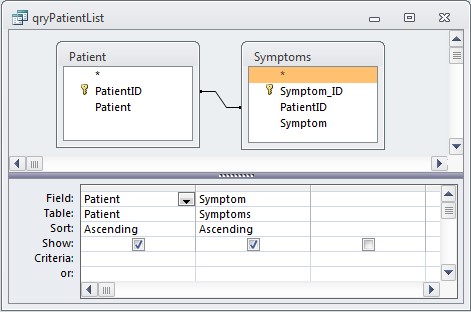
Or in the query builder:

Figure 3: Normalized query in the Query Builder.


The results of the queries are identical except the normalized query is updateable:

Figure 4: Results of both queries


Once again, querying repeated columns proves much more complicated and much less flexible than querying a normalized table structure.


Monday, March 28, 2011

Querying Repeated Columns: Multiple Joins

In the first post in this series (The Problem of Repeated Columns), I defined repeated columns and talked about the data integrity problems associated with them. If you haven't read that yet, it would be worthwhile to read first. Similarly, if you are not familiar with the concept of Normalization, you should read my blog series What is Normalization?

What I'm going to concentrate in the next few post are specific problems with querying data stored in repeated columns. This time, it's Multiple Joins.

Others in this series:

Multiple Joins

In my last post, Querying Repeated Columns: Multiple Unions, I discussed the problem of repeated columns with multiple categories. That is, in addition to Software1, Software2, ... SoftwareX, the table also has a Type field for each software: Software1Type, Software2Type, ... SoftwareXType. One solution that people come up with to solve this problem is to have a separate, "look-up" table for the software. Something like this:

Figure 1: Incorrect solution to the Multiple Category problem


This solution does have some advantages from a data integrity standpoint. I can use the Software table as the Row Source in a combo box on a form, which will limit data entry errors. I also can't assign an incorrect category to a software, since it is stored in the Software table.

The downside, however, is that I have to create multiple Joins with the Software table, one for each Software column. So just to get my original table back, I have to do something like this:

SELECT
        PC_ID,
        Software1,
        Software.Category AS Software1Type,
        Software2 ,
        Software_1.Category AS Software2Type ,
        Software3                            ,
        Software_2.Category AS Software3Type
FROM
        (( PC_RepeatedColumns
LEFT JOIN
        Software ON
        PC_RepeatedColumns.Software1 = Software.Software )
LEFT JOIN
        Software AS Software_1 ON
        PC_RepeatedColumns.Software2 = Software_1.Software )
LEFT JOIN
        Software AS Software_2 ON
        PC_RepeatedColumns.Software3 = Software_2.Software;

Or in the Query Builder:

Figure 2: Query with multiple joins to display software types.


Unfortunately, this just gets me back to the original, repeated columns table.


But as I showed last time, it does nothing to solve the underlying problem of querying the repeated columns. I would still need to use multiple UNION queries to return a list of PCs with word processors. However, unlike last time, each query in the Union must be joined to the Software table:

SELECT PC_ID, Software1, Software.Category
FROM PC_RepeatedColumns LEFT JOIN Software
   ON PC_RepeatedColumns.Software1 = Software.Software
WHERE Category="word processor"
UNION
SELECT PC_ID, Software2, Software.Category
FROM PC_RepeatedColumns LEFT JOIN Software
   ON PC_RepeatedColumns.Software2 = Software.Software
WHERE Category="word processor"
UNION
SELECT PC_ID, Software3, Software.Category
FROM PC_RepeatedColumns LEFT JOIN Software
   ON PC_RepeatedColumns.Software3 = Software.Software
WHERE Category="word processor"


Figure 3: Query with Multiple Unions and Multiple Joins


But as I showed last time, using a truly normalized structure, like this:

Figure 4: Fully normalized with Category column added.


I need only a simple join to query the data:

SELECT PC.PC_Num, Software, Category
FROM Software INNER JOIN
(PC INNER JOIN PC_Software ON PC.PC_ID = PC_Software.PCID)
ON Software.SoftwareID = PC_Software.SoftwareID
WHERE Category="word processor";


This one can be viewed in the Query Builder:

Figure 5: Word processor for each PC with normalized structure.


Once again, while the results of the queries are the same, querying repeated columns proves much more complicated and much less flexible than querying a normalized table structure.
 
.