One of the powerful features of Microsoft Access is its ability to run queries in Visual Basic for Applications (VBA) code. However, there are a couple of problems that plague developers when they attempt to do this. One is the problem of confirmation messages when running an Action query.
There are a variety of circumstances under which you might want to run a query in VBA code. You may want to just display the results of a Select query to the screen at the push of a button. You may want to run an Action Query in a code module as part of another process. You may even want to open a virtual recordset to do some data manipulation that can't be done directly in SQL. Access provides you several ways to accomplish this, depending on what you are trying to do.
There are two broad categories of queries in Access: Select queries and Action queries. Select queries simply return and display records. Action queries, on the other hand, actually modify the data in your tables. Append queries, Update queries, and Make Table queries are all action queries.
Confirmation Messages
The simplest way to run either a Select query or Action query is with the OpenQuery method of the DoCmd statement. Like this:
DoCmd.OpenQuery "Query1"
This statement will run the either type of query exactly as if you had run it from the Query Window. If the query is a Select query, it will simply return the query results to the screen, as in Figure 1.
Figure 1: Results of a Select query displayed to the screen using Docmd.OpenQuery.

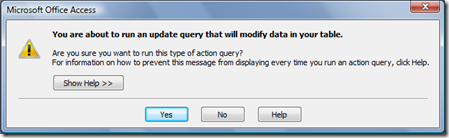
However, since Action queries modify data in your tables, they don't return anything to the screen. So Access displays a couple of confirmation dialog boxes to warn you that you are about to change your data. For instance, running an Update query will make the confirmation dialog box in Figure 2 appear.
Figure 2: Dialog box asking for confirmation of the Update query.
Followed by a second dialog box confirming the action. Like Figure 3.
Figure 3: Second confirmation dialog box for Update Query

While these messages are generally a good thing when using the Access Graphical User Interface (GUI), if you running an action query as part of an automated process, these confirmation boxes can be annoying. There are several ways to turn off these messages.
Set Options
First of all, you could turn off all confirmation boxes for Action queries by going to Tools menu, click Options, then click the Edit/Find tab. Under Confirm, clear the Action queries check box. On the whole, however, this is generally not a good idea. This option will affect all action queries in all databases. It would be better to target just those queries that you are certain you want to run without confirmation.
Set Warnings
Another way to keep these messages from appearing is to turn off the warning messages programmatically. The SetWarnings method of the DoCmd statement will turn off the warning messages until you turn them on again. To do this, you surround the query you want to run with one command to turn them off and another to turn them back on.
DoCmd.SetWarnings False
DoCmd.OpenQuery "ActionQuery1"
DoCmd.SetWarnings True
It is important to use these statements in pairs because all dialog boxes will be turned off (even the ones you want) until the database is shut down and restarted.
The problem with this method is that in addition to turning off the confirmation boxes, it will also turn off all error messages. So if there is an error when running the query, it will fail silently, leaving you no indication it had failed. This is rarely optimal.
Execute Method
The best solution is to turn off the confirmation messages while allowing the real error messages to display.
The best way to run queries in code is through the Data Access Object model or DAO. DAO gives you programmatic access to the entire database. Through DAO, you can change the structure of the database, modify the data in the database, and create or modify the database objects like forms, reports and queries. You can also use DAO to execute action queries.
To use DAO, you must create and initialize a database object variable. Like this:
Dim db As DAO.Database
Set db = CurrentDb()
Once you have created a database variable, you can use the Execute method to run the action query.
db.Execute "Query2", dbFailOnError
The Execute method assumes you know what you're doing, so it does not display confirmation messages. The optional parameter, dbFailOnError, will display any error messages.
Technically, you wouldn't have to create and initialize a database variable to run this query. Access provides a shortcut.
CurrentDb.Execute "Query2", dbFailOnError
The CurrentDb object will give you direct access to the database. It creates a temporary instance of the database that persists only until that line is executed. It can only be used for that one command. However, there are times when you want the database object to persist because you want to do multiple things with it, which leads me to opening parameter queries in code.
Sample Database
You can find a companion sample which illustrates how to suppress confirmation messages when running an Action query in VBA code, and is a perfect companion to the Action Queries Series.
You can find the sample here: http://www.rogersaccesslibrary.com/forum/forum_posts.asp?TID=402.

