Showing posts with label How Do I. Show all posts

Friday, February 1, 2019

How Do I Turn Off Compact On Close and Name Auto Correct in Access on Start Up?

Create a function called SetMyOptions()

Function SetMyOptions()
'turn off Compact On Close
    Application.SetOption "Auto compact", False

'turn off Name Auto Correct
    Application.SetOption "perform name autocorrect", False
End Function
Run this function in an AutoExec macro.


How do I run a macro or code when the database starts?

Monday, January 28, 2019

How Do I Disable Layout View for Forms and Reports in Access at Start Up?

Create a function called SetMyOptions()

Function SetMyOptions()
'disable Layout View for forms and reports
    Application.SetOption "DesignwithData", False
End Function
Run this function in an AutoExec macro.


How do I run a macro or code when the database starts?

Monday, January 21, 2019

How Do I Maximize an Access Database at Start Up?

Create a function called SetMyOptions()

Function SetMyOptions()
'maximize Access
    Application.SetOption "maximized", True
End Function
Run this function in an AutoExec macro.


How do I run a macro or code when the database starts?

Monday, January 14, 2019

How Do I Minimize the Ribbon In Access at Start Up?

Create a function called SetMyOptions()

Function SetMyOptions()
'minimize Ribbon
     If Not (CommandBars("Ribbon").Controls(1).Height < 100) Then
        CommandBars.ExecuteMso "MinimizeRibbon"
     End If
End Function
Run this function in an AutoExec macro.


How do I run a macro or code when the database starts?

Monday, January 7, 2019

How Do I Minimize the Access Navigation Pane on Start Up?

Create a function called SetMyOptions()

Function SetMyOptions()
'Open Nav Pane collapsed
    CurrentDb.Properties("Startupshowdbwindow") = False
    SendKeys ("{F11}")
    SendKeys ("{F11}")
End Function
Run this function in an AutoExec macro.


How do I run a macro or code when the database starts?

Thursday, December 21, 2017

De-identifying Data for Confidentiality - Part II

For part I, see De-identifying Data for Confidentiality - Part I

De-identifying Field Data

In certain instances, simply randomizing records is not sufficient. Certain field values have inherent information regardless of the record that holds them. Phone numbers, social security number, patient numbers, and the like all contain information all by themselves that may breach confidentiality. HIPAA regulations in particular are very strict about displaying any data that could identify a patient.

So to further mask your data, it may be necessary to scramble character data with in the field itself. Now, it doesn't make sense to randomize some types of fields. Name and address fields in particular will look strange if randomized in this way.

CustomerID

CustomerNumber

FirstName

LastName

1

0A30

Rgroe

arConsl

2

450A

aSm

rianMt

3

14A0

aharS

ltnrSadueh

Not only does it look strange, the capitalization of the names makes it fairly easy to re-identify the field values. So this function needs to be used with some discretion. It is best used with character data that is composed of numbers.

A further complication is that sometimes character data uses an input mask that displays characters that may either be stored or not. For instance, when you see a social security number in a field 111-22-3333, you don't really know if the number was stored as displayed or stored as 111223333. If the dashes are stored, the number might be randomized as 2-33311-13. So any function that randomizes character data must take these complications into account.

Overview of the Process

This process is similar to the record randomization process, but it only works on character data. Instead of creating a temporary table that holds all the records, we'll create two temporary string variables, one to hold value of the field we want to randomize and another to hold the randomized value. Then we'll grab random characters from the Source string and append them one at time into the Target string. We'll start at the top record of the main table, randomize the character string, write it back into the record, then proceed through the entire table until all values of the field have been randomized.

Unlike the record randomization process, this process will work on fields with Unique Indexes and Primary Keys. In fact, if a field has a unique index, you should not remove it. It is entirely possible to create duplicate records at random, so I will include error trapping to identify duplicate records. If one is discovered, it will randomize the string again until it creates a non-duplicate field value.

While this process will work on a Primary Key field, you should be careful. If this field participates in a Relationship, you will lose relational integrity. That is, the values in the primary key will no longer match values in the foreign key of the related table. If you do this, you should make certain your relationships have Cascade Updates property set to Yes.

This is not an issue, however, if your Primary Key is an Autonumber field for two reasons. One, an Autonumber is a long integer rather than character data, and secondly, you cannot change the value of an Autonumber.

Randomizing Character Fields

Sub RandomizeCharacterField _

(TableName As String, _

FieldName As String, _

FieldFormat As Variant)

'***This subroutine randomizes the characters of the

' indicated field in the selected table. It requires

' a Reference to Microsoft DAO 3.6 Object Library

On Error GoTo Err_RandomizeCharacterField

Dim db As DAO.Database

Dim rsTableName As DAO.Recordset

Dim i As Integer, StrLen As Integer

Dim strSource As String

Dim strTarget As String

Dim LeftSource As String

'*** used with the RND() function to return a random number

Randomize

'*** open the database

Set db = CurrentDb

'*** open the source table (tblRandom)

Set rsTableName = db.OpenRecordset(TableName)

'*** If the field format is Null, set it to the empty string

FieldFormat = Nz(FieldFormat, "")

'Loop thru the table, starting with the first record

Do Until rsTableName.EOF

'return label: used if a duplicate is produced

ReRandomize:

'*** set temp string to the field value

' and set receiving string to the empty string

strSource = rsTableName(FieldName)

strTarget = ""

'*** Repeat loop until all characters have been

' removed from temp string

Do While Len(strSource) > 0

     StrLen = Len(rsTableName(FieldName))

'*** select a character position at random

     If StrLen <> 1 Then

         i = Int((StrLen - 1) * Rnd + 1)

     End If

'*** grab the selected character and append

' it to the target string

     If InStr(FieldFormat, Mid(strSource, i, 1)) = 0 Then

          strTarget = strTarget & Mid(strSource, i, 1)

     End If

'*** delete the selected character from the Source String

     strSource = Left(strSource, i - 1) & _

          Mid(strSource, i + 1)

Loop

'*** when the Target String is complete, write it back to

'*** the original table

rsTableName.Edit

'*** apply the appropriate format to the string

rsTableName(FieldName) = Format(strTarget, FieldFormat)

rsTableName.Update

'*** proceed to the next record

rsTableName.MoveNext

Loop

MsgBox "Field: " & FieldName & " from Table: " & _

     cboTable & " has been character scrambled."

'*** Clean up object variables

rsTableName.Close

db.Close

Set rsTableName = Nothing

Set db = Nothing

Exit_RandomizeCharacterField:

Exit Sub

Err_RandomizeCharacterField:

If Err.Number = 3022 Then

'*** if there is a duplicate value in a field

' with a unique index, randomize it again

Resume ReRandomize

Else

MsgBox Err.Description

MsgBox Err.Number

Resume Exit_RandomizeCharacterField

End If

End Sub

Calling the Routine

In the Character Randomizing routine above, I have a line of code that applies the appropriate format. However, I don't say how you'll know what the appropriate format is. That's because we'll decide this in the calling routine.

Whether we send a format string to the randomization routine depends on whether the field has an input mask. It also depends on what kind of input mask it has.

There are three possibilities for the InputMask property of a field: an input mask that saves the characters, an input mask that does not save display characters, and no input mask at all. However for our purposes, an input mask that does not save characters is the same as no input mask at all. So all we have to test for is an input mask that saves display characters.

An input mask has three sections. The first is the input mask itself. The second is tells the mask whether to save the display characters or not, and the third tells what kind of placeholder character the input mask will display. Semi-colons divide each section.

We are only concerned here with the second section. If the input mask saves the character, the second section holds a zero. A one or nothing indicates the mask will not save the display characters. Therefore, we can test the input mask for ";0;". If this string does not appear in the input mask, the display characters are not saved.

The InputMask property is one of those properties that don't exist for the object unless a value is assigned to it. So if a field does not have an input mask, trying to read the property will produce an error. Therefore, I will trap for that error (3270) to cover the case where there is no input mask.

Again, how you implement this code depends on how it is going to be used. As with the Record Randomizing routine, I chose to create a form with combo boxes on the form (cboTable and cboFieldName) to hold the table, field names, and one for the format. I also added a control that displays the input mask for identification purposes.

The following code uses such a set up and would be in the On Click event of the cmdRunCharRandomization command button of the form.


Private Sub cmdRunCharRandomization_Click()

'*** This code is the calling routine.

On Error GoTo Err_cmdRunCharRandomization_Click

Dim db As DAO.Database

Dim tdf As DAO.TableDef

Dim fld As DAO.Field

Dim Mask As String

Set db = CurrentDb

Set tdf = db.TableDefs(cboTable)

Set fld = tdf.Fields(cboFieldName1)

'*** Read the InputMask property of the field

Mask = fld.Properties("InputMask")

'*** if the InputMask of the field shows that extra

' characters are saved, call the randomization

' routine and include the FieldFormat string.

If InStr(Mask, ";0;") > 0 Then

     Call RandomizeCharacterField( _

         cboTable, cboFieldName1, cboFieldFormat)

    '*** but if the InputMask shows characters are not

     ' saved or if there is no InputMask, call the

     ' randomization routine without sending the

    ' FieldFormat string.

Else

      Call RandomizeCharacterField( _

           cboTable, cboFieldName1, "")

End If

Exit_cmdRunCharRandomization_Click:

Exit Sub

Err_cmdRunCharRandomization_Click:

'*** If there is no mask, it will return a

' Property Not Found error

If Err.Number = 3270 Then

Resume Next

ElseIf Err.Number = 3265 Then

MsgBox "Please select both a table and a field"

Resume Exit_cmdRunCharRandomization_Click

Else

MsgBox Err.Description

MsgBox Err.Number

Resume Exit_cmdRunCharRandomization_Click

End If

End Sub

CharacterScrambleFigure2

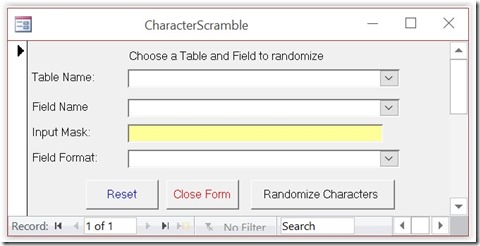
Figure 2: Example form that could be used to run the character randomization code.

Using a form like above allows you to select a field to scramble. You can select, in turn, all of fields with identifying data. On my website, you can find a small sample database called CharacterScramble.accdb, which demonstrates this process, including the calling form.

One caution. If you are randomizing fields to de-identify data to comply with regulatory rules, you should get approval for using this process with your regulatory compliance officer. For instance, HIPAA rules specify that if you de-identify data, you must use an algorithm which prevents the data from being reconstructed. Since this routine selects characters at random, I believe it complies with this instruction, but only your regulatory officer would know for sure.

Conclusion

There are many reasons for masking, blinding, scrambling, or de-identifying data within a database. Creating realistic data for demonstration purposes and masking data to comply with regulatory rules are just two. But with a little programming expertise, it doesn't have to be an onerous task.

Tuesday, December 5, 2017

De-identifying Data for Confidentiality - Part I


Data Scramble

There are a number of circumstances when you as a developer might need to randomize data within a database. You may need to create sample data to test or demonstrate a database application. Or you may need to mask or "de-identify" confidential data to comply with regulatory agency rules. This article demonstrates two methods that can be used, either separately or in conjunction, to scramble your database.

Creating test data for a database application is always a difficult task. You need to create enough records to adequately test database performance. A design that works well with a hundred records, might not work with ten thousand. You also need to create data varied enough to mimic real world situations, data that will test the limits of the business rules. Developers have a tendency to create data that will work with their application, not data that will break it.

The very best source for creating test data is actual customer data. Nothing mimics real-world data like the real-world data. Unfortunately, your customers may not appreciate their data being used in this way. Worse yet, there may be regulatory considerations. For instance, the health care industry has to comply with HIPAA (Health Insurance Portability and Accountability Act) regulations, which has very strict compliance rules.

Randomizing Records

Let's start by considering the simplest case. You simply want to mask customer data without the necessity of complying with regulations. It is probably sufficient to simply randomize each field that could identify a record to effectively mask the data.

Tables 1 and 2 show the before and after of a small Customer table that has been randomized.

CustomerID

CustomerNumber

FirstName

LastName

1

A003

Roger

Carlson

2

A045

Sam

Martin

3

A014

Sarah

Sutherland

Table 1: Original Customer table

CustomerID

CustomerNumber

FirstName

LastName

1

A045

Sarah

Carlson

2

A014

Sam

Sutherland

3

A003

Roger

Martin

Table 2: The Customer table after randomization

Of course, with only three records, the randomization is not very random, but the larger the result set, the better the randomization will be. So let's see how to do this.

Overview of the Process

The first thing we'll do is create a temporary table that holds the values we want to randomize. This is best done with a Make Table query (SELECT...INTO). Then we'll start at the top record of the main table and copy random values from the temporary table back into the main table. As each value is copied back in, we'll delete it from the temporary table. Repeat this process for each field and the records will be thoroughly scrambled.

One caveat: This process won't work if the field is a Primary Key or has a Unique Index because it will temporarily cause duplicate records. So, you'll have to manually remove the constraint. Of course it is possible to remove and re-establish constraints programmatically, but that is beyond the scope of this article. Lastly, this code will not work with an Autonumber field under any circumstances.

Creating Temporary Table

The first thing we have to do is create a temporary table, called "tblRandom" to hold the field values. (I could have used an array to do the same thing, but since this is a database project, I prefer to use database objects.) As I said, we can use a SQL statement in the form of a Make Table Query. The following subroutine shows how to do that.

Sub CreateRandomTable(TableName As String, FieldName As String)

'*** This routine creates the tblRandom table

' used to hold the values to be randomized

On Error GoTo Err_CreateRandomTable

Dim strSQL As String

'*** create the query based on the passed arguments

strSQL = "SELECT [" & FieldName & "] INTO tblRandom " & _

"FROM [" & TableName & "];"

'*** delete the table if it exists

CurrentDb.TableDefs.Delete "tblRandom"

'*** run SQL make-table query

CurrentDb.Execute strSQL

Exit_CreateRandomTable:

Exit Sub

Err_CreateRandomTable:

'*** if the error is 3265, the table does not exist

If Err.Number = 3265 Then

'*** then skip the Delete command

Resume Next

Else

MsgBox Err.Description

Resume Exit_CreateRandomTable

End If

End Sub

The error trapping code in the function is necessary because if the table "tblRandom" already exists, the Make Table query will fail. But the code traps for that error (3265) and skips the Delete command.

Randomizing Records

Now we are ready to randomize the fields. The following subroutine will do that.

Sub RandomizeTableField _

(TableName As String, _

FieldName As String)

'***This subroutine randomizes the indicated

' field in the selected table.

On Error GoTo Err_RandomizeTableField

Dim db As DAO.Database

Dim rsTarget As DAO.Recordset

Dim rsSource As DAO.Recordset

Dim i As Integer, upperbound As Integer

'*** used with the RND() function to return

' a random number

Randomize

'*** open the database

Set db = CurrentDb

'*** open the source table (tblRandom)

Set rsSource = db.OpenRecordset("tblRandom", dbOpenTable)

'*** open target table (original table)

Set rsTarget = db.OpenRecordset(TableName, dbOpenTable)

'*** repeat loop until the all records have been randomized

Do Until rsTarget.EOF

upperbound = rsSource.RecordCount

'*** select a random record in the source

' table and move to it

If upperbound <> 1 Then

i = Int((upperbound - 1) * Rnd + 1)

rsSource.Move i

End If

'*** write value from source table into target

rsTarget.Edit

rsTarget(FieldName) = rsSource(0)

rsTarget.Update

'*** delete that value from source table

rsSource.Delete

rsSource.MoveFirst

rsTarget.MoveNext

Loop

MsgBox "Field: " & FieldName & " from Table: " & _

TableName & " has been scrambled." & vbCrLf & _

"If you removed an index, please recreate it."

'*** Clean up object variables

rsTarget.Close

rsSource.Close

db.Close

Set rsTarget = Nothing

Set rsSource = Nothing

Set db = Nothing

'*** error trapping to catch constraints

Exit_RandomizeTableField:

Exit Sub

Err_RandomizeTableField:

'*** if the field has a unique index

If Err.Number = 3022 Then

'*** display message informing user to remove index

MsgBox "The field that you have chosen: " & _

cboFieldName1 & vbCrLf & _

"Has a Unique Index. You must remove this " & _

"index to proceed." & vbCrLf & _

"Once you have scrambled the field, " & _

"you can restore the index."

Resume Exit_RandomizeTableField

Else

MsgBox Err.Description

Resume Exit_RandomizeTableField

End If

End Sub

Calling the Routine

Now, all that's left is to pull it all together with a calling routine. How you do that depends on how it is going to be used. For instance, this code could be placed in a form with combo boxes on the form (cboTable and cboFieldName) holding the table and field names. Then you could select the table and field from lists.

The following code uses such a set up and would be in the On Click event of the cmdRunRandomization command button of the form.

Private Sub cmdRunRandomization_Click()

'*** This code is the calling routine

On Error GoTo Err_cmdRunRandomization_Click

Call CreateRandomTable(cboTable, cboFieldName1)

Call RandomizeTableField(cboTable, cboFieldName1)

'*** delete temporary table

CurrentDb.TableDefs.Delete "tblRandom"

Exit_cmdRunRandomization_Click:

Exit Sub

Err_cmdRunRandomization_Click:

If Err.Number = 3265 Then

'*** then skip the Delete command and

' resume on the next line

Resume Next

Else

MsgBox Err.Description

Resume Exit_cmdRunRandomization_Click

End If

End Sub

DataScrambleFigure1

Figure 1: Example form that could be used to run the field randomization code.

Using a form like above allows you to select a field to scramble. You can select, in turn, all of fields with identifying data. On my website, you can find a small sample database called Datascramble.accdb, which demonstrates this process, including the calling form.

Sometimes It’s Not Enough

But sometimes just re-arranging field values in the records is not enough. Sometimes, your fields contain sensitive data like Social Security Numbers or Patient Identifiers which can’t be displayed even if it’s attached to the wrong record.

In that case, you may want to scramble the characters within a field itself.  I address this problem in De-identifying Data for Confidentiality - Part II

Friday, March 10, 2017

How Do I Decompile a Database?


In order for any program code to be run by a computer, it must be converted to machine-readable code. This code is called Object Code. The text version of this program that you and I can read is called Source Code.

In Access, the process of producing Object Code from Source Code is called "compilation". Whenever code is run for the first time in Access, the code is first compiled. (You can also compile it yourself by pushing the compile button). The only place you can make changes to code is in the Source Code, which must again be compiled into Object Code.

Occasionally, code can be deleted from the Source Code, but for some reason is never removed from the Object Code. This code is never again seen on the screen as text, but is still sitting there somewhere in the database file. This can, at times, interfere with the normal operation of the program.

To remove these stray bits of code, you can "Decompile" your database and then re-compile it. This process removes all of the compiled Object Code, then when you re-compile it, you only get Object Code that reflects the current Source Code.

To Decompile your Access database, do the following:

  1. Click the Start button on the task bar and choose Run
  2. In the Run dialog box, type the following:
    "C:\Program Files\Microsoft Office\Office\Msaccess.exe" /decompile
    where the first part (in quotes) is the complete path to your Access program. If you have the default installation, it is likely that it is just as listed here. Click OK.
    Note: if you have Windows Vista, just type the command line in the Start Search box of the Start menu.
  3. This will open Access and allow you to choose which database to open. Whichever database you open will be decompiled.
  4. Choose a database and open it. Access 97 used to give you a dialog which told you the database had been decompiled, but newer versions do not. Nevertheless, the database has been decompiled.
  5. Open any Module in design view, or any Form or Report in design view and choose View > Code from the menu. In the next screen, choose Debug > Compile from the menu bar.
    Note: In Access 2007, you can also choose Database Tools on the ribbon, then select Visual Basic. Then choose Debug > Compile.
  6. Your database has now been Decompiled and Re-compiled.

Creating a Shortcut:

I use decompile quite frequently, so instead of typing the command line into the Run box, I've created a shortcut on my desktop. There are several ways to create a shortcut, the easiest is to use the Shortcut Wizard.

Right-click anywhere on your desktop and select New > Shortcut. The wizard will give you a dialog box allowing you to browse to the file you want. It should be the same as above in Step 2. Once you've browsed there, add the "/decompile" switch to the end as shown below. Be sure to separate the decompile switch from the file path with a space. It will look as follows:


Click Next.

It will ask to name your shortcut. Choose something descriptive like Decompile Access 2003. And click Finish.

The finished shortcut will look like this:


Now when I want to decompile a database, I just click the shortcut and start with Step 3 above.


.

Wednesday, February 1, 2017

Ambiguous Outer Joins

The Outer Join can be a powerful tool for querying data in Microsoft Access. When you have only two tables, there is usually no problem. When there are more than two tables, however, using an Outer Join becomes more complicated. Sometimes Access allows it, and sometimes it gives you the not-very-descriptive "Ambiguous Outer Join" error.

Why? Well, first we'll look at what an Ambiguous Outer Join is, and then see how to correct it.

Microsoft Access has three types of joins: the Inner Join, the Right Join and the Left Join. Both the Right and Left joins are known as Outer Joins. An Inner Join shows only those records that exist in both tables. However, an Outer Join (both Right and Left) shows all of the records from one table (the Base Table) and just the matching records from the other (Secondary Table).

When Access processes a multiple table query, it needs to determine the order in which joins should be made. Should it join Table1 to Table2 first and then join Table3? Or should it do it in some other order? This is part of the Rushmore technology of the Jet engine. It tries to determine the most efficient way to process the query.

In the case of standard Inner Joins, the result set will be the same, regardless of the order in which they are joined. However, this is not the case with Outer Joins. There are times, when using an Outer Join, that the result of the query will be different depending on the order in which joins are created. In this case, Access cannot determine the order to join the tables. This is an Ambiguous Outer Join.

So how do you know when an Outer Join will result in an error? The easiest way to understand it is in terms of what you see in the Query Builder grid.

A table which participates in an Outer join as a Secondary Table (that is, the arrow is pointing *towards* it) cannot participate in either an Inner Join, or as a Secondary Table in another Outer Join. Figure 1 shows two types of queries that will result in an Ambiguous Outer Join error.

image

Figure 1: Two illegal Outer Join Queries

However, the table participating in the Outer Join as a Secondary Table can participate in another Outer Join if it is the Base table of the other Outer Join (that is, the arrow points *away* from it). Figure 2 shows a query that will not result in an Ambiguous Outer Join error.

image

Figure 2: A legal Outer Join Query
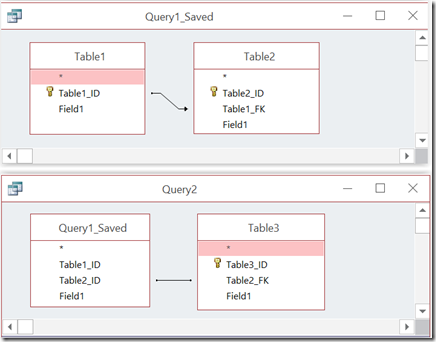
So what do you do if you need to create a query like case 1 or 2? You have to split the query into a stacked query, that is, two queries, the second of which uses the first. This is exactly what the Ambiguous Outer Join error message suggests.

Create a query joining the first two tables with an Outer Join and save it as a named query (i.e. Query1). Then, in a second query, join the first query to the third table.
Figure 3 shows how to build a stacked query.

 image

Figure 3: Shows how to split the query into two queries to avoid an Ambiguous Outer Join.

So the Ambiguous Outer Join error is not really all that confusing. It simply means that the database wants you to decide which join it should create first. In Access, you do this by spitting the query into a stacked query.


Tuesday, May 31, 2016

Automating Microsoft Word and Excel from Access


The Microsoft Office Suite has a number of tools for communicating between its products, the most powerful of which is Office Automation through VBA (Visual Basic for Applications). By exposing the underlying object model for each of its applications, Microsoft made it possible to exercise programmatic control not only within a particular application, but between applications.

In my last article, Easy Excel Charting from Access, I showed how to create Excel chart from Access. The charting capabilities of Access using MS Graph are fairly primitive, so by sending the data to Excel, I can have a much richer set of charting tools. However, what I never covered is what to do with charts once they've been created.

It would be useful to paste these charts into an Access report, but that's not possible. However, it is possible to programmatically create a Word document, write data from your database to it, and then paste the appropriate chart into the document, making Word a very powerful and flexible reporting tool for Access.

Creating the Template

First thing to do is create a Word template. Word templates are Word documents saved with a DOTX extension. When you open a template, Word creates a new document based on the template. So the template itself is never modified. This makes it ideal for my purposes here. I'll create a template with the basic structure of my document and static text. As an additional benefit, an end user can modify the static parts of the document without requiring program modification.

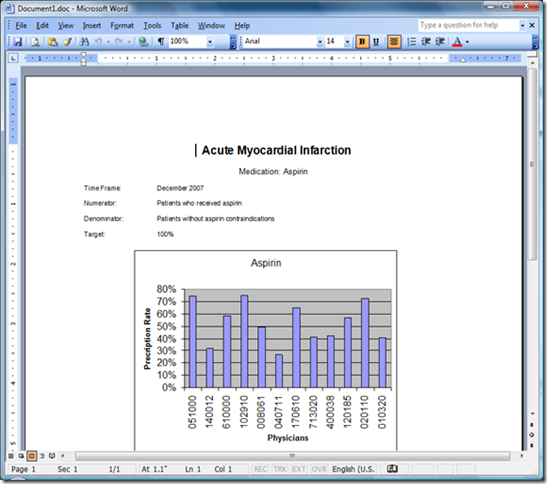
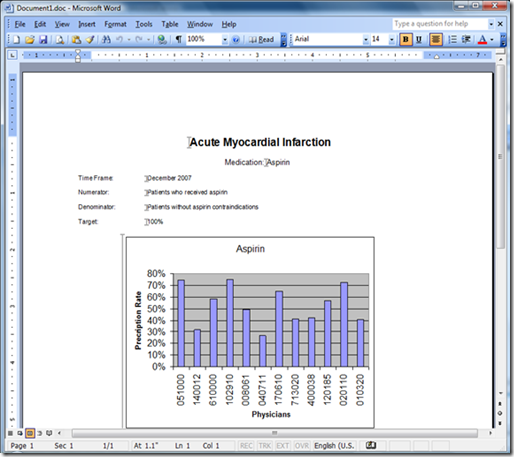
There is no single right way to create the template, but perhaps the easiest is to first create a document that looks like the finished report. Something like Figure 1.
image_thumb3
Figure 1: Create a document that will look like the final report.

Most of the information on this report, including the chart, will be filled in from information stored in the database. In order to create places for the information to be inserted, I need to create bookmarks. Bookmarks are placeholders within your Word document.

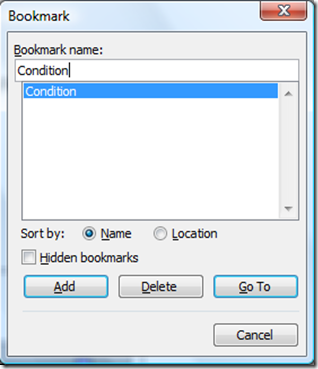
To create a bookmark, I place my cursor where I want the bookmark to go and click on Insert>Bookmark. A dialog box like Figure 2 will appear. I type in the name for my bookmark (in this case Condition) and click Add. I now have a bookmark. By default, bookmarks are invisible, so in order to see them, I click to Tools>Options on the menu bar and click the Bookmarks checkbox. The bookmark will show up as a gray I-bar. See figure 3.
image_thumb6
Figure 2: Bookmark dialog showing the newly created Condition bookmark.

Place the cursor at the spots where the other bookmarks should be created and repeat the operation. When done, it will look like figure 3.
image_thumb7
Figure 3: Document with bookmarks created.

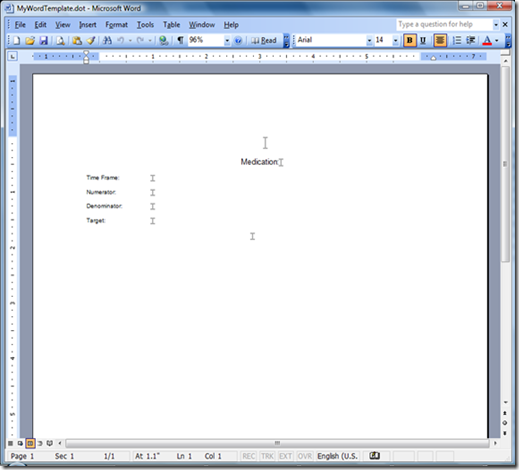
All that is left to do is erase the information following the bookmarks and save the document as a Word template.

Word always wants to store templates in the default Templates folder in Program Files. Depending on how Office was installed, this folder could be different places on different machines. Therefore, I prefer to store the template in the same folder as the Access database or perhaps in a subfolder. This has the advantage of allowing the program to always know where the template is because as I will show later, I can programmatically determine the path to the application. So after I select Word Template (*.dot) in the File Type dropdown box, I browse to the correct folder to save the template. Figure 4 shows the completed template.

Once the template is created, I can re-hide the bookmarks. They don't need to be visible to work.
image_thumb10
Figure 4: Completed template.

Automation Program Overview

Next, I create the Access subroutine (called ExcelWordAutomation), which automates the process of creating the Word documents. The overall process goes something like this:

  1. Open the Word template to create the document.
  2. Open the Excel spreadsheet that has pre-created charts for insertion.
  3. Open a recordset with data for reports.
  4. Insert data from the first record into the first report.
  5. Copy the appropriate chart in Excel and past into the Word document.
  6. Save the Word document with an appropriate name.
  7. Loop to step 4 and repeat until the recordset is finished.
  8. Close Excel, Word, and all object variables.

Setting a Reference to Word and Excel

Next, I switch to Access to create the export routine. But before I do that, I need to set a reference to Excel in Access. A reference is a call to an external code library, in this case the Excel Object Model. This will allow me to manipulate Excel objects from within Access.

To set a reference, I open the Visual Basic Editor. Then I go to Tools > References. In the dialog box, scroll down to Microsoft Word 15.0 Object Library and Microsoft Excel 15.0 Object Library (your version numbers may vary). Click the checkbox next to it and click OK. Figure 1 shows what the References Dialog looks like.

image_thumb1 
Figure 1: The References Dialog showing the Word and Excel Object Library reference.

So let's look at the program details. As always, I start the routine with a call to an Error Handler to trap a number of common errors. I'll explain the specific errors later.

Sub ExcelWordAutomation()
On Error GoTo HandleError

Then I need to declare a number of variables. In order to create and manipulate objects in Word or Excel, I need some object variables. The power of Office Automation is that Word or Excel object variables inherit the capabilities of the parent program. Ordinarily, I’d define them here, but for clarity, I’m going to define them throughout the code where they’re needed.

Next, I need some Access object variables.

Dim db As DAO.Database
Dim rsReportData As DAO.Recordset
Dim rsExclusions As DAO.Recordset

And lastly, I need some scalar variables.

Dim strsql As String
Dim strFile As String
Dim conPath As String
Dim X As Long
Dim wdGoToBookmark As Integer

As I mentioned earlier, I need to find the folder where the database resides. This is where the template is stored and also where I'll save the completed documents. Naturally, if I wanted the files stored elsewhere (say a specific directory), I could code that here, too. Fortunately, I can easily find the full path and file name of the database by using the Name property of the database object.

To do this, I'll instantiate a database variable with the CurrentDb function. Then with judicious use of the Mid, Len, and Dir functions, I can return the default folder, that is, the folder where the database resides.

Set db = CurrentDb
conPath = CurrentProject.Path

Since I have a single workbook which contains all the charts I need, each on a separate sheet, I'll open that first. In order to do that, I will instantiate first an Excel application object and then a workbook object.

Dim objXLBook As Excel.Workbook
Set objXLBook = objXLApp.Workbooks.Open(conPath & "\MySpreadsheetChart.xlsx")

In order to be able to watch the process of copying the charts, I'm going to make both Excel and the workbook visible. Technically, this is not necessary. The code will work just as well if Excel remains invisible, but it's interesting to watch the process.

objXLApp.Visible = True
objXLBook.Windows(1).Visible = True

Now, I need to open a recordset containing the data needed for the reports. This information is stored in a table called ReportData (see Figure 5).

Set rsReportData = db.OpenRecordset("ReportData", dbOpenSnapshot)

Figure 5: Table which stores the data to be inserted in each report.

Since each record contains the information for a single report, I'll step through the records one at a time, creating a Word document for each. A Do…While loop will work perfectly for this.

Do While Not rsReportData.EOF

Just as I did with Excel, I have to create a Word object. With Word, however, I only need to create the application object. I'll also open a new document based on the MyWordTemplate.dot template.

Dim objWord As New Word.Application
Set objWord = CreateObject("Word.Application")
objWord.Documents.Add conPath & "\MyWordTemplate.dotx"

And, again, I'll make them both visible. Like the Excel objects, these lines are optional.

objWord.Visible = True
objWord.Windows(1).Visible = True

Now that my document is created, I need to find the appropriate bookmarks and insert information from my recordset. Here, I use the "With…End With" construct to avoid having to repeat the objWord.ActiveDocument.Bookmarks object reference for each bookmark.

With objWord.ActiveDocument.Bookmarks
    .Item("Condition").Range.Text = rsReportData!Condition
    .Item("Medication").Range.Text = rsReportData!Medication
    .Item("Timeframe").Range.Text = rsReportData!TimeFrame
    .Item("Numerator").Range.Text = rsReportData!NumeratorDef
    .Item("Denominator").Range.Text = rsReportData!DenominatorDef
    .Item("Target").Range.Text = rsReportData!Target
End With

'find and write exclusion data
strsql = "SELECT ReportID, Exclusion " & _
    "FROM ExclusionData " & _
    "WHERE ReportID=" & rsReportData!ReportID
  
Set rsExclusions = db.OpenRecordset(strsql)
    Do While Not rsExclusions.EOF
    With objWord.ActiveDocument.Bookmarks
        .Item("exclusions").Range.Text = rsExclusions!Exclusion & vbCrLf
        rsExclusions.MoveNext
    End With
Loop
rsExclusions.Close

To paste the chart into the document, I'm going to use the Windows Clipboard. So I have to switch to my already open Excel workbook, find the sheet matching the medication value in my recordset and copy it to the clipboard.

objXLBook.Sheets(rsReportData!Medication.Value).Select
objXLBook.ActiveSheet.ChartObjects("Chart 1").Activate
objXLBook.ActiveChart.ChartArea.Select
objXLBook.ActiveChart.ChartArea.Copy

Then I return to my Word document, move my cursor to the "Chart" bookmark, and paste the chart into the document. In this case, setting the Word object to visible is mandatory. This method of pasting from the clipboard requires the object to be activated, and in order to be activated, it must be visible.

objWord.Activate
wdGoToBookmark = -1
objWord.Selection.Goto What:=wdGoToBookmark, Name:="Chart"
objWord.Selection.Paste

That's all I need in the document, so I'll save the document in the same directory as the template, naming it after the medication value in my recordset.

objWord.ActiveDocument.SaveAs (conPath & "\" & rsReportData!Medication & ".docx")
objWord.Quit

And then, I return to process the next record, looping until the recordset until done.

    rsReportData.MoveNext
Loop
   

After I've processed all the records, I'm done with the Excel workbook, so I'll close it without saving and close Excel.

objXLBook.Close SaveChanges:=False
objXLApp.Workbooks.Close
objXLApp.Quit

Then I add a message box that identifies when the process is done.

MsgBox "Done!" & vbCrLf & vbCrLf & _
    "Look in this directory" & vbCrLf & conPath & vbCrLf & _
    "for your documents."

Lastly, I complete the error trapping. After the ProcDone label, I'll destroy the object variables I've created. I do that here so if there is an error and the routine terminates, no Word, Excel, or Access object will be left in memory.

ProcDone:
' clean up our object variables
Set objXLBook = Nothing
Set objXLApp = Nothing
Set objWord = Nothing
Set rsReportData = Nothing
Set rsExclusions = Nothing
Set db = Nothing
   
ExitHere:
    Exit Sub

There are three main errors that must be handled. Error 432 occurs if the Excel spreadsheet is not found. Since no other objects are open, I just want it to end the routine without doing anything else. Error 5151 occurs if the Word Template does not exist. In that case, I want the routine to close the Open Excel object and end the program. Error 4152 can happen in a variety of circumstances, all of which come down to an error in the file or path. Since both Word and Excel objects are open at the time of the save, I want both objects to close without saving. The last error, 9, can happen when a record has been added to the table without a corresponding spreadsheet in the workbook. This error is handled just like 4152, but displays a different error message.

All other errors will be handled by the Case Else and will result in the error description and number being displayed and the program ending. It's always a good idea to add a generic error handler as users can always find ways to create errors that the developer can't anticipate. Since I don't know what the error might be, I don't know what objects might be open, so I don't attempt to close them.

HandleError:
    'display appropriate error message
    Select Case Err.Number
        Case 5151 'Word template not found
            'Close stranded applications
            objXLBook.Close SaveChanges:=False
            objXLApp.Quit
            MsgBox "Word template not found"
        Case 432 'Excel spreadsheet not found
            MsgBox "Excel spreadsheet not found"
        Case 5152 'Invalid file name
            'Close stranded applications
            objXLBook.Close SaveChanges:=False
            objXLApp.Quit
            objWord.ActiveDocument.Close SaveChanges:=False
            objWord.Quit
            MsgBox "This file or folder does not exist"
        Case Else
            MsgBox Err.Description, vbExclamation, _
             "Error " & Err.Number
             Set objXLBook = Nothing
Set objXLApp = Nothing
Set objWord = Nothing
Set rsReportData = Nothing
Set rsExclusions = Nothing
Set db = Nothing
   
    End Select
    Resume ProcDone
End Sub

Running the Code

Now the code is complete and ready to run. All that's necessary is to call the routine from a button or some other Event Procedure, like so:

Private Sub cmdRun_Click()
  Call ExcelWordAutomation
End Sub

On completion, your folder will have one report document for each record in the ReportData table.

Conclusion

Office Automation is a powerful tool for integrating separate Office applications. By using a single macro language for all of the Office applications and exposing the object models of each, Microsoft made it possible to build custom applications that would be difficult any other way. The possibilities are limited only by the imagination of the developer.

You can download a sample database illustrating all the code here, AutomatingWordFromAccess .


.