At Your Survey
Author: Duane Hookom
At Your Survey (AYS) is a full featured application that allows users to create their own surveys by designing the questions and providing a lookup of possible responses. ATS uses a fairly normalized table structure so the same tables, forms, code, queries, and reports can be used for any number of surveys. There is a brief manual to help you get started as well as a sample survey with data.
Find out more here: http://www.rogersaccesslibrary.com/forum/forum_posts.asp?TID=3
Tuesday, August 5, 2014


Friday, August 1, 2014
Access 101: Can I Create an EXE from my Access Application?
There is no way to create an EXE from an Access database. However, there is a way to install what's known as the "Access Run-time engine" that will allow the user to run the app without having Access installed on their system. The Run-Time is NOT the same as an EXE. For one thing, anyone who has Access on their system will still be able to open the application in their copy of Access (assuming they have the right version).
The Run-Time engine is installed as an option in the Package and Deployment Wizard. In Access 2000, this wizard came with the Access Developer's Edition. In Access 2003, you can get it in the Office Developer Extensions
(http://msdn.microsoft.com/en-us/office/aa905403.aspx). In Access 2007, you can download the 2007 Developer Extensions and Runtime (http://office.microsoft.com/en-us/access/HA102188681033.aspx). To run the Wizard, go to the Visual Basic Window, choose Tools, select the wizard, and follow the directions.
There are a few things to keep in mind when creating an application that will be used with the Run-time:
- NEVER use macros. If the macros fail, you don't get the HALT screen, the whole app just crashes.
- Error trap EVERYTHING. You want a graceful exit from every error. This is good practice regardless.
- Don't rely on the native Access toolbars or menus. You must provide all functionality yourself. For instance, if you rely on the Find button (binoculars) to search for a record, forget it. This button won't be available to the app when using the Run-time.
- The install disk created with the wizard will be very much larger than your program. However, in this day of CD burners, this is not the issue it once was.
Now, one thing you can do to keep your users from modifying the application is to convert it to an MDE. This is not an executable either, but it DOES have all of the source code removed. That means the user cannot open a form, report, module, or macro in Design view. Tables and queries can still be modified though.
So between converting the app to an MDE and deploying it with the Access Run-time, this comes very close to the functionality of the EXE you are looking for.
Thursday, July 24, 2014
Ambiguous Outer Joins
To see a video of this article, click here: Ambiguous Outer Join Error
Thanks to Webucator for creating this video. https://www.webucator.com/microsoft-training/access.cfm
The Outer Join can be a powerful tool for querying data in Microsoft Access. When you have only two tables, there is usually no problem. When there are more than two tables, however, using an Outer Join becomes more complicated. Sometimes Access allows it, and sometimes it gives you the not-very-descriptive "Ambiguous Outer Join" error.
Thanks to Webucator for creating this video. https://www.webucator.com/microsoft-training/access.cfm
The Outer Join can be a powerful tool for querying data in Microsoft Access. When you have only two tables, there is usually no problem. When there are more than two tables, however, using an Outer Join becomes more complicated. Sometimes Access allows it, and sometimes it gives you the not-very-descriptive "Ambiguous Outer Join" error.
Why? Well, first we'll look at what an Ambiguous Outer Join is, and then see how to correct it.
Microsoft Access has three types of joins: the Inner Join, the Right Join and the Left Join. Both the Right and Left joins are known as Outer Joins. An Inner Join shows only those records that exist in both tables. However, an Outer Join (both Right and Left) shows all of the records from one table (the Base Table) and just the matching records from the other (Secondary Table).
When Access processes a multiple table query, it needs to determine the order in which joins should be made. Should it join Table1 to Table2 first and then join Table3? Or should it do it in some other order? This is part of the Rushmore technology of the Jet engine. It tries to determine the most efficient way to process the query.
In the case of standard Inner Joins, the result set will be the same, regardless of the order in which they are joined. However, this is not the case with Outer Joins. There are times, when using an Outer Join, that the result of the query will be different depending on the order in which joins are created. In this case, Access cannot determine the order to join the tables. This is an Ambiguous Outer Join.
So how do you know when an Outer Join will result in an error? The easiest way to understand it is in terms of what you see in the Query Builder grid.
A table which participates in an Outer join as a Secondary Table (that is, the arrow is pointing *towards* it) cannot participate in either an Inner Join, or as a Secondary Table in another Outer Join. Figure 1 shows two types of queries that will result in an Ambiguous Outer Join error.
 Figure 1: Two illegal Outer Join Queries
However, the table participating in the Outer Join as a Secondary Table can participate in another Outer Join if it is the Base table of the other Outer Join (that is, the arrow points *away* from it). Figure 2 shows a query that will not result in an Ambiguous Outer Join error.
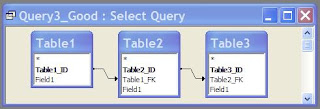 Figure 2: A legal Outer Join Query
Microsoft Access has three types of joins: the Inner Join, the Right Join and the Left Join. Both the Right and Left joins are known as Outer Joins. An Inner Join shows only those records that exist in both tables. However, an Outer Join (both Right and Left) shows all of the records from one table (the Base Table) and just the matching records from the other (Secondary Table).
When Access processes a multiple table query, it needs to determine the order in which joins should be made. Should it join Table1 to Table2 first and then join Table3? Or should it do it in some other order? This is part of the Rushmore technology of the Jet engine. It tries to determine the most efficient way to process the query.
In the case of standard Inner Joins, the result set will be the same, regardless of the order in which they are joined. However, this is not the case with Outer Joins. There are times, when using an Outer Join, that the result of the query will be different depending on the order in which joins are created. In this case, Access cannot determine the order to join the tables. This is an Ambiguous Outer Join.
So how do you know when an Outer Join will result in an error? The easiest way to understand it is in terms of what you see in the Query Builder grid.
A table which participates in an Outer join as a Secondary Table (that is, the arrow is pointing *towards* it) cannot participate in either an Inner Join, or as a Secondary Table in another Outer Join. Figure 1 shows two types of queries that will result in an Ambiguous Outer Join error.
Figure 1: Two illegal Outer Join QueriesHowever, the table participating in the Outer Join as a Secondary Table can participate in another Outer Join if it is the Base table of the other Outer Join (that is, the arrow points *away* from it). Figure 2 shows a query that will not result in an Ambiguous Outer Join error.
Figure 2: A legal Outer Join Query
So what do you do if you need to create a query like case 1 or 2? You have to split the query into a stacked query, that is, two queries, the second of which uses the first. This is exactly what the Ambiguous Outer Join error message suggests.
Create a query joining the first two tables with an Outer Join and save it as a named query (i.e. Query1). Then, in a second query, join the first query to the third table.
Figure 3 shows how to build a stacked query.

Figure 3: Shows how to split the query into two queries to avoid an Ambiguous Outer Join.
So the Ambiguous Outer Join error is not really all that confusing. It simply means that the database wants you to decide which join it should create first. In Access, you do this by spitting the query into a stacked query.
Create a query joining the first two tables with an Outer Join and save it as a named query (i.e. Query1). Then, in a second query, join the first query to the third table.
Figure 3 shows how to build a stacked query.
Figure 3: Shows how to split the query into two queries to avoid an Ambiguous Outer Join.
So the Ambiguous Outer Join error is not really all that confusing. It simply means that the database wants you to decide which join it should create first. In Access, you do this by spitting the query into a stacked query.
Thursday, June 20, 2013
You CAN use quotes as a text value delimiter in T-SQL
SET QUOTED_IDENTIFIER OFF
Even though I said in a recent post (Access SQL Delimiters vs. T-SQL Delimiters), that T-SQL uses only the apostrophe (') as a text delimiter, that's not entirely true. It IS possible to use the quote (") as a text delimiter, just like Access. To do this, you must set a T-SQL option called QUOTED_IDENTIFIER to OFF. This must be done at the beginning of the pass-through query:
SET QUOTED_IDENTIFIER OFF
SELECT MyTextField, MyDateField, MyIntField
FROM dbo.MyTable
WHERE MyTextField="Roger Carlson";
SET QUOTED_IDENTIFIER ON
Because T-SQL (and therefore pass-though queries) allow multiple statements to execute, you can turn the option off, and then back on again in the same query.
Please note that I DID set the option back on at the conclusion of the query. That's because it will set it OFF for every pass-though query in this Access session, and you may not want that. It is always best to set an option back the way it was to avoid confusion.
This can be useful when you are converting an Access SQL statement (that has a lot of delimited text values) to T-SQL.
SELECT MyTextField, MyDateField, MyIntField
FROM dbo.MyTable
WHERE MyTextField IN ("Roger Carlson", "Sue Carlson", "Bob O'Brien");
Instead of replacing the quotes with apostrophes (remembering that Access Query Builder does not have a find and replace feature), you can simply bracket it with the QUOTED_IDENTIFIER option.
SET QUOTED_IDENTIFIER OFF
SELECT MyTextField, MyDateField, MyIntField
FROM dbo.MyTable
WHERE MyTextField IN ("Roger Carlson", "Sue Carlson", "Bob O'Brien");
SET QUOTED_IDENTIFIER ON
Monday, June 17, 2013
Access SQL Delimiters vs. T-SQL Delimiters
In my earlier post: What are the differences between Access SQL and T-SQL?, I discussed in the differences between Access SQL and T-SQL in general terms. This time, I want to expand upon the differences in how delimiters are used between the two.
Delimiters are generally used around explicit values in SQL statements. By explicit value, I mean a value in one of the fields upon which you are searching. For instance, if I wanted to find the value "Roger Carlson" in a field in my table, I would surround the value in quotes (in Access), as I'll demonstrate a little later on. Different types of data require different delimiters.
As seen in my previous post, it breaks down like so:
Delimiters
| Type | Access | T-SQL |
| Numeric | no delimiter | no delimiter |
| Text | " or ' (quote or apostrophe) | ' (apostrophe) |
| Date | # (pound sign) | ' (apostrophe) |
| Wildcard | * | % |
| Delimited Identifiers | [..] | [..] or “..” |
Note: For all of the samples I'll be using a simple SQL Server table. Access queries will be against a linked table. T-SQL statement will be as pass-through queries executed in Access. As such, table names in the Access queries will start with 'dbo_', whereas T-SQL table name with have 'dbo.'.
| dbo_MyTable | ||
| MyTextField | MyDateField | MyIntField |
| Roger Carlson | 1/1/2013 | 44 |
| Susan Carlson | 2/13/2013 | 88 |
| Bob O'Brien | 4/16/2013 | 0 |
Numeric
Numeric values do not require a delimiter at all, in either Access SQL or T-SQL
Access SQL
SELECT MyTextField, MyDateField, MyIntField
FROM dbo_MyTable
WHERE MyIntField>=44;
T-SQL
SELECT MyTextField, MyDateField, MyIntField
FROM dbo.MyTable
WHERE MyIntField>=44;
The SQL statements are identical and they produce identical output:
| MyTable | ||
| MyTextField | MyDateField | MyIntField |
| Roger Carlson | 1/1/2013 | 44 |
| Susan Carlson | 2/13/2013 | 88 |
Text
Text values do require a delimiter.
Access SQL
The delimiter is either a quote (") or an apostrophe (')
SELECT MyTextField, MyDateField, MyIntField
FROM dbo_MyTable
WHERE MyTextField="Roger Carlson";
Or
SELECT MyTextField, MyDateField, MyIntField
FROM dbo_MyTable
WHERE MyTextField='Roger Carlson';
This can be useful when the field value itself has a delimiter in it. For instance, if the name is Bob O'Brien, using the quote delimiter will not produce an error, whereas an apostrophe would.
SELECT MyTextField, MyDateField, MyIntField
FROM dbo_MyTable
WHERE MyTextField="Bob O'Brien";
(There are of course, other solutions for this, but that's beyond the scope of this post.)
T-SQL
Generally, the only delimiter used is the apostrophe (') -- although there is an exception, which I'll discuss below.
SELECT MyTextField, MyDateField, MyIntField
FROM dbo.MyTable
WHERE MyTextField='Roger Carlson';
To query a name like O'Brien, you'd double the explicit apostrophe (one of those "other" solutions I mentioned).
SELECT MyTextField, MyDateField, MyIntField
FROM dbo.MyTable
WHERE MyTextField= 'Bob O''Brien';
Note that this is TWO apostrophes, not a quote.
Dates
The date delimiters between Access SQL and T-SQL are also different.
Access SQL
Access uses the pound or hash mark (#).
SELECT MyTextField, MyDateField, MyIntField
FROM dbo_MyTable
WHERE MyDateField>=#2/1/2013#;
T-SQL
T-SQL uses the apostrophe ('), just like text values.
SELECT MyTextField, MyDateField, MyIntField
FROM dbo.MyTable
WHERE MyDateField>='2/1/2013';
In either case, the query engine will interpret the explicit date in US date format, so the above it February 1st, not January 2nd. If the date format is an issue, it's best to use the YYYY/MM/DD format.
SELECT MyTextField, MyDateField, MyIntField
FROM dbo.MyTable
WHERE MyDateField>='2013/02/01';
Wildcards
Both Access SQL and T-SQL can use wildcards with the LIKE operator to allow the user to query for a character or group of characters anywhere within a text field. For instance, say if I wanted to know just the Carlsons in the table.
Access SQL
In Access, the wildcard most used is the asterisk (*).
SELECT MyTextField, MyDateField, MyIntField
FROM dbo_MyTable
WHERE MyTextField Like "*Carlson";
The question mark can be used to act as a wild card for a single character only.
T-SQL
T-SQL uses the percent character (%).
SELECT MyTextField, MyDateField, MyIntField
FROM dbo.MyTable
WHERE MyTextField LIKE '%Carlson';
Delimited Identifiers
So far, I've only discussed delimiters in regards to explicit values. However, identifiers (that is, table names and field names) also must be delimited when they contain illegal characters like a space or question mark or others. In order for the query engine to recognize a tablename or fieldname with spaces (or other illegal characters) in it, is to delimit it.
Access SQL
In Access, the delimiters for identifiers are the right and left brackets ([…])
SELECT [My Text Field], [My Date Field], [My Int Field]
FROM [dbo_My Table]
WHERE [My Int Field] = 44;
T-SQL
T-SQL has two delimiters available. Left and right brackets ([…]), just like Access, but it can also use the quote marks ("…").
SELECT [My Text Field], [My Date Field], [My Int Field]
FROM dbo.[My Table]
WHERE [My Int Field] = 44;
Or
SELECT "My Text Field", "My Date Field", "My Int Field"]
FROM dbo."My Table"
WHERE "My Int Field" = 44;
Invalid Column Name Error
Now, at best, using the quotes as identifier delimiters is a curiosity, except it explains the odd error message you get when you try to execute an Access query with text identifiers in T-SQL.
If I try to run this query as a pass-through query,
SELECT MyTextField, MyDateField, MyIntField
FROM dbo_MyTable
WHERE MyTextField="Roger Carlson";
I'll get the following message:

Notice that the error is an "Invalid column name". That's because it thinks "Roger Carlson" is a column, not an explicit value.
Wednesday, May 15, 2013
What are the differences between Access SQL and T-SQL (SQL Server)?
Access SQL and SQL Server's T-SQL have more in common than differences. They share much the same structure, syntax, and many functions. And yet for all that, the differences can be frustrating. There are many times when an experienced Access user will know exactly how to do what they want in Access, but cannot figure out how to do the same thing in T-SQL.
This is especially true when trying to convert an Access query to a Pass-Through query. A Pass-Through query passes the SQL Statement on directly to the Server database (ie: SQL Server, Oracle, etc.). The problem is it must be in the syntax used by the Server database.
Basic Differences
I'll start by just listing the basics, but I'll spend some time over the next few months expanding on them. The following is certainly not exhaustive, but they are differences that cause most of the confusion when first trying to use T-SQL.
Delimiters
| Type | Access | T-SQL |
| Numeric | no delimiter | no delimiter |
| Text | " or ' (quote or apostrophe) | ' (apostrophe) |
| Date | # (pound sign) | ' (apostrophe) |
| Wildcard | * | % |
| Delimited Identifiers | [..] | [..] or “..” |
Distinct and DistinctRow
Both Access and SQL Server have the DISTINCT predicate which follows the SELECT, but T-SQL does not have DISTINCTROW.
Joins
Both Access and T-SQL use INNER JOIN for inner joins. However, for outer joins, Access uses LEFT JOIN and RIGHT JOIN, while T-SQL uses LEFT OUTER JOIN and RIGHT OUTER JOIN. T-SQL also has a FULL JOIN, which Access lacks. (Note: In the comments, Michal points out that T-SQL can also use LEFT JOIN and RIGHT JOIN. He’s quite correct.)
Built-in Functions
| Type | Access | T-SQL |
| Conditional | IIF() | CASE, IF-THEN-ELSE |
| Conversion | Cdate(), Clng(), Cint(), etc | CAST() |
| Formatting | Format() | CONVERT() |
| Nulls | Nz() | ISNULL() |
| Aggregates | Min Max First Last Sum Avg Count No equivalent | MIN MAX No equivalent No equivalent SUM AVG COUNT COUNT DISTINCT |
| Current Date | Date(), Now() | GETDATE() |
| Domain Aggregate Functions | DMax(), DMin, DCount, DLookup, etc | No counterpart. Must use subqueries. |
| String | InStr() Trim() Mid() | CHARINDEX RTRIM and LTRIM SUBSTRING |
| String Concatenation | &, + | + |
Parameter Queries
Parameter queries as known in Access SQL cannot be converted directly to a Pass-through query. The most common way to simulate parameters is to build the Pass-Through query in VBA code and then execute it.
Great Features of T-SQL you should know about
Comments
Access does not allow comments in queries, but T-SQL DOES! This is a great feature of SQL Server. There are two methods of commenting:
- two dashes ( -- ) comments out a single line
- blocks of text bracketed by /*…*/ comments out multiple lines
Variables
Variables are another thing which Access does not have that T-SQL does. Variables provide another way to parameterize a T-SQL query.
Count Distinct
As mentioned in the Functions list, T-SQL has a COUNT DISTINCT aggregate function, which Access lacks. You can read more about it here: COUNT DISTINCT in Access
Multiple SQL Statement and Temporary Tables
These two things go hand in hand. In Access, a "query" can only have a single SQL Statement. But in T-SQL, you can execute multiple SQL Statements. You can even use a Make-Table query (SELECT..INTO) to create a temporary table, which can be used in subsequent SQL Statements. You can use this feature in an Access Pass-Through query.
Conclusion
There are, of course, many more differences between Access SQL and T-SQL. What I've concentrated on here, are those "gotchas" that crop up when trying to convert an Access query to a Pass-through query in T-SQL syntax. I'll discuss the details of these differences in future posts.
Wednesday, May 1, 2013
New Sample: DataDICTIONARY_DisplayControl_Crystal
By Crystal Long
Zip file contains 2 objects: 1 form and 1 module:
- f_DataDICTIONARY_DisplayControl
- mod_crystal_DataDICTIONARY_DisplayControl
You can find this sample here:
http://www.rogersaccesslibrary.com/forum/data-dictionary-display-control_topic610.html
Other Samples By Crystal:
http://www.rogersaccesslibrary.com/forum/long-crystal_forum71.html
How to Use this tool:
Import the DataDICTIONARY_DisplayControl form and module into a working database, then compile and save, then Open the form: f_DataDICTIONARY_DisplayControl
Overview
- View Data Dictionary for selected table
- Go to Table Design view of selected table
- Open table Datasheet View of selected table
- Rename selected table
- See if there are text or memo fields where Unicode Compression is not set
- See an estimate of record width (sum of the data type sizes, taking compression into account)
- Change Display Control of selected fields:
- Combo and Listbox to Textbox
- Integer to Checkbox
Screen Shots
When you first open the f_DataDICTIONARY_DisplayControl form, you will not see much until you choose a table to look at.
Choose Table


Rename Tables


Delete Lookups

Integer to Checkbox

Subscribe to:
Posts (Atom)