There is no way to create an EXE from an Access database. However, there is a way to install what's known as the "Access Run-time engine" that will allow the user to run the app without having Access installed on their system. The Run-Time is NOT the same as an EXE. For one thing, anyone who has Access on their system will still be able to open the application in their copy of Access (assuming they have the right version).
The Run-Time engine is installed as an option in the Package and Deployment Wizard. In Access 2000, this wizard came with the Access Developer's Edition. In Access 2003, you can get it in the Office Developer Extensions
(http://msdn.microsoft.com/en-us/office/aa905403.aspx). In Access 2007, you can download the 2007 Developer Extensions and Runtime(http://office.microsoft.com/en-us/access/HA102188681033.aspx). To run the Wizard, go to the Visual Basic Window, choose Tools, select the wizard, and follow the directions.
There are a few things to keep in mind when creating an application that will be used with the Run-time:
1) NEVER use macros. If the macros fail, you don't get the HALT screen, the whole app just crashes.
2) Error trap EVERYTHING. You want a graceful exit from every error. This is good practice regardless.
3) Don't rely on the native Access toolbars or menus. You must provide all functionality yourself. For instance, if you rely on the Find button (binoculars) to search for a record, forget it. This button won't be available to the app when using the Run-time.
4) The install disk created with the wizard will be very much larger than your program. However, in this day of CD burners, this is not the issue it once was.
Now, one thing you can do to keep your users from modifying the application is to convert it to an MDE. This is not an executable either, but it DOES have all of the source code removed. That means the user cannot open a form, report, module, or macro in Design view. Tables and queries can still be modified though.
So between converting the app to an MDE and deploying it with the Access Run-time, this comes very close to the functionality of the EXE you are looking for.
Wednesday, February 22, 2017
Access 101: Can I Create an EXE from my Access Application?


Thursday, February 16, 2017
Access 101: How Do I Find The Path and Filename For My Database?
In Access 2000 and later, this is easy. Access provides an object called CurrentProject, which refers to the currently opened database. This object as two properties (among others) called Path and Name.
So to return the path and name, you can do this:
'declare a couple of variables
Dim strPath as String
Dim strFile as String
Dim strPathName as String
'call the properties
strPath = CurrentProject.Path
strName = CurrentProject.Name
strPathName = strPath & "\" & strName
Of course, if you only want the whole path and file name, you don't actually need the path and name variables. You can do this:
strPathName = currentproject.Path & "\" & currentproject.Name
Access 97 and Earlier
Access 97 doesn't have the CurrentProject object, but it does has the CurrentDb object. This can be used in a similar fashion.
CurrentDb also has a property called "Name", but unlike CurrentProject.Name, CurrentDb.Name returns the entire path and file name.
'create string variables
Dim strPathfile as String
Dim strPath as String
Dim strFile as String
Next we set the database variable to the current database. Access provides an object called CurrentDb to do this:
strPathfile = CurrentDb.Name
Since this returns both the path and the file name, you need to separate them:
strPath = (Mid(strPathfile, 1, Len(strPathfile) - Len(Dir(strPathfile))))
strFile = Dir(strPathfile)
Monday, February 13, 2017
What is a Primary Key?
If I have a larger company, the chances increase that I could have two employees that have the same name. So the name can no longer be used to uniquely identify a record. So instead, I could use a number like Social Security Number.
A primary key is a special kind of index (see What is an Index?) that is composed of a field (SSN) or combination of fields (First/Middle/Lastname), which uniquely identify a record.
A primary key has a number of useful properties.
First, the value in the primary key cannot be duplicated. If it is a single field, that value cannot be repeated. If it is composed of multiple fields, that combination of values cannot be duplicated. So in the samples above, having a primary key would mean that I could not put two "Roger J Carlson"s in my database.
Secondly, the primary key cannot be NULL and no portion of the primary key (in the case of a multiple field key) can be NULL. (See What does NULL mean?). The NULL means the value of the field is unknown. Obviously, if we don't know the value of the fields, we can't guarantee the value is unique. So disallowing NULLS guarantees we have a valid value in the key fields.
Thirdly, in order to create relationships, there must be a unique index on the field. Since by definition, a primary key is a unique index, a primary key makes an ideal join field. I will discuss this in a later post.
There are two basic types of primary keys: Natural Keys and Surrogate Keys.
Natural keys
A natural key is one composed of a field or fields that already exist in the table. In my examples above, both Social Security Number and Firstname/Middle/Lastname are natural keys. Natural keys can be composed of a single field or multiple fields.
It is important to note that a table can only have a *single* primary key. It is incorrect to say that a table has multiple primary keys. In the case of a multi-field primary key, it has a single primary key composed of multiple fields.
Surrogate keys
A surrogate key is an artificially created number. It has no real-world meaning, and is used mostly in relationships with other tables. In Access, you use the Autonumber datatype to create a surrogate key. This number is system-created and is guaranteed to be unique.
The disadvantage of a surrogate key is that it does not have real-world uniqueness. It would be possible to enter two records for Roger J Carlson, each with a different system-created number. To protect against that, you should also create a unique index on those fields that would otherwise create a natural key.
The advantage of a surrogate key is that it will never be affected by real-world changes to the database. It is also much more efficient to join tables on a single number than on multiple text fields.
Opinions differ, but I prefer a surrogate primary key with a separate unique index. This separates the functions of the primary key: the surrogate key for relationships and the unique index to control real-world uniqueness. In this way, if the conditions that effect the real-world uniqueness (as in the case of moving from a small business to a large business mentioned above), the table relationships will not be disturbed.
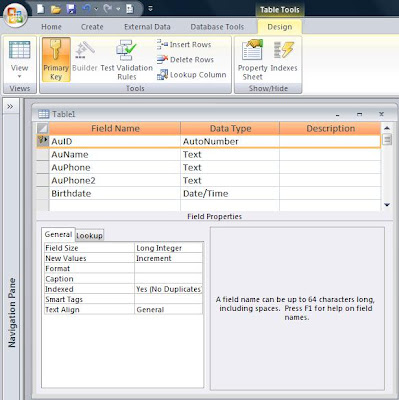
For a multi-field primary key, just hold the Control [Crtl] key as you select the fields and then click the primary key button.

Monday, February 6, 2017
Access 101: What is an Index?
If the stacks in a real-world library represent your table, the library card catalog is the index. The library card catalog stores just the information necessary to identify a particular book: author, title, and genre, plus a number that identifies where the book can be found in the stacks.
With this number, you can go directly to the location of your book. Without it, you would have to start at the beginning of the stacks and look at each book until you found the one you wanted. (This assumes that the books are not stored in any particular order.)
Simple indexes are indexes on a single field. They may or may not allow duplicate values. Their main use is for searching and sorting records in a table.
Multi-field indexes are indexes across multiple fields. These also may or may not allow duplicate values. This is different than having simple indexes on multiple fields. In a multi-field index, the combination of records is indexed.
Unique indexes do not allow duplicate values. They may be either simple or multi-field. If it is multi-field, it will allow duplicates in individual fields within the indexed fields, but it will not allow a duplicate across the all of the fields in the index. This is useful to make sure you don't have duplicate records in your table.
Clustered indexes control how the records are stored in the database. If you have a clustered index, the records will actually be stored in that order. A table can have only one clustered index. This makes sense since records in a table can only be physically stored in one order.
Primary Keys are a special type of index. In Access, the primary key is both a unique index and a clustered index. It has one additional property in that no field in the index can be NULL. (see What does NULL mean? ). There can be only one primary key in a table. For more on primary keys, their creation and uses see: What is a Primary Key?
How do you create an index?
For simple indexes, it's easy. Just go to the Design View of the table and select a field. In the Properties, you'll see an Indexed property. Select one of the "Yes" options. To make it a unique index by selecting Yes (No Duplicates).
For multi-field indexes, it's a little more complicated. The simplest thing to do is create a simple index on the first field in your index.

Then on the line directly below it, add another field WITHOUT giving it an Index Name. If the Index Name field is blank, Access will assume the field is part of the index directly above it.

Add as many fields to the index as you want. From the Indexes Window, you can also set the Unique, Primary, and Allow Nulls properties.
A word of warning about indexes. While they do speed up the retrieval of records, they also slow down the insertion of records. Every time a new record is added, all the indexes need to be rebuilt. If you have too many indexes and a lot of records, this can be a problem. Therefore, it is best to just index those fields that really need indexing. These would include fields that you will be sorting or searching on or fields that participate in Relationships or Joins.
Friday, February 3, 2017
What does NULL mean? How is it different than the Empty String?
Null means that the value is unknown. This is different from the Empty String. The Empty String ("") means we know what the value is, and the value is, well, empty. That is, we know that there ISN'T a value.
Consider the case of the middle initial. Some people have a middle initial and some don't. Of those that do, we may or may not know what it is. If I leave it Null, it says that I don't know whether they have one or not. However, I can set the field to "" (Empty string) which says that they DO NOT have a middle initial.
Why is this difference important? Primary keys, for one thing.
Let's assume that my primary key is a composite key composed of FirstName, MiddleInitial, LastName. A primary key CANNOT have a Null as a part of it, thus we can set the value of MiddleInitial to "", and it will accept it. But we cannot leave the value Null.
Why can't a Primary Key have a Null value? Well aside from the fact that Access won't let it, the fact that Null means "I don't know the value" means that it cannot positively guarentee that the field is unique, which is one of the properties of the primary key.
The following four subs illustrate the differences:
Sub test()
If Null = Null Then
MsgBox "True"
Else
MsgBox "false"
End If
End Sub
Running this sub will ALWAYS evaluate to False. Why? Because we don't know what the value of NULL is, so we can't say if it's equal to NULL.
Sub test2()
If IsNull(Null) Then
MsgBox "True"
Else
MsgBox "false"
End If
End Sub
This evaluates to True because the IsNull() is specifically designed to test for NULL.
Sub test3()
If "" = "" Then
MsgBox "True"
Else
MsgBox "false"
End If
End Sub
This evaluates to True because the empty string is a known value.
Sub test4()
If IsNull("") Then
MsgBox "True"
Else
MsgBox "false"
End If
End Sub
False because "" is known, therefore it cannot be unknown.
As I said, NULL=NULL always evaluates to False. Since we don't know the value of Null, we can't say what it equals. This is why you never use NULL this way, but always use the IsNull() function.
Further, Len(Null) does evaluates to Null, as indeed do most things you *compare* with or *do to* Null, ie. Null=Null, X=Null, Null=True, cint(Null), etc.
Len("") ("" representing the 'Empty String' or 'Zero Length String') evaluates to 0 (zero). Because the length of a string of zero length is zero (duh!, my daughter would say).
The problem with explaining NULL, is all the good words are used for something else. You can't define it with itself, so saying "Null is Null" is null content (forgive the expression). You can't use "nothing", because that is an object pointer used to de-allocate object variables. You can't use "empty", because that is a constant specifically for use with a Variant variable. You can't use Zero either, because that represents a specific numeric value, rather than the absence of a value.
I guess we'll have to blame E.F. Codd who declared that any relational database implementation must have a special value called "Null" which represents the "absence of anything" or “unknown” condition for all datatypes.
The best we can do is to say that the value of Null is 'we don't know', which is not to say that we don't know what Null is ... I'd better stop there.
Wednesday, February 1, 2017
Ambiguous Outer Joins
Why? Well, first we'll look at what an Ambiguous Outer Join is, and then see how to correct it.
Microsoft Access has three types of joins: the Inner Join, the Right Join and the Left Join. Both the Right and Left joins are known as Outer Joins. An Inner Join shows only those records that exist in both tables. However, an Outer Join (both Right and Left) shows all of the records from one table (the Base Table) and just the matching records from the other (Secondary Table).
When Access processes a multiple table query, it needs to determine the order in which joins should be made. Should it join Table1 to Table2 first and then join Table3? Or should it do it in some other order? This is part of the Rushmore technology of the Jet engine. It tries to determine the most efficient way to process the query.
In the case of standard Inner Joins, the result set will be the same, regardless of the order in which they are joined. However, this is not the case with Outer Joins. There are times, when using an Outer Join, that the result of the query will be different depending on the order in which joins are created. In this case, Access cannot determine the order to join the tables. This is an Ambiguous Outer Join.
So how do you know when an Outer Join will result in an error? The easiest way to understand it is in terms of what you see in the Query Builder grid.
A table which participates in an Outer join as a Secondary Table (that is, the arrow is pointing *towards* it) cannot participate in either an Inner Join, or as a Secondary Table in another Outer Join. Figure 1 shows two types of queries that will result in an Ambiguous Outer Join error.

However, the table participating in the Outer Join as a Secondary Table can participate in another Outer Join if it is the Base table of the other Outer Join (that is, the arrow points *away* from it). Figure 2 shows a query that will not result in an Ambiguous Outer Join error.

Create a query joining the first two tables with an Outer Join and save it as a named query (i.e. Query1). Then, in a second query, join the first query to the third table.
Figure 3 shows how to build a stacked query.
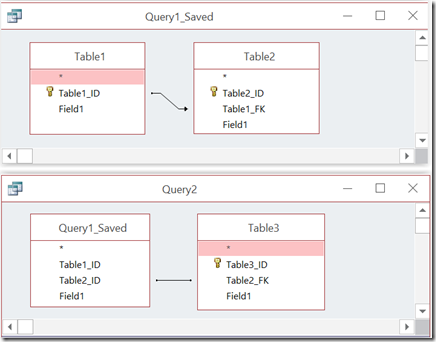
Figure 3: Shows how to split the query into two queries to avoid an Ambiguous Outer Join.
So the Ambiguous Outer Join error is not really all that confusing. It simply means that the database wants you to decide which join it should create first. In Access, you do this by spitting the query into a stacked query.
Monday, August 1, 2016
Access_Crosstab_Query_to_TSQL
Converting an Access Crosstab query into SQL Server (T-SQL) is more difficult than you might think. Take the following crosstab:
----------------------------------------------------------------------------------------
------ Access Crosstab Query -----------------
----------------------------------------------------------------------------------------
/*
TRANSFORM Sum(Line_Days) AS SumOfLine_Days
SELECT Factory, Line, Sum(Line_Days) AS [Total Of Line_Days]
FROM Factory_Line_temp
GROUP BY Factory, Line
PIVOT DateID;
*/
In order do this in SQL Server, you need to build the SQL statement dynamically, adding the crosstab headers by reading them from the query, then building them in code.
----------------------------------------------------------------------------------------
DECLARE @ColumnOrder AS TABLE(ColumnName
varchar(8)
SET @XTabColumn = (SELECT MIN(ColumnName) FROM @ColumnOrder)
SET @XTabColumnNames = @XTabColumnNames + N',' +
QUOTENAME(CAST(@XTabColumn AS NVARCHAR(10)))
SET @XTabColumn = (SELECT MIN(ColumnName)
FROM @ColumnOrder
WHERE ColumnName > @XTabColumn)
END
FROM Factory_Line_temp) as header
pivot (sum(Line_Days)
FOR DateID IN(' + @XTabColumnNames + N')) AS Pvt '
PRINT @strSQL