Want a good read? Try The Summer of His Life
Wednesday, February 15, 2023
Tuesday, September 1, 2020
* Index to Roger’s Access Blog *
Access Basics
Web Databases
Unfortunately, as of Access 2019, Access Web Apps have been discontinued. From the March 2017 announcement from Microsoft:
- How do I Create an Application in Microsoft Access?
- How Do I Convert A Macro to VBA Code?
- How Do I Configure My Access Database Start Up?
- How Do I Bypass Start Up Options?
- How do I run a macro or code when the database first starts?
- How Do I Turn Off Compact On Close and Name Auto Correct in Access on Start Up?
- How Do I Disable Layout View for Forms and Reports at Start Up?
- How Do I Maximize an Access Database at Start Up?
- How Do I Minimize the Ribbon In Access at Start Up?
- How Do I Minimize the Access Navigation Pane on Start Up?
- Can I Create an EXE from my Access Application?
- How Do I Decompile a Database?
- How do I add a value to a combo box with Not In List?
- What To Do When You Take Over A Database Application
- What Does It Mean to Compact My Access Database?
- How Do I Compact an Access Database?
- Should I use the Compact On Close feature of Access?
- How Can I Compact the Current Access Database in Code?
- How Can I Compact my Access Database Less Often?
- Help! My Database is Corrupted, and I Can't Repair!
- Domain Functions Demystified: Introduction
- Domain Functions Demystified: Criteria Expressions
- Domain Function Example: Simulate AutoNumber with DMax
- Domain Function Example: Numbered Query With DCount
- Domain Function Example: Running Sum with DSum
- Domain Function Example: "Difference Between" in Query
- Domain Function Example: Rolling Average in Query
- Domain Function Example: Begin Date and End Date from Effective Date
- How do I calculate a Median in Access? Part1
- Date Functions
- Date Stuff–Using the Functions
- Date Stuff – Useful Examples
- Now() Function in Default Value Stores the Wrong Time
- Really Bad Design Decisions: A Case Study
- What is a Primary Key?
- What is an Index?
- What does NULL mean? How is it different than the Empty String?
- Normalizing City, State, and Zip
What is Normalization? - What Is Normalization, Part I: Why Normalization?
- What Is Normalization, Part II: Break it up.
- What Is Normalization: Part III: Putting It Back Together
- What is Normalization: Part IV: More Relationships
- What Is Normalization: Part V: Many-to-Many Relationships
Entity-Relationship Diagramming - Entity-Relationship Diagramming: Part I
- Entity-Relationship Diagramming: Part II
- Entity-Relationship Diagramming: Part III
- Entity-Relationship Diagramming: Part IV
The Normal Forms - The Normal Forms: Introduction
- The Normal Forms: First Normal Form (1NF)
- The Normal Forms: Second Normal Form (2NF)
- The Normal Forms: Third Normal Form (3NF)
- The Normal Forms: In a Nutshell
What’s Wrong With Repeated Columns?
- The Problem of Repeated Columns
- Querying Repeated Columns: Multiple ORs
- Querying Repeated Columns: Multiple Unions
- Querying Repeated Columns: Multiple Joins
- Querying Repeated Columns: Multiple IIFs
- Querying Repeated Columns: Impossible Joins
- Aggregating Across Repeated Columns: Summing
- Aggregating Across Repeated Columns: Counting
- Aggregating Across Repeated Columns: Averaging
Normalizing Repeating Columns
- Normalizing Single Repeated Column (Part1)
- Normalizing Multiple Columns (Part1)
- Normalizing Yes/No Fields (Part1)
- Normalizing Repeated Columns With VBA
- What Is A Query?
- This Recordset is Not Updateable. Why?
- Searching for a Wildcard in a “LIKE” Criteria (Quick Tip)
Select Queries Series:
- Part 1: Simple Queries
- Part 2: Restricting Rows - the Where Clause
- Part 3: Sorting and Grouping (ORDER BY, GROUP BY)
- Part 4: PARAMETERS, TOP, DISTINCT, and TRANSFORM...PIVOT
Subqueries
Union Query
- Union Query Part 1: Simple Union Query
- Union Query Part 2: More Union Queries
Joins- What is a Join: Part 1 (Introduction)
- What is a JOIN: Part 2 (Inner Join)
- What Is A Join: Part 3 (Cartesian Joins)
- What is a Join: Part 4 (Equi-Joins in the WHERE Clause)
- What Is A Join Part 5: Outer Joins
- Why Do I Get the "Ambiguous Outer Join" Error
Action Queries: - Running Action Queries In VBA
- Delete Query
- Update Query
- Append Query
- Make-Table Query
- Featured Sample: UnboundSQL.mdb
Data Definition Language (DDL) Queries:
Top Queries Revealed:
- Simple Top Query
- Aggregate Values and Top Values By Group.
- Top Query Problem - Ties
- Top Query to find Random Records
- Parameters in Top Queries
Count Distinct In Access Series:
- COUNT DISTINCT in Access: Part 1
- COUNT DISTINCT In Access: Part 2
- COUNT DISTINCT In Access: Part 3
- COUNT DISTINCT In Access: Part 4
- COUNT DISTINCT in Access: Part 5
Miscellaneous
- What is the fastest way to return the Record Count of a table?
- What is the fastest way to return the Record Count from an Access Query?
- What is the difference between HAVING and WHERE in Aggregate Queries?
- Showing Query Parameters in a Report (Quick Tip)
- Bang Vs. Dot In DAO
- Bang Vs. Dot in Forms
- Referencing Forms, Subforms, and Sub-subforms
- Data Definition Language (DDL): DDL Using DAO
- De-identifying Data for Confidentiality - Part I
- How Do I Find The Path and Filename For My Database?
- How Do I Replace System Error Messages With Custom Messages?
- How Do I Convert A Macro to VBA Code?
- How Do I Hide a Form But Leave It Running?
- How Do I Run A Process Automatically Once A Day? Part 1
- How Do I Run A Process Automatically Once A Day? Part 2
- What’s the Difference Between Early Binding and Late Binding?
- How do I calculate a Median in Access? Part1
- Recreate Access Tables in SQL Server
- How do I export Access data to Excel - Part 1
- How do I export Access data to Excel - Part 2
- How do I export Access data to Excel - Part 3
- Easy Excel Charting from Access
- Automating Microsoft Word and Excel from Access
- What’s the Difference Between Early Binding and Late Binding?
Web Databases
Unfortunately, as of Access 2019, Access Web Apps have been discontinued. From the March 2017 announcement from Microsoft:
“We no longer recommend Access Services for new apps. This feature will be retired from Office 365. We will stop creation of new Access-based apps in SharePoint Online starting June 2017 and shut down any remaining apps by April 2018.”
Sunday, March 17, 2019
Domain Function Builder
Application to help build domain functions including:
- Correctly formatted Criteria
- DMax Sequential numbering
- Numbered Query
- Running Sum Query
- Rolling Average Query
- Difference Between Query
- Infer End-Date Query
You can download the file here:DomainFunctionBuilder_BetaV1-1.zip
Friday, February 1, 2019
How Do I Turn Off Compact On Close and Name Auto Correct in Access on Start Up?
Create a function called SetMyOptions()
How do I run a macro or code when the database starts?
Function SetMyOptions()
'turn off Compact On Close
Application.SetOption "Auto compact", False
'turn off Name Auto Correct
Application.SetOption "perform name autocorrect", False
End FunctionRun this function in an AutoExec macro.
How do I run a macro or code when the database starts?
Monday, January 28, 2019
How Do I Disable Layout View for Forms and Reports in Access at Start Up?
Create a function called SetMyOptions()
How do I run a macro or code when the database starts?
Function SetMyOptions()
'disable Layout View for forms and reports
Application.SetOption "DesignwithData", False
End FunctionRun this function in an AutoExec macro.
How do I run a macro or code when the database starts?
Monday, January 21, 2019
How Do I Maximize an Access Database at Start Up?
Create a function called SetMyOptions()
How do I run a macro or code when the database starts?
Function SetMyOptions()Run this function in an AutoExec macro.
'maximize Access
Application.SetOption "maximized", True
End Function
How do I run a macro or code when the database starts?
Monday, January 14, 2019
How Do I Minimize the Ribbon In Access at Start Up?
Create a function called SetMyOptions()
CommandBars.ExecuteMso "MinimizeRibbon"
End If
How do I run a macro or code when the database starts?
Function SetMyOptions()If Not (CommandBars("Ribbon").Controls(1).Height < 100) Then
'minimize Ribbon
CommandBars.ExecuteMso "MinimizeRibbon"
End If
End FunctionRun this function in an AutoExec macro.
How do I run a macro or code when the database starts?
Monday, January 7, 2019
How Do I Minimize the Access Navigation Pane on Start Up?
Create a function called SetMyOptions()
How do I run a macro or code when the database starts?
Function SetMyOptions()Run this function in an AutoExec macro.
'Open Nav Pane collapsed
CurrentDb.Properties("Startupshowdbwindow") = False
SendKeys ("{F11}")
SendKeys ("{F11}")
End Function
How do I run a macro or code when the database starts?
Thursday, March 22, 2018
Monday, March 12, 2018
How do I use Conditional Formatting in Access
Traditionally, conditional formatting in Access was accomplished through the use of VBA code. If I wanted to change the format of a field based on it’s value, I’d do something like this to change the background color of the Balance field based on its value.
Select Case Me!txtBal
Case Is < 2500
Me!txtBal.BackColor = vbWhite
Case Is < 5000
Me!txtBal.BackColor = vbGreen
Case Is < 7500
Me!txtBal.BackColor = vbYellow
Case Is >= 7500
Me!txtBal.BackColor = vbRed
End Select
or maybe this to format fields based on the value in another field (Check14).
If Me!Check14 = True Then
Me!txtDesc.BackColor = vbRed
Me!Acct.ForeColor = vbRed
Else
Me!txtDesc.BackColor = vbBlue
Me!Acct.ForeColor = vbBlue
End If
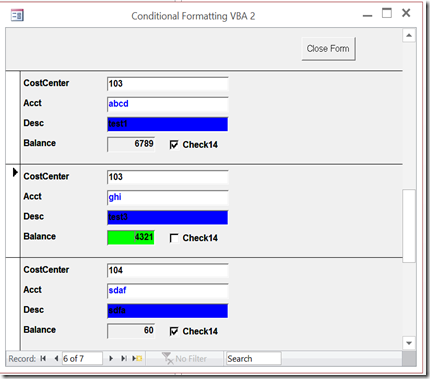
Which gives me the following on one record

But this on the next record

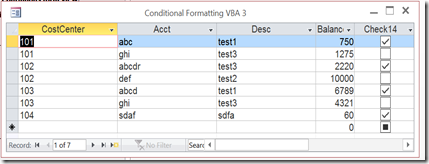
This works well in Single Form view, but not so well in Continuous Form View or Datasheet View.

Datasheet View has no formatting at all.
The problem is that formatting with VBA affects all records the same. This is fine in Single Form view, because you can only see one.
Conditional Formatting is built into the form controls themselves. So to set it, you need to open the form in Design View to get at the control properties.
You need to select the control (in this case a textbox) , the FORMAT tab on the Ribbon, and then Conditional Formatting.
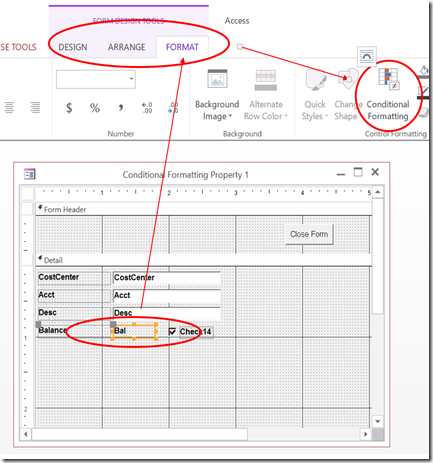
You’ll get a dialog box like this.

Click the New Rule button and you will get yet another dialog box

In this article, I’m goin to concentrate on comparing to values within the current record, so I’ll leave the top rule type selected.
The next step is to choose the Field Value Is drop down box. It will have 3 choices:
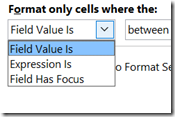
txtBal < 2500 –> White
txtBal < 5000 –> Green
txtBal < 7500 –> Yellow
txtBal >= 7500 –> Red
I just need to replicate this logic in the Formatting Rule dialog box. First, I’ll make the following selections:
Next, I’ll set the background color
to white
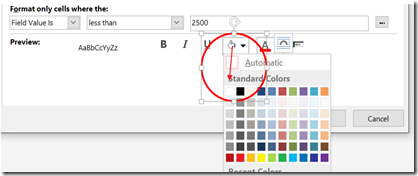
Then click OK.

Next, create another New Rule for the next condition
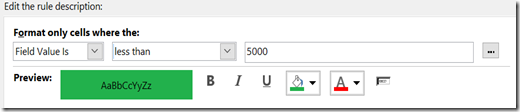
Giving you this result.

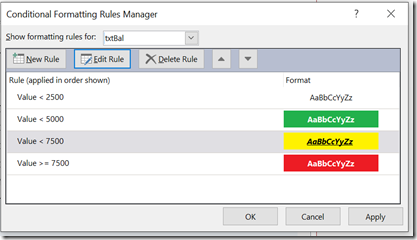
Complete the rest of the conditions. It should look like this.

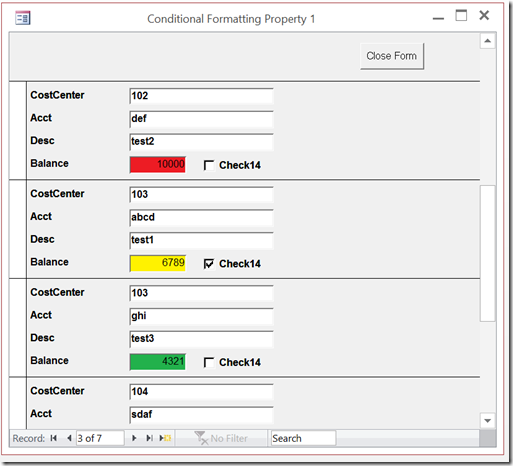
Which results in this Continuous View
I can also modify multiple properties for each rule

If the check box is checked (True) Then
the background color of Desc becomes Red
the text color of Acct becomes Blue
If the check box is not checked (False) Then
the background color of Desc becomes Blue
the text color of Acct becomes Red
End If
I can use the Expression Is option to accomplish this.
Select the field you want to format (Desc) and open the Conditional Formatting editor. Create a New Rule.
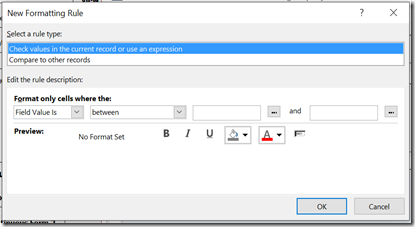
Select Expression Is

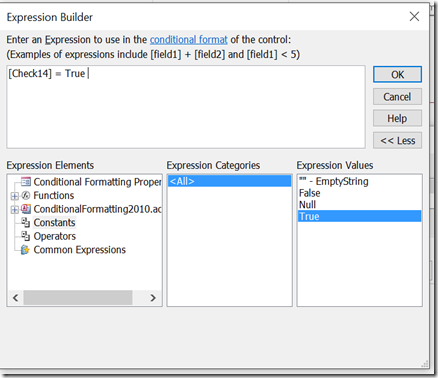
The ellipsis at the end will open the Expression Builder.
Make the following selections:


The result is [Check14] = True. I don’t have to use the Expression Builder. I could just type it in the expression field. But the Expression Builder is a great tool to investigate the range of expressions that can be used for formatting.
Then finish the formatting

Create another rule for the False Condition [Check14] = False, and format it appropriately.

Repeat the process for field Acct.

And your formatting is done.


Clicking anywhere in the table will highlight the selected field. Now, I have to set the conditional formatting for each field, which would be tedious except that Access allows me to set the formatting for multiple fields at the same time.
In Design View, select all the textboxes in the Detail section.

Then go to the Conditional Formatting editor. Notice how the selection for formatting says Multiple.

Create a New Rule and selecting Has Focus and formatting it as shown

Click OK here and in the Rules Manager and I’m done.
Highlight Selected Record
To highlight the selected record, I do essentially the same thing with a few modifications.
Add an unbound textbox control (txtBackColor3) to the form and put it behind the other control. Make sure this unbound control is the same shape as the Detail section. (I’ve shown it below the other text boxes here to illustrate.)

Then set the Back Style property of the other textboxes to Transparent.

It also requires one bit of VBA code. In the OnCurrent event of the form, add this:
Private Sub Form_Current()
If Not Me.NewRecord Then
Me!txtBackColor3.ControlSource = "=[txtGLID] = " & Me!GLID
Else
Me!txtBackColor3.ControlSource = "=False"
End If
End Sub
What does this do?
The textbox that displays the primary key of the record (GLID) is txtGLID. If the value of txtGLID matches the GLID of the underlying recordset, set the value of txtBackColor3 to TRUE. If it’s not, set the value to FALSE.
Now, I can make a Conditional Format that tests the value of txtBackColor3 and sets the Fill to Green if TRUE.

Now just make sure the txtBackColor3 control is moved behind the other controls.

And it’s done.

If the conditional formatting of the other textboxes are set to green fill when it has the focus (as in Field Has Focus example above), the currently selected field will also be green. If not, the selected field in the selected row will be white.

http://www.rogersaccesslibrary.com/forum/topic375.html
Select Case Me!txtBal
Case Is < 2500
Me!txtBal.BackColor = vbWhite
Case Is < 5000
Me!txtBal.BackColor = vbGreen
Case Is < 7500
Me!txtBal.BackColor = vbYellow
Case Is >= 7500
Me!txtBal.BackColor = vbRed
End Select
or maybe this to format fields based on the value in another field (Check14).
If Me!Check14 = True Then
Me!txtDesc.BackColor = vbRed
Me!Acct.ForeColor = vbRed
Else
Me!txtDesc.BackColor = vbBlue
Me!Acct.ForeColor = vbBlue
End If
Which gives me the following on one record
But this on the next record
This works well in Single Form view, but not so well in Continuous Form View or Datasheet View.
Datasheet View has no formatting at all.
The problem is that formatting with VBA affects all records the same. This is fine in Single Form view, because you can only see one.
Conditional Formatting
So to solve this problem, Microsoft introduced Conditional Formatting to Access Forms and Reports. I’m going to concentrate on forms here, but the same applies to reports.Conditional Formatting is built into the form controls themselves. So to set it, you need to open the form in Design View to get at the control properties.
You need to select the control (in this case a textbox) , the FORMAT tab on the Ribbon, and then Conditional Formatting.
You’ll get a dialog box like this.
Click the New Rule button and you will get yet another dialog box
In this article, I’m goin to concentrate on comparing to values within the current record, so I’ll leave the top rule type selected.
The next step is to choose the Field Value Is drop down box. It will have 3 choices:
- Field Value Is: Compares the selected control to some hard coded value(s)
- Expression Is: Compares the selected control to the value of another control.
- Field Has Focus: Determines whether the control is currently selected.
Field Value Is
Comparing the selected control to some hard coded value(s)
So first, I’m going to change the formatting a field (Balance) based on the value it contains. If you recall from above, the Balance field had the following conditions.txtBal < 2500 –> White
txtBal < 5000 –> Green
txtBal < 7500 –> Yellow
txtBal >= 7500 –> Red
I just need to replicate this logic in the Formatting Rule dialog box. First, I’ll make the following selections:
Next, I’ll set the background color
Then click OK.
Next, create another New Rule for the next condition
Giving you this result.
Complete the rest of the conditions. It should look like this.
Which results in this Continuous View
I can also modify multiple properties for each rule
Expression Is:
Comparing the selected control to the value of another control
Another common problem is to change formatting of a field base on the value in another field. Above, in VBA, I formatted the Acct and Desc fields with logic as follows:If the check box is checked (True) Then
the background color of Desc becomes Red
the text color of Acct becomes Blue
If the check box is not checked (False) Then
the background color of Desc becomes Blue
the text color of Acct becomes Red
End If
I can use the Expression Is option to accomplish this.
Select the field you want to format (Desc) and open the Conditional Formatting editor. Create a New Rule.
Select Expression Is
The ellipsis at the end will open the Expression Builder.
Make the following selections:
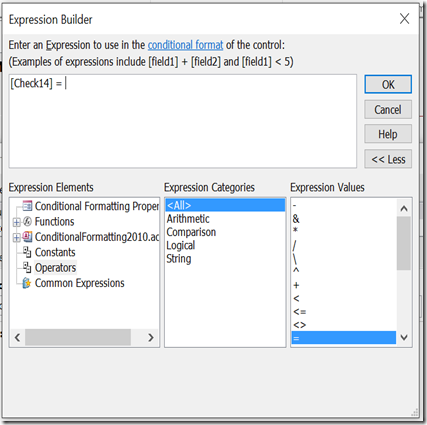
The result is [Check14] = True. I don’t have to use the Expression Builder. I could just type it in the expression field. But the Expression Builder is a great tool to investigate the range of expressions that can be used for formatting.
Then finish the formatting
Create another rule for the False Condition [Check14] = False, and format it appropriately.
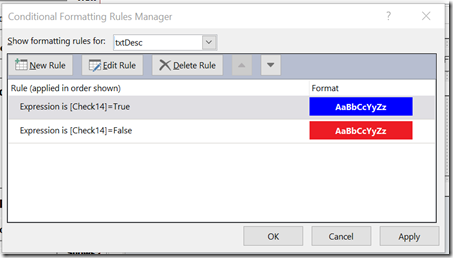
Repeat the process for field Acct.
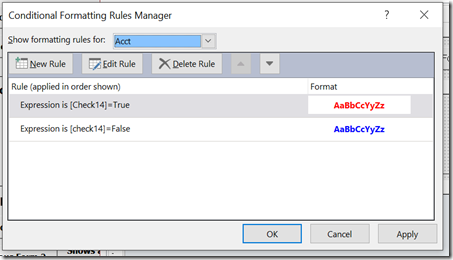
And your formatting is done.
Field Has Focus
Determines whether the control is currently selected.
Lastly, I can format based on whether or not a form control has the focus. This is great for highlighting the currently selected field.Clicking anywhere in the table will highlight the selected field. Now, I have to set the conditional formatting for each field, which would be tedious except that Access allows me to set the formatting for multiple fields at the same time.
In Design View, select all the textboxes in the Detail section.
Then go to the Conditional Formatting editor. Notice how the selection for formatting says Multiple.
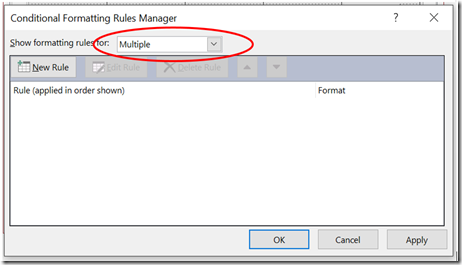
Create a New Rule and selecting Has Focus and formatting it as shown
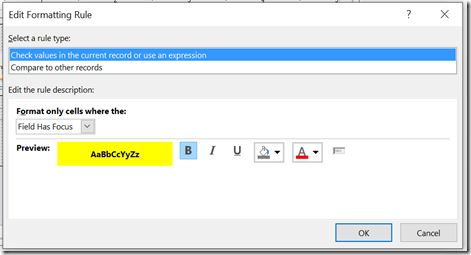
Click OK here and in the Rules Manager and I’m done.
Highlight Selected Record
To highlight the selected record, I do essentially the same thing with a few modifications.
Add an unbound textbox control (txtBackColor3) to the form and put it behind the other control. Make sure this unbound control is the same shape as the Detail section. (I’ve shown it below the other text boxes here to illustrate.)
Then set the Back Style property of the other textboxes to Transparent.
It also requires one bit of VBA code. In the OnCurrent event of the form, add this:
Private Sub Form_Current()
If Not Me.NewRecord Then
Me!txtBackColor3.ControlSource = "=[txtGLID] = " & Me!GLID
Else
Me!txtBackColor3.ControlSource = "=False"
End If
End Sub
What does this do?
The textbox that displays the primary key of the record (GLID) is txtGLID. If the value of txtGLID matches the GLID of the underlying recordset, set the value of txtBackColor3 to TRUE. If it’s not, set the value to FALSE.
Now, I can make a Conditional Format that tests the value of txtBackColor3 and sets the Fill to Green if TRUE.
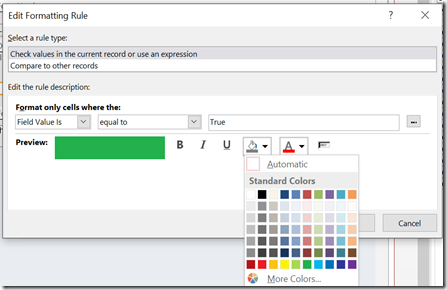
Now just make sure the txtBackColor3 control is moved behind the other controls.
And it’s done.
If the conditional formatting of the other textboxes are set to green fill when it has the focus (as in Field Has Focus example above), the currently selected field will also be green. If not, the selected field in the selected row will be white.
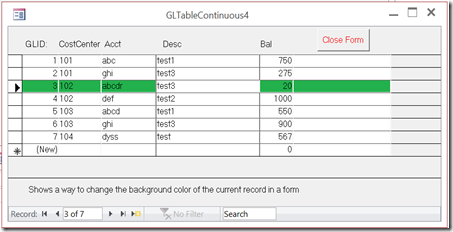
Sample Database
You can find a sample database illustrating all of these techniques here:http://www.rogersaccesslibrary.com/forum/topic375.html

Sunday, March 11, 2018
How do I create a Numbered Query in Access?
SQL is a very powerful query language that is built into Microsoft Access. But one thing SQL does not do very well is refer to a previous row to calculate values. As a result, some things that are simple to do in a spreadsheet are difficult in a query. On of those is creating a numbered sequence for your query. However, difficult does not mean impossible. This article will show you how to create a numbered query.
In an Access report, all you need to do is add an unbound text box in the Detail section, put =1 in the control source, and set the Running Sum property to Over All. See Figure 1.
Figure 1: Shows the property dialog box for a text box on a report that will create a numbered sequence.
But suppose you don't want to do it in a report. Suppose you want to do it directly in a query. There are two different ways to accomplish this. The first uses the Domain Aggregate Function DCount and the second uses a Correlated Subquery.
Both of these methods require a unique column in the table to create the sequence on. This could be the Primary Key field or any field that has a Unique Index. In the following example, the Customers table has two such columns, CustID (Customer ID), which is the primary key, and CustName (Customer Name), which has a unique index.
I’ve already discussed the Domain Function method in a previous article here: Domain Function Example: Numbered Query With DCount, so in this article, I’ll address the Sub Query method.
Correlated Sub Query Method
Subqueries can be used in multiple places in an SQL statement. Most of the time they’re used in the FROM clause or the WHERE clause. But they can also be used in the Field List, which is where I’ll use it here.
When used in either the FROM clause or Field List, the query must be correlated to the main query. What does that mean? Well, as the name implies, correlated means co-related, that is the records in the subquery must be related to a single record in the main query. In this way, the subquery can be executed for each record in the main query.
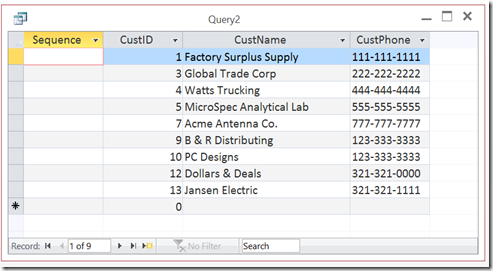
Let me take this in small steps. Suppose I have a Customer table that looks like this:

So first, I’ll create a placeholder in my query:

SELECT Null AS Sequence,
Customers.CustID,
Customers.CustName,
Customers.CustPhone
FROM Customers
ORDER BY Customers.CustID;
It is very important that the main query should be sorted on the field the sequence will be created on. In this case CustID.

or in SQL
SELECT Count(1) AS Rec
FROM Customers
WHERE Customers.CustID<=7
The result of which will be:

WHERE Customers.CustID <=7) AS Sequence,
Customers.CustName,
Customers.CustPhone,
Customers.CustID
FROM Customers
ORDER BY Customers.CustID;
WHERE A.CustID <=7) AS Sequence,
Customers.CustName,
Customers.CustPhone,
Customers.CustID
FROM Customers
ORDER BY Customers.CustID;
The second problem is that this will return a 5 for every record.
WHERE A.CustID <=Customers.CustID) AS Sequence,
Customers.CustName,
Customers.CustPhone,
Customers.CustID
FROM Customers
ORDER BY Customers.CustID;
Which gives me this:

For each record in the main query, Access runs the subquery. The subquery returns the number of records where the CustID in the subquery is less than or equal to the CustID in that record of the main query.
SELECT (Select Count(1) FROM Customers as A
WHERE A.CustName <=Customers.CustName) AS Sequence,
Customers.CustName,
Customers.CustPhone,
Customers.CustID
FROM Customers
ORDER BY Customers.CustName;
The output would look like this:

Domain Aggregate Function Method
As I said, this can also be done with a DCount Function, which I discussed in a previous article: Domain Function Example: Numbered Query With DCount
However, you can find both methods on my website in this sample: NumberedQuery.
.
Numbered Query
A numbered query is a query where each record is numbered sequentially. There may be a variety of reasons to do this. You might have a test question database where you want each question to be automatically numbered. Or you might want to export a customer list with sequential numbering to an external source like Excel. While this is simple to do in an Access report, it requires some advanced techniques to do in a query.In an Access report, all you need to do is add an unbound text box in the Detail section, put =1 in the control source, and set the Running Sum property to Over All. See Figure 1.
Figure 1: Shows the property dialog box for a text box on a report that will create a numbered sequence.
But suppose you don't want to do it in a report. Suppose you want to do it directly in a query. There are two different ways to accomplish this. The first uses the Domain Aggregate Function DCount and the second uses a Correlated Subquery.
Both of these methods require a unique column in the table to create the sequence on. This could be the Primary Key field or any field that has a Unique Index. In the following example, the Customers table has two such columns, CustID (Customer ID), which is the primary key, and CustName (Customer Name), which has a unique index.
I’ve already discussed the Domain Function method in a previous article here: Domain Function Example: Numbered Query With DCount, so in this article, I’ll address the Sub Query method.
Correlated Sub Query Method
Subqueries can be used in multiple places in an SQL statement. Most of the time they’re used in the FROM clause or the WHERE clause. But they can also be used in the Field List, which is where I’ll use it here.
When used in either the FROM clause or Field List, the query must be correlated to the main query. What does that mean? Well, as the name implies, correlated means co-related, that is the records in the subquery must be related to a single record in the main query. In this way, the subquery can be executed for each record in the main query.
Let me take this in small steps. Suppose I have a Customer table that looks like this:
The Main Query
The table is sorted on CustID, but that field is not sequential since there are gaps in the numbering. I can see from the Record Navigator at the bottom of the query that CustID of 7 is actually the 5th record.So first, I’ll create a placeholder in my query:
SELECT Null AS Sequence,
Customers.CustID,
Customers.CustName,
Customers.CustPhone
FROM Customers
ORDER BY Customers.CustID;
It is very important that the main query should be sorted on the field the sequence will be created on. In this case CustID.
The Sub Query
Now I just need a way to replace the Null with the sequential value. I can find the value of any individual record (say CustID=7) with a query like this:or in SQL
SELECT Count(1) AS Rec
FROM Customers
WHERE Customers.CustID<=7
The result of which will be:
Adding that to my main query, I could try something like this:
SELECT (Select Count(1) FROM Customers WHERE Customers.CustID <=7) AS Sequence,
Customers.CustName,
Customers.CustPhone,
Customers.CustID
FROM Customers
ORDER BY Customers.CustID;
but this will create a couple of problems.
The first is a syntax issue. I can’t directly reference the same table in two separate FROM clauses in a single SQL statement. I need to Alias the table name in the subquery
Select Count(1) FROM Customers as A WHERE A.CustID <=7
so I’d get:
SELECT (Select Count(1) FROM Customers as A WHERE A.CustID <=7) AS Sequence,
Customers.CustName,
Customers.CustPhone,
Customers.CustID
FROM Customers
ORDER BY Customers.CustID;
The second problem is that this will return a 5 for every record.
Pulling Them Together
The last piece is to reference the CustID in the main query rather than the hard-coded 7.
SELECT (Select Count(1) FROM Customers as A WHERE A.CustID <=Customers.CustID) AS Sequence,
Customers.CustName,
Customers.CustPhone,
Customers.CustID
FROM Customers
ORDER BY Customers.CustID;
Which gives me this:
Here's how it works.
So in the first record, the CustID is 1. So the subquery opens the Customers table again and sees that there is only 1 record whose CustID is less than or equal to 1. So it returns 1.
Then it processes the second record. The CustID of that record is 3, and the subquery sees that there are only 2 records which have an CustID whose value is less than or equal to 3. So it returns 2.
And so on.
Other Fields
You don't need to use a number field as your Order By field. You can sort on text fields and number the query as well.
If you wanted to sort on the Customer Name field (CustName), you would change the subquery to the following:
WHERE A.CustName <=Customers.CustName) AS Sequence,
Customers.CustName,
Customers.CustPhone,
Customers.CustID
FROM Customers
ORDER BY Customers.CustName;
The output would look like this:
Domain Aggregate Function Method
As I said, this can also be done with a DCount Function, which I discussed in a previous article: Domain Function Example: Numbered Query With DCount
However, you can find both methods on my website in this sample: NumberedQuery.
.
Subscribe to:
Posts (Atom)